
A task in HubSpot is a dated reminder of the next action, attached to a contact, company or deal. A task queue is a label that groups tasks by theme, such as Prospecting, so a rep can filter to that group and work through it one record at a time (HubSpot: create tasks, HubSpot: use task queues). That is the whole object. For a manager the useful part is not creating tasks but reading them: once a week, open CRM > Tasks, switch the Assignee filter from yourself to each rep, look at what is overdue, and look at what is not attached to a deal.
Tasks and queues in one minute
A task has the same short list of fields wherever you create it: Title, Type (Call, Email or To-do; a title containing “call” or “email” sets the type by itself), Priority, associated records, Assigned to, Queue, Due date, Reminder and Notes (HubSpot: create tasks). Three of them do the management work. Assigned to tells you whose list it is on. Due date tells you whether it is late. Associated records tell you which deal it is supposed to move.
The one that gets skipped is the third. HubSpot lets a task be saved with no record at all, and the help page is honest about the cost: an unassociated task does not appear on any record timeline, it only lives in the assigned user’s task list. Nobody else can see that the deal has a next step.
A queue is less than it sounds. HubSpot’s note reads: “task queues are a label used to group, filter, and share tasks” (HubSpot: use task queues). Each user can create up to 20 of them, they come with Sales Hub or Service Hub Starter and up, and a shared queue lets several users see and complete the same set of tasks.
Where tasks come from: by hand, from a workflow, from a sequence
When a rep shows up with 80 overdue tasks, ask where they came from before asking why. HubSpot creates tasks from five places (HubSpot: create tasks):
- by hand, on the tasks index page or inside a record;
- in bulk, by ticking records on an index page and clicking + Create tasks, which makes one task with the same details per record;
- from a logged activity, through the Create a To-do checkbox at the bottom of the activity editor;
- from a workflow’s Create task action, which needs a Professional or Enterprise subscription;
- from a task step in a sequence, which needs a Sales or Service seat.
The second and fourth are where overdue piles are born. Bulk-creating 200 “Follow up” tasks takes one click and gives you 200 reminders with one due date. A workflow that creates a task on every form submission keeps going whether or not anyone clears the last batch, and if it drops tasks into a queue (Create task has an Add to task queue option), the queue fills just as fast (HubSpot: use task queues). If you built the quiet-deal workflow or run sequences for a small team, you already have automated task sources and this article is the check that keeps them from flooding the list.
Repeating tasks deserve their own warning. A task set to repeat creates the next copy when the previous one is completed, deleted or becomes overdue (HubSpot: create tasks). Read that last clause twice. An ignored weekly task does not wait for the rep; it becomes two tasks, then three.
When you can’t tell which source made a task, its property history panel on the record timeline will show you.
A task queue is a work list, not a shelf
We name queues after the action the rep will take in one sitting, not after a stage or a person. “Call back: demo no-shows” is a queue. “Q4 stuff” is a shelf, and shelves fill.
HubSpot’s example of a shared queue is the right shape: a sales manager creates a shared Inbound leads queue, a workflow adds a follow-up task to it for every new lead, and any available rep picks tasks up from it (HubSpot: use task queues). The queue is a pool. It only works if the pool is drained daily, so the first thing to look at in a shared queue is not who is in it but how old the oldest task is.
Deleting a queue does not delete its tasks; they just lose the the label. We’d have the manager create the team queues, not each rep, because a shared queue can be edited or deleted only by the user who created it or a super admin added to it.
The Queue filter has two settings that are easy to miss: is known and is unknown. The second one is the manager’s friend. It lists every task that belongs to no queue, which on most teams is where the one-off reminders go to die.
Why tasks stay open after the call is made
A rep calls the contact, logs the call, and the task to call them stays open. Logging an activity and closing a task are two different actions; HubSpot’s help even describes bulk completion for the case where “you’ve already carried out the action associated with a task”, with the example of a rep who called a list of contacts and goes back to tick the tasks (HubSpot: complete tasks).
Every way to close a task is a deliberate click: the checkmark on the index page or the record, Mark as completed in bulk, Complete in the task view, or Send email and complete task in the email editor. Plain Send sends the email and leaves the task open.
So the fix is a habit, not a setting. A rep who starts from the task view with Start tasks lands on the record with the call editor open and the Complete button on the same screen (this needs a Sales Hub or Service Hub seat). Without that seat the habit is “log the call, tick the task”, and the Create a To-do checkbox at the bottom of the call editor schedules the next step before the rep leaves the record. Writing the call outcome so the next step is obvious is its own article.
So an overdue task is either work not done, or work done and not ticked. The weekly check tells them apart.
The weekly check: overdue, no deal, no owner
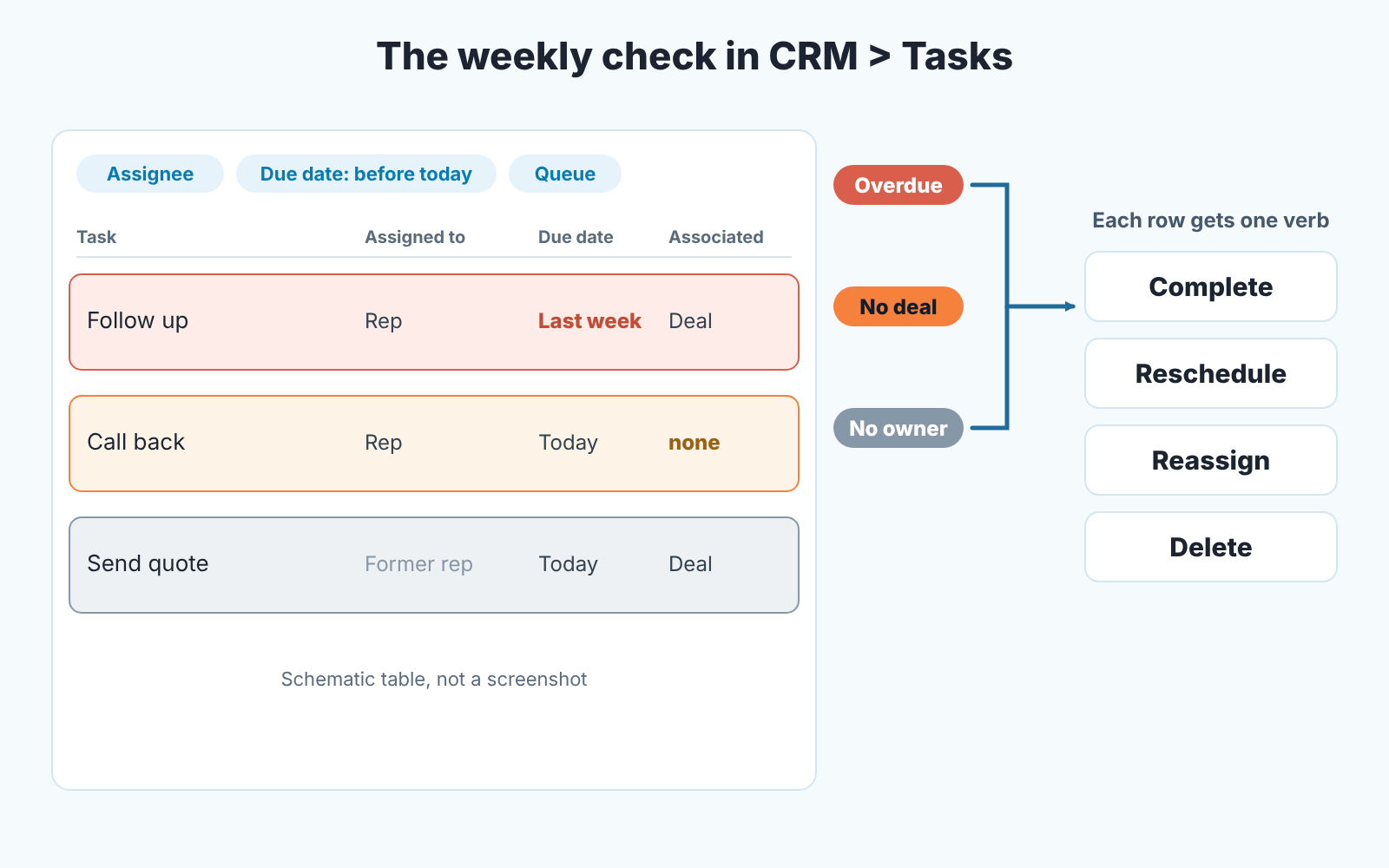
Everything here happens in CRM > Tasks and takes one saved view plus a few filters (HubSpot: filter tasks and manage task views).
- Open Overdue and change the assignee. To see a teammate’s tasks in HubSpot, open CRM > Tasks and change the Assignee filter: every standard view, Overdue included, carries the criterion Assignee: Me, so the first time you open it you see your own tasks and nothing else. Overdue means uncompleted tasks with a due date before today, in the account’s time zone. Switch it to the first rep and write the count down. Then the next rep.
- Save the team view once. Click + Add view, Create new view, name it “Team overdue”, set Assignee to every rep and Due date to before today, then save. Standard views cannot be renamed or shared; a custom one can be shared from the All Views page as private, with your team or with everyone. Drag it to the leftmost tab and it opens first every Monday.
- Find tasks with no deal. Click Start tasks on the view. A task with no associated record stops the run and asks you to add an association, complete the task or skip it (HubSpot: complete tasks). Our rule is that a task is attached to the deal it is meant to move, or to the contact if no deal exists yet. The mirror of this check, deals with no task at all, is the saved view on deals without a next activity.
- Find tasks nobody owns. “No owner” on a real team means two things: tasks assigned to a rep who left, and tasks in a shared queue nobody has started. For the first, filter Assignee to the former rep, select all, click Edit, choose the assignee property and pick the new owner; the same value is set on every selected task at once. Editing someone else’s tasks this way needs edit permissions for tasks (HubSpot: edit or delete tasks). For the second, set the Queue filter to your shared queues and Due date to before today.
- Decide in bulk, out loud. Each overdue task gets one of four verbs: complete (the work was done), reschedule (it is still the right next step, with a real date), reassign, or delete. Rescheduling the same task twice means the deal, not the task, needs a conversation. Say the numbers at the stand-up: “Twelve overdue, eight of them already done and unticked, four real, two of those on deals I want to hear about.”
Keeping the list short
The weekly check is cheaper when fewer tasks reach it.
Under Profile & Preferences, on the Tasks tab, each user sets a default due date, due time and reminder for tasks they create on the tasks page or on a record, and a checkbox that prompts for a follow-up task every time they complete one from a list view (HubSpot: create tasks). We set the default due date to a few days rather than a week, and we turn the follow-up prompt on. A rep who is asked “what next?” schedules the next step while the call is fresh. One who isn’t does it on Friday, from memory, or never.
Then one rule: one open task per deal. If a deal has three open tasks, two of them are notes pretending to be work, and they show up as overdue on Monday and dilute teh count. Delete them; the logged calls and emails stay on the record. The same rule at the level of leads and a weekly report, on any CRM, is in a lead follow-up system with an owner and a next task.
For the longer view, we export the team overdue view from the All Views page once a month and ask which source made the most overdue tasks.
We build SalesBond, a sales management layer on top of the CRM a team already uses; we started with Pipedrive. Deal Health checks every open deal against its rules, a missing next activity among them, and shows the reason and a recommended action next to each flagged deal, which covers the “no task on this deal” half of the check without a saved view. The overdue list by rep stays in HubSpot and stays yours. Check your CRM with SalesBond if you want the deal side done for you.
Asking a rep which of their overdue tasks are real is the part no tool replaces.


