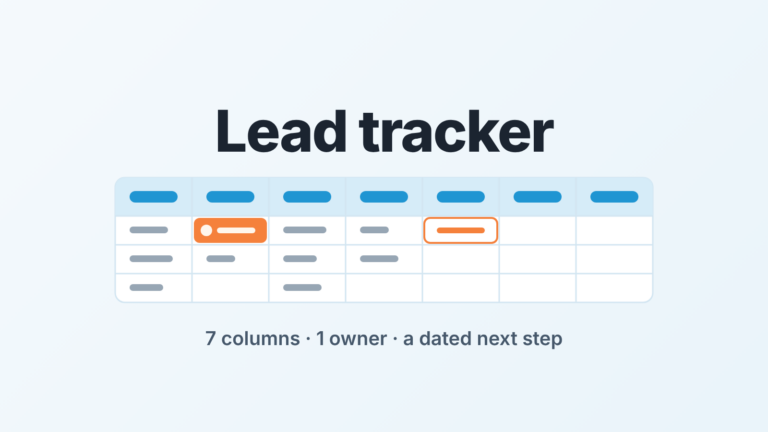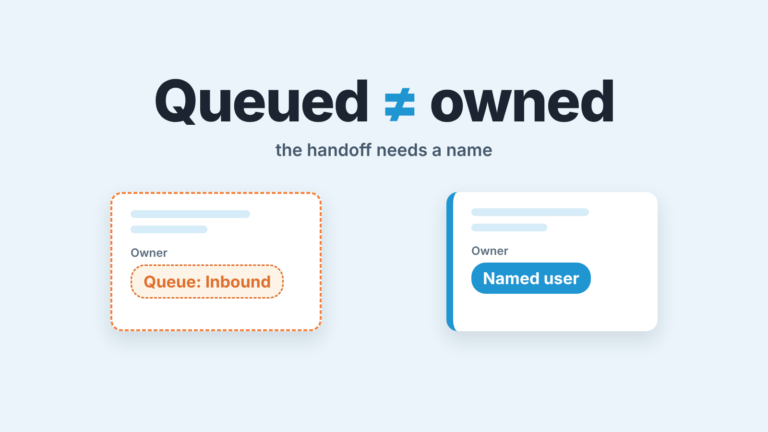
A sales tracker is a weekly table of what each rep did with their pipeline. It only works if every number in it comes from one source. Track eight things per rep per week: new deals created, activities completed, deals moved forward a stage, open deals, open deals with a next step, closed-won, closed-lost and open pipeline value. Fill it from the CRM, not from memory. And move it into a CRM report once two people are editing the same sheet, because from then on the tracker measures who typed last instead of who sold.
What a sales tracker is for (and what it is not)
It is the manager’s weekly reading of each rep. One row per rep per week, the same columns every week, so week twelve can sit next to week eleven and the difference means something.
That is a narrower job than most “sales tracker” templates take on. It is not the deal list, which lives in the CRM, and if you are still carrying deals in a spreadsheet, move the eight deal fields first and come back to this. It is not the team dashboard either: a dashboard answers “how is the quarter going” with a handful of team-level numbers, and we wrote up the six we would keep. The tracker answers something else. What did this person do with their pipeline this week, and did the pipeline move because of it?
It is also not a quota stick. Use it as one and the activity column fills up while the stage column stops moving. The columns below are picked so that padding one shows up in another.
A sales tracker template: eight columns per rep per week
Two identifying columns (rep, week), then eight numbers. Nothing else until a number in this set asks for it.
| # | Column | What counts | Why it is in |
|---|---|---|---|
| 1 | New deals created | Deals created this week with this rep as owner | Shows whether the top of the funnel is being fed |
| 2 | Activities completed | Calls, meetings and emails marked done this week | Effort, logged as it happens |
| 3 | Deals moved forward | Open deals that advanced at least one stage this week | Progress, as distinct from effort |
| 4 | Open deals | Deals open at the end of the week | The denominator for the next column |
| 5 | Open deals with a next step | Open deals with a scheduled, dated next activity | Pipeline that is actually being worked |
| 6 | Closed-won | Count and amount, close date this week | Outcome |
| 7 | Closed-lost | Count, close date this week | The other outcome, and usually the more informative one |
| 8 | Open pipeline value | Sum of amounts on open deals at week end | The number everyone wants first and should read last |
The table is the template. Copy it into Google Sheets or Excel as it is, one row per rep per week.
Column 5 is the one managers skip and the one we would fight for. In this article a “next step” always means a dated next activity on the deal. An open deal without one is not pipeline, it’s a hope with an amount on it. Read column 5 against column 4 and you see the honest size of a rep’s working pipeline at a glance.
Columns 2 and 3 sit next to each other on purpose. Activities without stage moves, week after week, is worth a conversation. Stage moves without activities usually means stages are being dragged on Friday to make the tracker look alive.
No win rate or pipeline coverage? Both are calculated from columns 4 to 8, so add them as formulas, never as typed numbers.
Where each number comes from in the CRM
One rule decides what goes in: one number, one source. Each column has to be a filter on a single CRM object, run the same way every week. If a column needs a judgment call or a second system to fill, it stays out.
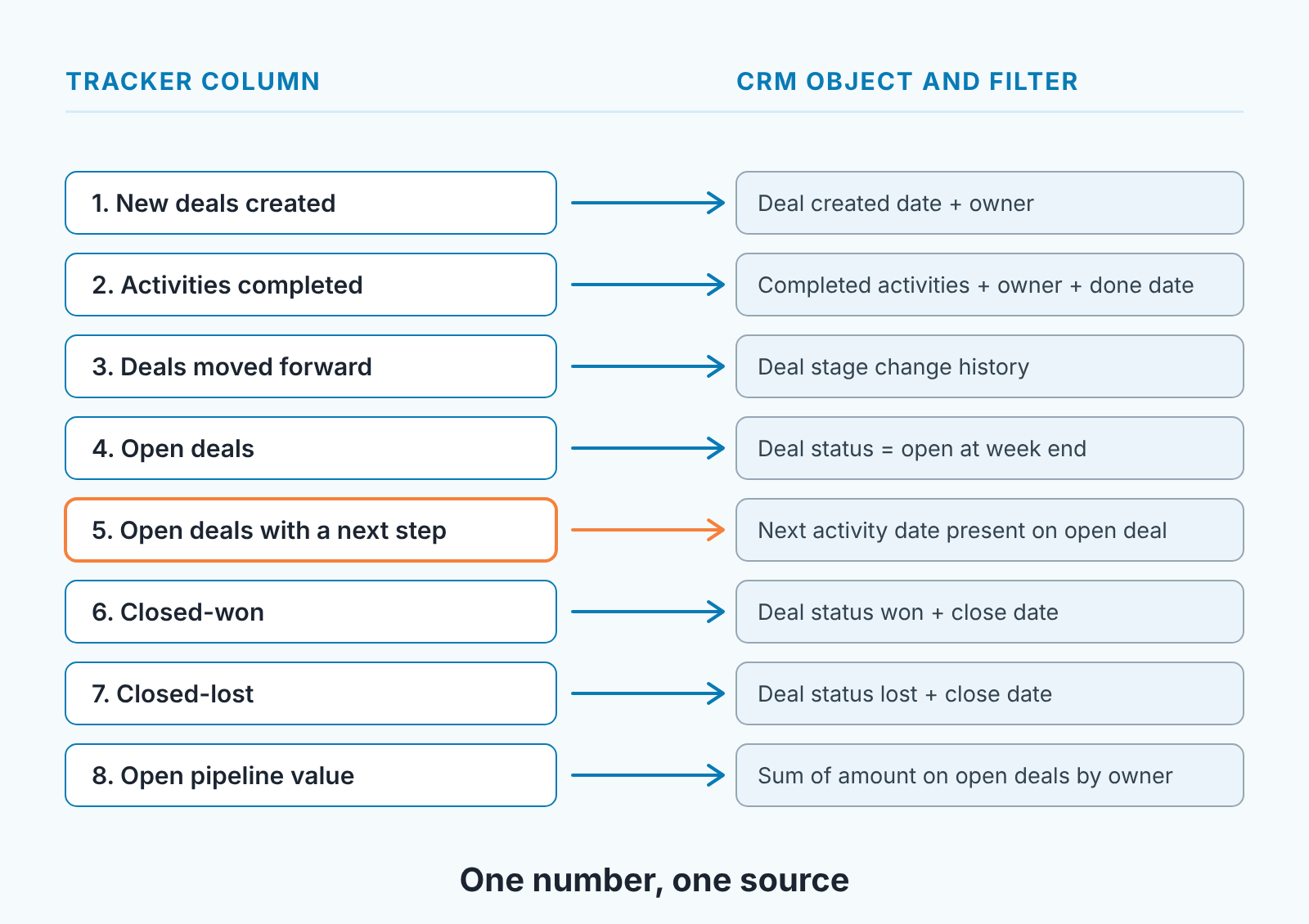
Pipedrive, HubSpot, Salesforce and Zoho CRM name these fields differently, but the logic doesn’t change. One detail trips people up: column 2 counts activities marked done, not activities scheduled.
Take the snapshot on a fixed day and hour, because “open deals” on Friday at five is a different number from Monday at nine. And never retype a number. If the CRM shows fewer activities than the rep remembers, the tracker shows the CRM’s count and the conversation is about logging.
Three signs the spreadsheet is lying
The first sign is that the tracker’s open pipeline value and the CRM’s disagree. There is no legitimate reason for that gap: someone filled the the sheet from memory or from last week’s row. The CRM wins by definition, since it is the source the tracker was supposed to read.
The second sign is a column that is full every week. Column 5 is the usual suspect. When every open deal on every rep’s row has a next step, week after week, nobody is checking whether the steps are real. Open five of those deals. If three of them have “follow up” with no date, or a date that has already passed, the column is filled the night before the review and the sheet is reporting compliance, not work.
The third sign is a row only the rep could have written. If reps fill in their own rows, it is a self-assessment, and those drift in one direction. Not out of dishonesty: the person who made the calls forgets the ones that went to voicemail. Whoever reads the row should fill it from the CRM.
When to move the tracker into a CRM report
A second editor is the first trigger; we covered why the sheet breaks at that point separately, so here are the other two. Either one alone is enough.
You catch yourself retyping numbers from the CRM into the sheet. Every retyped number is a chance to be wrong, and the time spent retyping is time not spent reading.
Or the weekly review opens with reconciling the sheet against the CRM instead of with the reps. If the first minutes of a review go to arguing about whose number is right, the tracker has stopped doing its job.
What replaces it isn’t complicated. Every column was already a filter on one object, so a CRM report grouped by owner and set to last week can return most of these numbers directly. Build it once, and the tracker becomes a view you open rather than a file you maintain.
On Pipedrive and still mid-migration? Here is a walkthrough for replacing the tracking spreadsheet there.
A 15-minute weekly read for the manager
Start with column 5 against column 4, because it tells you how much of the pipeline is alive. Say a rep has 30 open deals and 9 of them have a next step (an illustration, not a benchmark). That’s a 9-deal pipeline and 21 deals that need either a step or a lost reason. Talk about that first. It takes two minutes per rep.
Then columns 2 and 3 together. Plenty of activity and nothing moving means the effort is landing on the wrong deals or the wrong people, so the conversation is about targeting. Deals moving with little logged activity means the logging is broken or the stages are being dragged. Either way look at two of those deals.
Only then columns 6 and 7. Won is pleasant and tells you little. Lost shows where the pipeline leaks, and a rep whose losses cluster in one stage has a coachable problem, not a volume problem.
Open pipeline value last. Its the number the owner asks for and the least useful one for managing a rep this week, because one big deal moves it and it says nothing about whether that deal is being worked. Note it and move on. The weekly pipeline review in 15 minutes walks through the deal-level version of this read, and the small-team activity metrics piece explains why column 2 counts completed activities and nothing fancier.
A disclosure, since this is where people ask about tooling: we build SalesBond, a sales management layer on top of the CRM a team already uses; we started with Pipedrive. It checks every deal in the connected CRM against more than 20 rules and shows which ones need attention, so the fifteen minutes go to the conversation, not the filtering: check your CRM with SalesBond. The eight columns don’t need it, though. They need one source, one snapshot time and one person who reads the row before the meeting starts.