
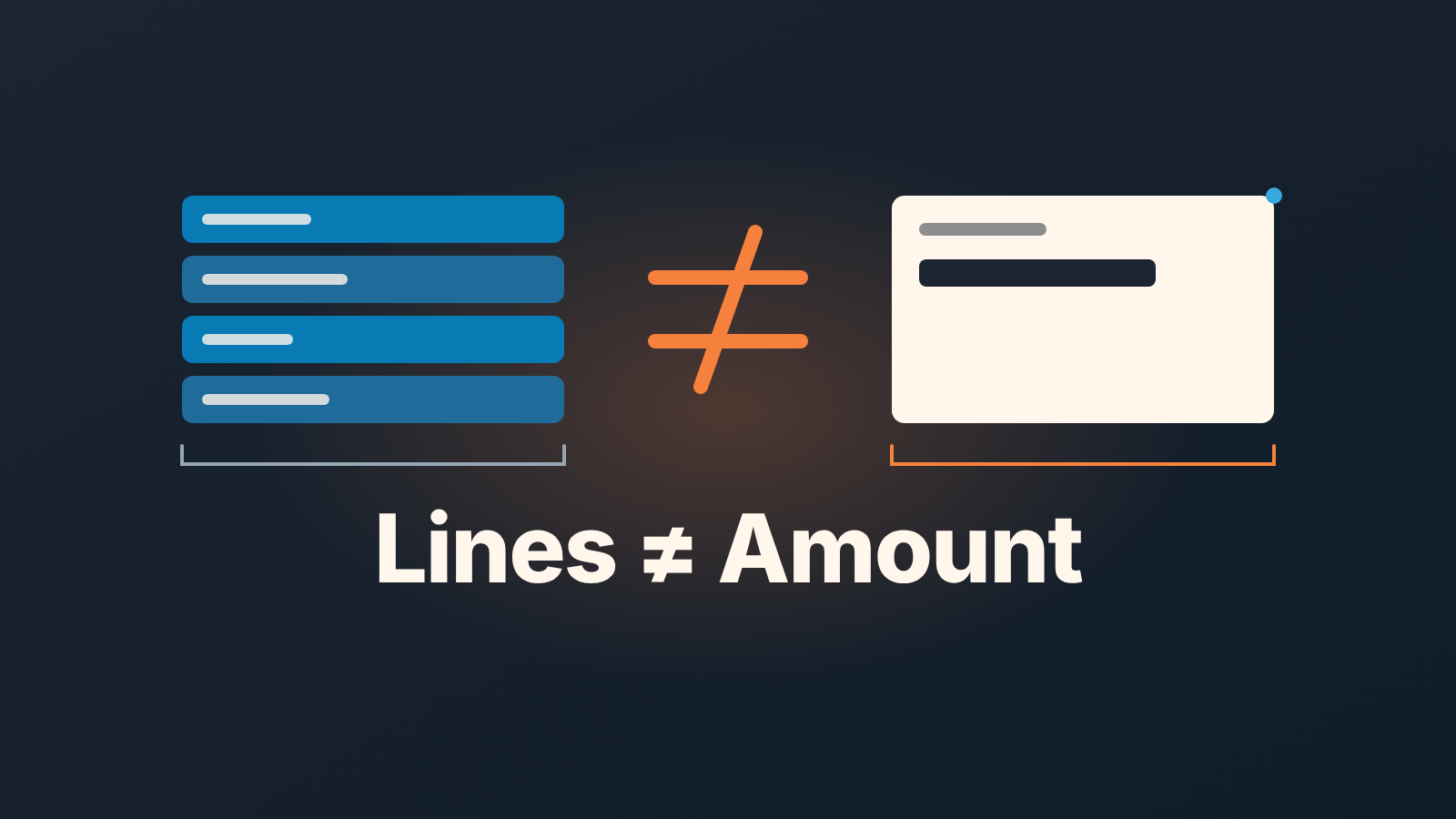
HubSpot line items appear the moment a product is added to a deal, a quote or an invoice. The deal amount does not follow them by default: HubSpot asks on every save whether to update the amount, and a rep can say no. So the rule we give managers is short. Discount and quantity live on the line item and nowhere else, and once a week someone compares the sum of the line items with the Amount field. The two numbers should match. When they don’t, the deal is telling you something.
This article is about the positions on a deal: what goes into them, where the discount is written, and how a manager checks that the line items and the Amount say the same figure. If your problem is the quote document itself, its status and expiry, we covered that in our piece on HubSpot quotes and deal amounts and won’t repeat it here.
Product, line item, deal amount: three different things
The deal Amount does not automatically equal the sum of a deal’s line items. It is a separate property, and whether it follows the positions depends on a setting and on what the rep clicks when saving.
Start with the vocabulary. The product is the catalogue entry. The line item is that product on one specific deal, with its own quantity, price and discount. HubSpot puts it this way: when a product is added from the product library to a deal, quote or invoice, it becomes a line item specific to that record, with its own record ID (HubSpot: use line items). Editing the line item doesn’t touch the product in the library, which is the point. The catalogue says what you sell; the line item says what this customer gets.
The Amount is where teams get surprised. The setting lives under Settings, then Data Management, then Objects, then Deals, and under Setup it’s called Default deal amount. The options are Total contract value, Annual contract value, Annual recurring revenue, Monthly recurring revenue and Manual entry (HubSpot: set defaults for creating deals). With Manual entry HubSpot is explicit: if you add or remove line items, the value of the deal’s Amount property will not change. Picking a calculation later doesn’t recalculate deals that already exist, either.
Even with a calculated default, the amount isn’t locked to the positions. When a rep saves the line item editor, HubSpot asks whether to update the deal amount to reflect the new line items or save the deal without updating its amount (HubSpot: use line items with deals). Line items that arrive through an import or the API don’t update the associated deal amount at all. So a deal can carry, say, positions worth 14,000 and an Amount of 12,500, and nothing in HubSpot will flag it.
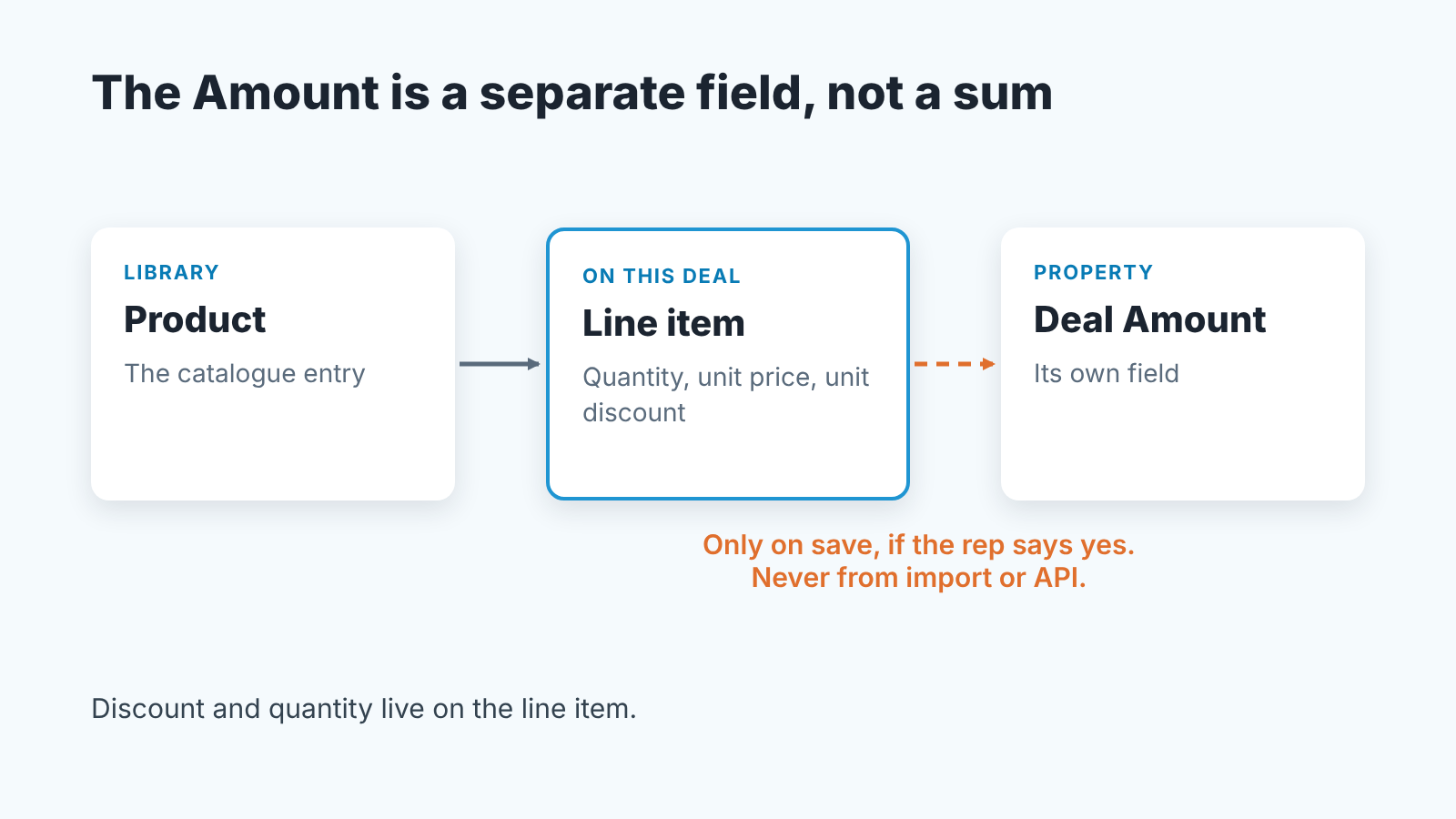
Our position: pick a calculated default, Total contract value for most small teams, and tell reps that “save without updating” isn’t an option they use. The reason isn’t control. HubSpot’s TCV, ARR and MRR properties, the ones behind ARR and MRR reporting, are calculated from the line items and don’t take the Amount property into account (HubSpot: default deal properties). If the Amount drifts away from the positions, your revenue numbers and your pipeline total are already disagreeing with each other.
One home for the discount
Write the discount on the line item, in the Unit discount column, and only there.
A unit discount can be an amount or a percentage (HubSpot: use line items). HubSpot’s one-time, order-level discount exists for credit memos, invoices, payment links and legacy quotes, not for deals. That’s a feature. The usual alternatives are all worse:
- a lowered unit price with the list price nowhere on the record, so nobody can later say what was given away;
- a custom deal property called “Discount %” that a rep fills in by hand and no line item knows about;
- a discount typed into the deal notes, with the Amount edited to match;
- 10 % on the deal and another 5 % on the quote, each written by a different person.
Each of these produces a deal where the positions and the Amount tell different stories, and the quote tells a third one. With the discount on the line item, the list price stays visible the net price is computed, and the quote starts from the same figure, because creating a quote from a deal clones the deal’s line items into it.
Where the discount shouldn’t live is the Amount field. Cutting the Amount by hand is the fastest way to give a discount and the hardest to find afterwards. If your team needs an approval threshold, that’s a policy question, and we wrote up how small teams set a discount policy. The CRM part is one sentence: discount on the line, list price untouched.
Quantity and unit price, and when a second quantity is a smell
Three fields on the line item matter here: unit price, quantity and unit discount. All three are editable in the line item editor, and the Create custom line item option builds a position unique to this deal, outside the product library (HubSpot: use line items with deals).
The smell is a deal where the same product appears twice, or where a custom line item duplicates something that’s already in the library. Sometimes the request is for a second quantity on one line. The honest answer is that you don’t do that. If a customer buys 20 seats and later asks for 5 more, that’s one line item with a quantity of 25, or two line items with two prices if the second batch is priced differently. A second quantity on the same line is a workaround for a pricing decision nobody wrote down.
Custom line items that mirror a catalogue product at a different price are the same problem in a nicer coat. They’re tempting, because a custom item lets the the rep set any unit price. But the custom item isn’t linked to the library product, so anything you count by product no longer sees that sale. If the price is negotiated, keep the catalogue product and put the gap in the unit discount. If the thing being sold is genuinely new, create the product in the library once, then use it.
One more thing a manager should know before arguing with a rep about a number. HubSpot accepts up to six decimal places in a unit price, in any currency. For example, a unit price of 83.333333 on a quantity of 12 comes to 999.999996 before rounding to the currency’s precision. It works, and it will confuse whoever reads the quote.
Line items vs Amount: a weekly comparison
Once a week, compare two figures on each open deal that matters: the line item total the editor shows, and the deal Amount.
- Open a deals view filtered to the stages where a price has been discussed, usually proposal and later. Add the Amount column.
- For each deal, open the Line items card and compare the editor’s total with the Amount. A gap means someone saved without updating, imported positions, or edited the Amount by hand.
- If a quote exists, its line items are separate copies frozen once it’s published, so a mismatch there is a quote question, covered in the quotes article.
- For every mismatch, write one line in the deal: which figure is right and why. The rep fixes it, not the manager.
Step four is what keeps the check alive past the second week. A manager who edits the Amount themselves becomes the second person writing to a field that should have one owner, and the next mismatch is theirs.
Why treat the line item total as the figure of record? Because TCV, ARR and MRR already do. When the two disagree, the reports are already siding with the positions. If part of your team works in Salesforce, the same check in Salesforce runs on opportunity products.
A disclosure, since this is the kind of list we think about a lot: we build SalesBond, a sales management layer on top of the CRM a team already uses; we started with Pipedrive. Check your CRM with SalesBond. The check itself needs no tool, which is why it’s written out above.
Copying line items between deals (renewals and add-ons)
Renewal season brings the same question: the new deal needs last year’s positions. Inside one deal, the Clone action creates a new line item with the same details (HubSpot: use line items with deals). Across deals, the gap is filled by marketplace apps built for exactly this, for example a copy-line-items-between-deals app listed in the HubSpot ecosystem.
Before installing anything, decide what a renewal deal should carry. Copying last year’s line items brings last year’s unit discount with them, and for a renewal that’s often exactly wrong: the discount was for the first term, and the renewal is at list price or at whatever rate the policy now says. We prefer that the renewal deal is created with the catalogue products and quantities and the discount is entered fresh, because then the renewal shows what was decided this year. An add-on deal is simpler. It carries only the new positions, the parent deal keeps the originals, and the two amounts don’t double count.
Whatever the method, if the copied positions land through an import or the API, the deal amount stays where it was. Open the editor and save with the update, or the weekly comparison will catch it the next week.
What line items cannot do
Line items show at most 200 positions on a deal, don’t move the Amount when they come in through the API or an import, and have long been awkward to automate. Each of those shapes the process you build around them.
The Line items card and the editor display up to 200 associated line items, even when more are associated with the deal (HubSpot: use line items with deals). For most small teams that’s no constraint, but a configurator that pushes one line per option can get there.
On automation Insycle’s 2023 write-up notes that workflows could add line items to new deals but not update existing line items (Insycle on HubSpot line items). Line items can still be used to filter deals in workflows and lists (Unific on line items in workflows and lists), which is useful for “deals that contain product X” segments, and not useful for “raise the quantity on every deal in stage Y”.
The API follows the same model as the editor. Every line item is its own record with its own ID, unique to the deal it belongs to, and a line item created through the API is tied to the deal by an association rather than shared between deals (HubSpot: use line items). Line items created or updated through the API or an import don’t update the deal Amount, so any integration that writes positions should also write the Amount, or leave it to the weekly comparison.
In reports, the currency of a line item’s unit price matches the deal amount’s currency (HubSpot: use line items with deals).
If you do one thing this week, open the Default deal amount setting and see what it says. If it’s Manual entry, every Amount in your pipeline is a number someone typed, and the line items are the only record of what was actually sold.


