
Use Amount on its own only for one-off deals. For a subscription, put the money into recurring line items and read the deal’s ARR or MRR, because HubSpot calculates both from the recurring line items and, in its own words, “does not take into account the value in the Amount property” (HubSpot: default deal properties). Amount still matters, since the forecast tool reads it. So the practical rule is: Amount is a calculation you choose in settings, not a number a rep types.
Four numbers on one deal: Amount, MRR, ARR, TCV
Open a deal with line items and HubSpot already shows four money values. Three are calculated from the line items; one is a plain field.
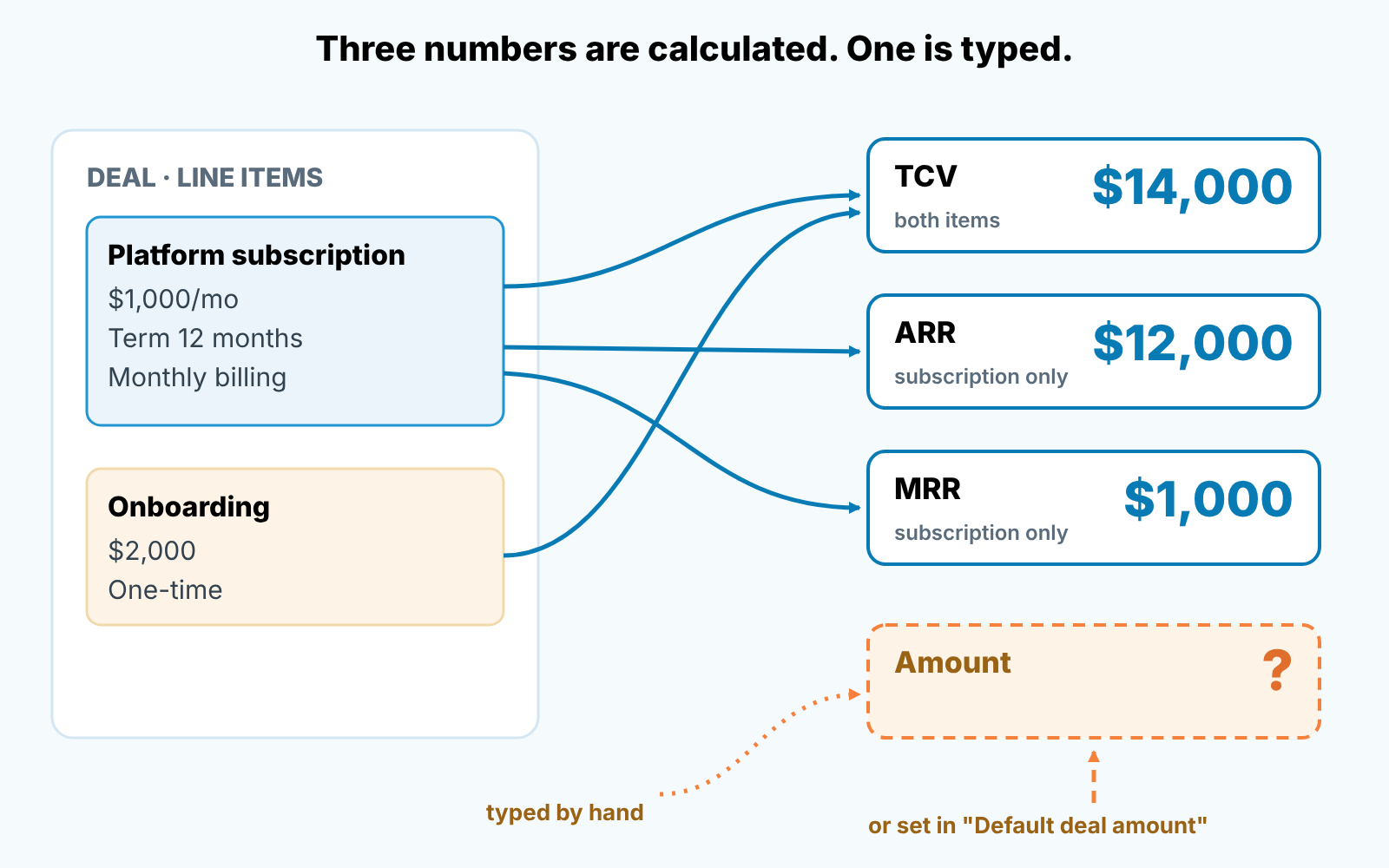
Amount is “the total value of the deal in the deal’s currency”, and it gets there by hand, by a workflow or by the default calculation chosen in settings. Monthly recurring revenue (MRR) is calculated from the recurring line items: their total value divided by the number of months in the term. Annual recurring revenue (ARR) comes from the same recurring line items, by their values and term length, and if there’s no term HubSpot assumes 12 months. Total contract value (TCV) is based on all the line items, “including any recurring revenue and one-time charges”. The definitions of ARR, MRR and TCV each end with the same sentence about ignoring Amount (default deal properties). ARR and MRR need Sales Hub Professional or Enterprise. Discounts have a home of their own, see HubSpot line items and discounts.
Take a hypothetical deal with two line items: a subscription at $1,000 a month with a 12-month term, and a $2,000 onboarding fee billed one time. By those definitions the deal reads TCV $14,000, ARR $12,000, MRR $1,000. Amount reads whatever a rep typed when the deal was created, maybe a figure from the first proposal that nobody came back to.
The three calculated numbers always match the line items. Amount is right only if someone made it right.
Which number goes into the forecast (and which into the quota report)
Pick one unit for the whole pipeline and make Amount equal to it. The reason is what reads Amount. HubSpot’s forecast tool shows either the Weighted amount, which is “the Amount multiplied by the Deal probability”, or the Total amount, “the full deal amount” (HubSpot: set up the forecast tool). Closed amount, the number a closed-won report adds up, is the Amount value for deals marked Closed Won (default deal properties). If Amount and ARR disagree, your forecast and your ARR column tell two different stories.
For a subscription business we set the default deal amount to ARR. The setting is under Settings > Data Management > Objects > Deals > Setup > Default deal amount, and the dropdown offers Total contract value, Annual contract value, Annual recurring revenue, Monthly recurring revenue and Manual entry (HubSpot: set defaults for creating deals). The page describes one dropdown for the Deals object and no per-pipeline option. With ARR chosen, a rep who adds a $1,000-a-month line item with a 12-month term and updates the amount gets $12,000 without typing anything, and the forecast is in the unit the quota was set in.
Two situations where we would choose differently. If quota is paid on bookings, including services and setup, set TCV: ARR would hide the onboarding fee from the exact report the rep is paid on. Which report should carry which number is the subject of our bookings vs billings vs revenue piece. And if the team sells month-to-month with no term, set MRR, because ARR on a no-term line item assumes 12 months, which is a promise the customer never made.
Whatever you choose one line from the settings page matters more than the choice: “selecting a calculation will not retroactively update existing deals”. Open deals keep the Amount they had. For the deals that matter this quarter, open the line item editor and save; HubSpot then asks whether you “want to update the deal amount to reflect your new line items” (HubSpot: use line items with deals). Say yes. The other half of the weighted number, stage probability, is covered in our note on stage probability and the HubSpot forecast.
If you are on Enterprise and have set up recurring revenue tracking, you will also see a Recurring revenue amount property, “the total amount of recurring revenue associated with a deal” (default deal properties). HubSpot generates it when recurring revenue tracking is set up, not from the deal’s line item calculation. Before you compare it with deal ARR or drop it into a forecast report, check which of the two the report actually uses.
Why MRR/ARR on a deal ignore Amount
Deal ARR and MRR ignore Amount because HubSpot calculates them only from recurring line items. The calculation starts from those items and stops there. A deal with a typed Amount of $12,000 and no line items has nothing for ARR to work with, so the ARR column shows no recurring revenue while Amount looks perfectly healthy.
Most reps think the other way round. In thier head, Amount is the deal and the line items are paperwork for the quote; in HubSpot’s model the line items are the deal.
Three ways Amount and ARR drift apart:
- Manual entry is still on. With that option selected, “if you add or remove line items, the value of the deal’s Amount property will not change” (set defaults for creating deals). The rep adds a second seat pack, ARR goes up and Amount does not.
- Line items arrived by import or API: “when importing line items or updating them via the API, the associated deal amount will not be updated” (use line items with deals). Every deal a billing or CPQ sync touches has this problem.
- The discount lives in the wrong place. A rep gives 20% off by typing a lower Amount instead of discounting the line item. ARR and MRR still read the full line item price, Amount has the real one, and the deal looks fine until the first invoice.
None of these shows up as an error. Whichever report a manager opens first becomes the truth for that meeting.
One-time setup fees inside a subscription deal
A setup fee is a separate line item with one-time billing. Never inside the subscription’s unit price, never added to Amount by hand.
HubSpot’s line item properties explain why. Billing frequency “informs the pricing calculation for deals and quotes”, and “line items with one-time billing aren’t included” (HubSpot: default line item properties). TCV, on the other hand, counts one-time charges. A correctly entered fee shows up in TCV and stays out of ARR and MRR, which is exactly what a recurring-revenue report wants.
Spread the same $2,000 into the monthly price instead, and the subscription becomes $1,166.67 a month. ARR now reads $14,000, and next year’s renewal forecast starts from a number nobody will pay again. For the ACV side of this question, see ACV vs deal value in Pipedrive; if your quotes are generated from deals, also check the quote and deal amount alignment before the quote goes out.
Multi-year deals with different line-item start dates
A line item has a Term (“if a monthly line item has 12 fixed payments, the value would be 12”), a Billing start date, and a delayed start in days or months (default line item properties). A three-year contract with a yearly price step naturally becomes three recurring line items, each with a 12-month term, starting a year apart.
The official definition of deal ARR talks about “the term length and values of the recurring line items” and says nothing about start dates. So test it on your own portal before the contract is signed, not after.
The test takes five minutes. Create a scratch deal. Add line item one: $10,000 a year, annual billing, term 12. Add line item two: $12,000 a year, annual billing, term 12, billing start delayed by 12 months. Look at the deal calculations HubSpot shows above the line item editor. If ARR reads $22,000, your portal is summing across years and ARR on staggered deals can’t go into the forecast as it is.
What we do when it sums: one deal per contract year. The year-one deal carries the year-one line item and closes now. The year-two deal carries the year-two line item, sits in a renewals pipeline with a close date twelve months out, and its ARR is honest because it’s the only item on the deal. You lose one big deal card and gain a renewal with its own close date and its own chance of being lost, which is what a renewal is.
Ten minutes on Monday: deals where Amount and ARR disagree
Before the pipeline review, so the review is about customers and not fields.
- Make a saved view of open deals with these columns: Deal name, Stage, Close date, Amount, Annual recurring revenue, Monthly recurring revenue, Total contract value.
- Filter for deals that have an Amount but no ARR. Depending on how the deal was built, ARR may be blank or 0, so check both. Every row is a deal with a typed Amount and no recurring line items, and for a subscription pipeline the right number of rows is zero.
- Clear that filter and sort by Amount, highest first. Read Amount against ARR (or TCV, if that is your unit) for the top twenty and look for rows where the two differ.
- For each mismatch, open the line item editor, fix the line items, save and answer yes to updating the deal amount. Not the other way round: correcting Amount by hand fixes this week’s report and brings the problem back next week.
A mismatch is rarely the rep’s fault. It’s almost always one of the three causes above: manual entry, an import or a discount typed into the the wrong place. Start with step 2 today; it is the one most teams have never run.
We build SalesBond, a sales management layer on top of the CRM a team already uses; we started with Pipedrive, and it works with HubSpot, Salesforce and Zoho CRM too. It reads deal data from the CRM, finds risks and explains what needs attention, while the call on which number goes into the forecast stays with you. Check your CRM with SalesBond.


