
LinkedIn Sales Navigator is a paid LinkedIn tool for finding and tracking leads and accounts: advanced search filters, lead and account alerts, and CRM integration on the top plan, Advanced Plus. Per LinkedIn’s plans and pricing page, as of November 2026 Core starts at US$119.99 per license per month (US$1,079.88 per year) and Advanced at US$159.99 per month (US$1,799.88 per year). Is it worth that? For a small team, only if your reps actually prospect on LinkedIn and what they find ends up in your CRM.
That last condition is where small teams lose the money. On Core and Advanced, nothing reaches the CRM unless a person puts it there.
What a rep does in Sales Navigator all day
Picture a rep who sells payroll software to companies with 50 to 200 employees. In Sales Navigator she builds one search (HR and finance leaders, a seniority level, a region), saves it, and keeps the people worth talking to as leads. LinkedIn’s product page describes the same loop: 50+ search filters such as function, seniority level and years at company, saved custom filters, and lead and account alerts when a saved lead has an update like a job or role change.
Her week comes down to searching, saving leads, and answering alerts or replies. All of it happens inside LinkedIn. Keep that in mind when you get to the CRM part.
LinkedIn Sales Navigator pricing: Core vs Advanced (November 2026)
Sales Navigator costs from US$119.99 a month for Core and US$159.99 for Advanced, per LinkedIn’s pricing page as of November 2026; Advanced Plus is quoted. The page carries its own note, “Updated: September 27, 2026”, and says a LinkedIn sales representative prices Advanced Plus by team size, CRM integration and onboarding or training needs.
| Plan, as of November 2026 | Monthly billing, per license | Annual billing, per license | LinkedIn’s “best for” |
|---|---|---|---|
| Core | from US$119.99 a month | from US$1,079.88 a year | Individual sellers |
| Advanced | from US$159.99 a month | from US$1,799.88 a year | Sales teams |
| Advanced Plus | custom quote | custom quote | Sales teams using an integrated CRM |
Every cell comes from LinkedIn’s Sales Navigator plans and pricing page. LinkedIn adds that the listed prices are estimates, may exclude VAT or GST, and are subject to change, so check the page on the day you buy.
The same page puts the annual saving at 25% on Core and 6% on Advanced. Divided by twelve, annual Core comes to US$89.99 a month and annual Advanced to US$149.99.
Say a four-rep team, as an example, and say a rep’s hour costs the company US$50 (an assumed number; replace it with your own).
| Example: four reps | Core | Advanced |
|---|---|---|
| Four licenses, monthly billing | US$479.96 a month | US$639.96 a month |
| Four licenses, annual billing | US$4,319.52 a year | US$7,199.52 a year |
| One monthly license, in rep hours at US$50 | 2.4 hours | 3.2 hours |
Read the bottom row first. A license has to save or earn roughly three hours of that rep’s month before it breaks even on time alone. A rep who spends an hour a day prospecting on LinkedIn will clear that easily. And a rep who opens it twice a month?
What each plan includes
Start with Core, because its list is longer than most people expect. On LinkedIn’s comparison table (November 2026), Core has Advanced Search Filters, Account IQ and Lead IQ (LinkedIn’s AI summaries of an account or a lead), Alerts, Relationship Explorer, Relationship Map and Message Assist. InMail is identical on all three plans at 50 a month.
Advanced adds the team layer, per the same table:
- Buyer Intent, which shows when buyers show interest in your company
- TeamLink, for introductions through your colleagues’ connections
- Smart Links (trackable links to shared content)
- Team reporting on activity
- team seat management and centralized billing under one account
- a CSV upload of your book of business
Advanced Plus is where the CRM appears. The table marks Advanced CRM Integrations (“Integrates with Salesforce, HubSpot, Microsoft Dynamics, Oracle, and more”), Lead/Contact Creation from Sales Navigator into the CRM, CRM import of your book of business, and CRM Embedded Experiences and Profiles for Advanced Plus only.
Core or Advanced, for a team of two to five? Ask one thing. Do your reps sell into the same accounts and need each other’s connections (a shared target list, say, or one enterprise buyer with several contacts)? If yes TeamLink and shared reporting are what you’re paying the extra US$40 a month per license for. If each rep works a separate territory, Core covers the search-and-alert loop from the first section. Buying Advanced for a small team doesn’t need a sales call, either: LinkedIn’s FAQ says you can start a trial or buy up to five Advanced licenses online from a desktop.
What reaches your CRM from Sales Navigator, and what stays in LinkedIn
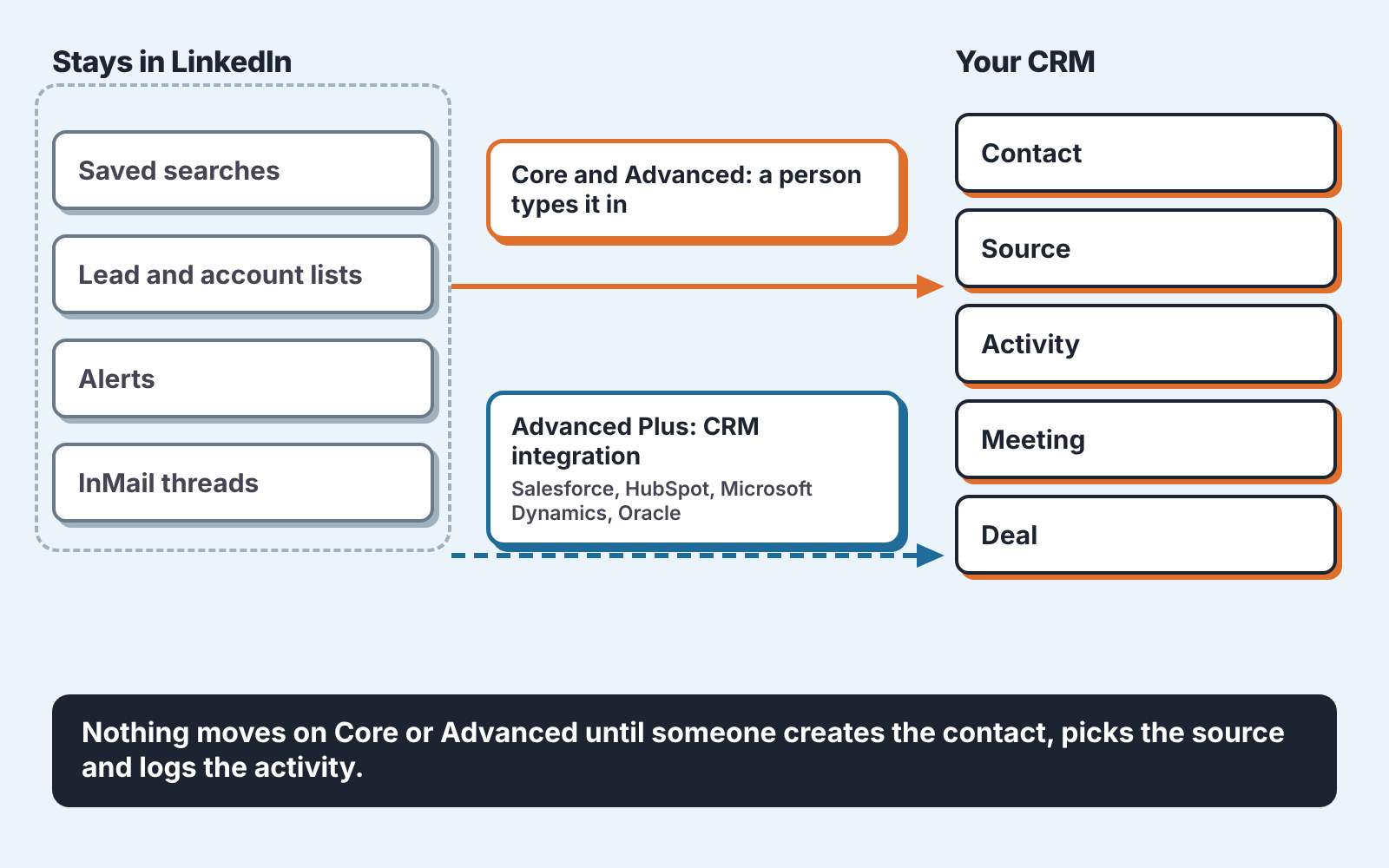
On Sales Navigator Core and Advanced, nothing syncs to your CRM automatically: per LinkedIn’s comparison table (November 2026), CRM integration and Lead/Contact Creation are Advanced Plus features. Everything else stays put. A saved search, a lead list, an alert about a job change and an InMail thread with a reply in it all live in the rep’s LinkedIn account. Your CRM learns about a prospect when the rep creates the contact, picks a source and logs the conversation by hand.
On Advanced Plus, LinkedIn’s table promises to “keep your CRM current with real-time updates and sync” and to add leads and accounts to the CRM directly from Sales Navigator. What arrives in practice? That depends on the CRM you run (and on how the sync is switched on; someone on your team has to set it up). We went through that for one CRM in the Sales Navigator and HubSpot integration guide, including the HubSpot plan it requires, so the setup steps are there. And if your CRM is outside LinkedIn’s supported list, a logged activity is the practical route; this walkthrough of logging LinkedIn outreach in Pipedrive shows what that looks like.
So before you buy, name the person who does the typing. As an example, say a rep saves 30 leads a week and gets into a real conversation with 6 of them. Those 6 need a CRM contact, a source value and one logged activity each. At two minutes per record that’s 12 minutes a week. It’s a small job, and it still gets skipped when nobody has said it’s part of the job. Then a manager looks at the the pipeline report in March, sees meetings with no source, and has no way to tell whether the US$479.96 a month produced any of them.
Who should skip it
Every B2B rep needs a Sales Navigator seat, or so the usual advice goes. We disagree. A seat belongs to a rep who already prospects on LinkedIn every week, and for everyone else it’s a monthly charge that shows up in no report.
Skip it, or wait, if your buyers aren’t active on LinkedIn. A team selling to restaurant owners or local contractors will get more from the phone and from referrals, and the 50+ filters won’t change that. The same goes for a team whose pipeline is mostly inbound: there the reps’ problem is follow-up speed, and a search tool adds nothing to it. If you aren’t sure which problem you have, the arithmetic in how many leads you actually need will tell you whether more top-of-funnel is the gap at all.
Volume is the other reason to hold off. A rep with 25 named accounts and long deal cycles can track job changes by following those people on LinkedIn directly. Fifty InMails a month and saved searches earn their price when there are hundreds of possible buyers to sort through.
And skip the annual plan on day one, even with 25% off Core. An annual Core license costs US$1,079.88 before you know whether the rep will use it, and per LinkedIn’s FAQ, cancelling an annual plan applies at the end of the paid year. Pay monthly for the test below, then switch. If you’re weighing this against other spending, the same logic as in hire a rep or buy a tool applies: put a number on what the money has to produce.
A 30-day test, recorded in the CRM
Buy one or two monthly licenses for the reps who already use LinkedIn the most. Two Core licenses for a month cost US$239.98 at November 2026 prices. If a rep qualifies, start with the Sales Navigator free trial instead: per LinkedIn’s pricing page, Core and Advanced trials are open to members who aren’t on any paid LinkedIn subscription and haven’t used a LinkedIn free trial in the past 365 days. LinkedIn asks for a credit card and sends a reminder seven days before the trial ends.
Before the first search, set up teh CRM side. Add “Sales Navigator” as a value in your lead source field (or whatever your CRM calls the field that says where a contact came from). Agree on the rule with the reps in one sentence: a prospect who replies gets a contact with that source and a logged activity the same day. Meetings are booked as CRM activities on that contact, and a qualified meeting becomes a deal that inherits the source.
Then write down the bar before the month starts. Take two reps, 30 days and US$239.98 spent as an example, where the test passes if the CRM shows at least 10 replies, 4 meetings held and 2 deals created with the source “Sales Navigator”. Your numbers will differ. Set them on day one and count them with a CRM filter, because a rep’s memory of “a few good conversations” can’t be compared with a card statement. Our piece on prospecting with a small team has a way to pick those targets from your own conversion rates.
On day 30, run the filter. Count contacts, activities, meetings and deals with the source. Divide the license cost by meetings held and compare it with what a meeting costs you from the channel you already use.
A month like this pushes new contacts and activities into the CRM fast. Some arrive half-done. A contact gets created in a hurry after a reply, with no owner, no next step and sometimes no source, and nobody goes back to it once the meeting is booked. SalesBond’s free CRM audit covers the same window: it looks at the last 30 days of your CRM and sends a PDF report, then a second PDF a week later with what changed. Check your CRM with SalesBond when the test ends, and you’ll see whether the month’s prospecting left clean records behind it.
If the cost per meeting beats your current channel, keep the licenses on monthly billing for one more month and switch to annual only for the reps who hit the bar. If it doesn’t, cancel before the next billing date and put the money into the channel that already fills your pipeline.