
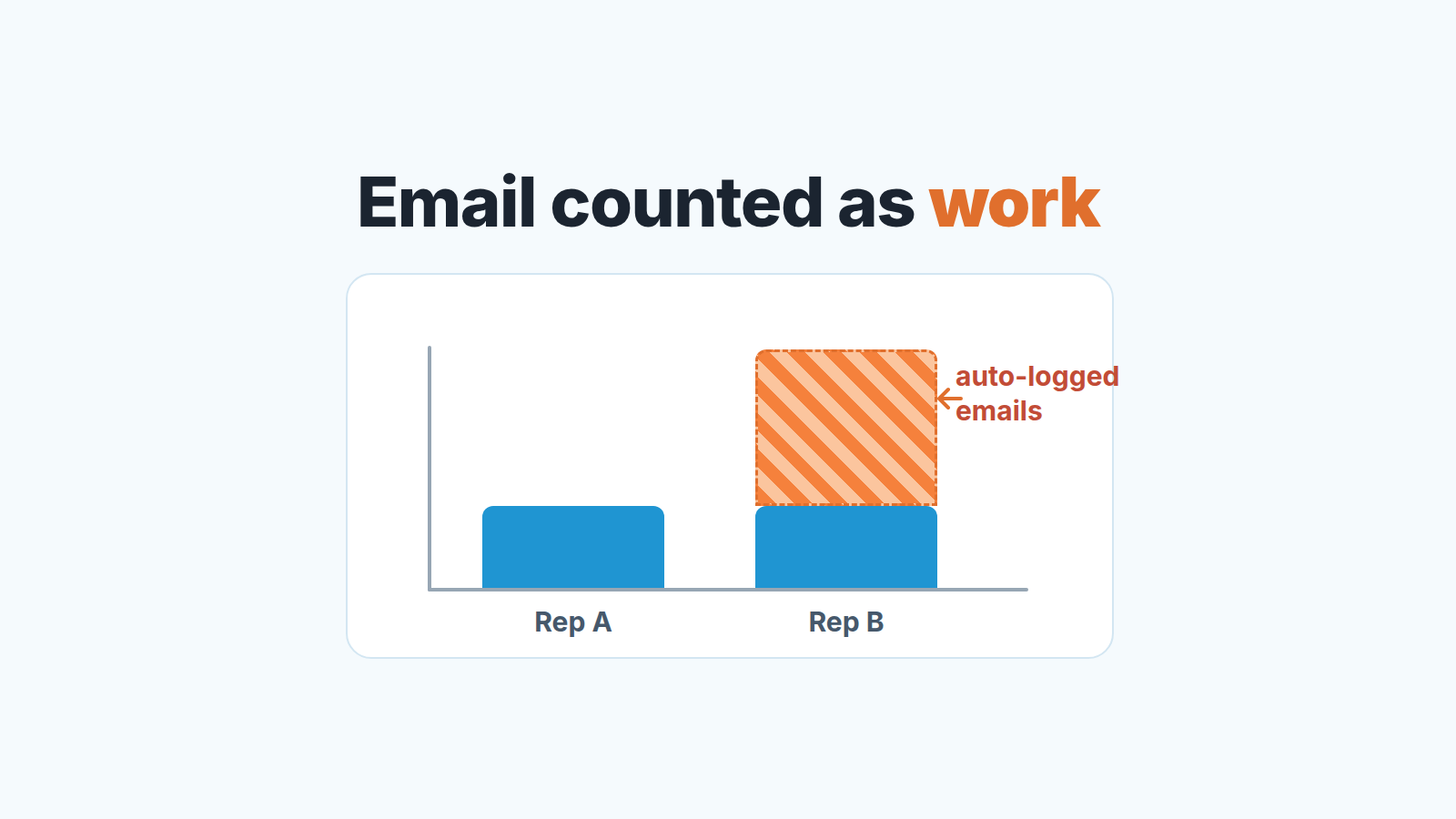
If “Automatically add emails sent from Pipedrive as activities” is switched on, every email a rep sends from Pipedrive becomes an activity, already marked as done, and that activity lands in the activities performance report in Insights. Switch it on for one rep and not for another, or switch it on halfway through a quarter, and the “completed activities” number stops meaning the same thing for everyone. The report is not wrong. It counts exactly what it was told to count. What broke is the comparison.
Two reps, same week, different numbers
Picture a Tuesday pipeline review at the end of September. The manager has the activities performance report open, measured by completed activities and viewed by user. Dana’s bar is about twice the height of Marcus’s. The manager has already drafted the opening line for Thursday’s one-on-one with Marcus: “Let’s talk about effort.”
Then someone asks: how many of Dana’s activities are emails?
Dana works out of Pipedrive’s inbox. She turned on automatic email logging in the spring, when it showed up in a release note, and every follow-up she sends has been counted as a done activity since. Marcus writes his follow-ups in Gmail. His calls and meetings are in Pipedrive like everyone else’s; his email is invisible to the report. The two of them had a similar week. The report is reading two different setups, not two different reps.
What the setting does (and what it skips)
The switch lives in each user’s account menu under Personal preferences > Email sync > General, and it is called “Automatically add emails sent from Pipedrive as activities” (Pipedrive: add emails as activities). In March 2026 Pipedrive announced it in its product updates as “Automatically log emails as activities at send time”, with a stated goal to “keep your outreach reflected in activity reporting” (Pipedrive product updates). It is also why so many teams have one or two reps who flipped it on recently and nobody else.
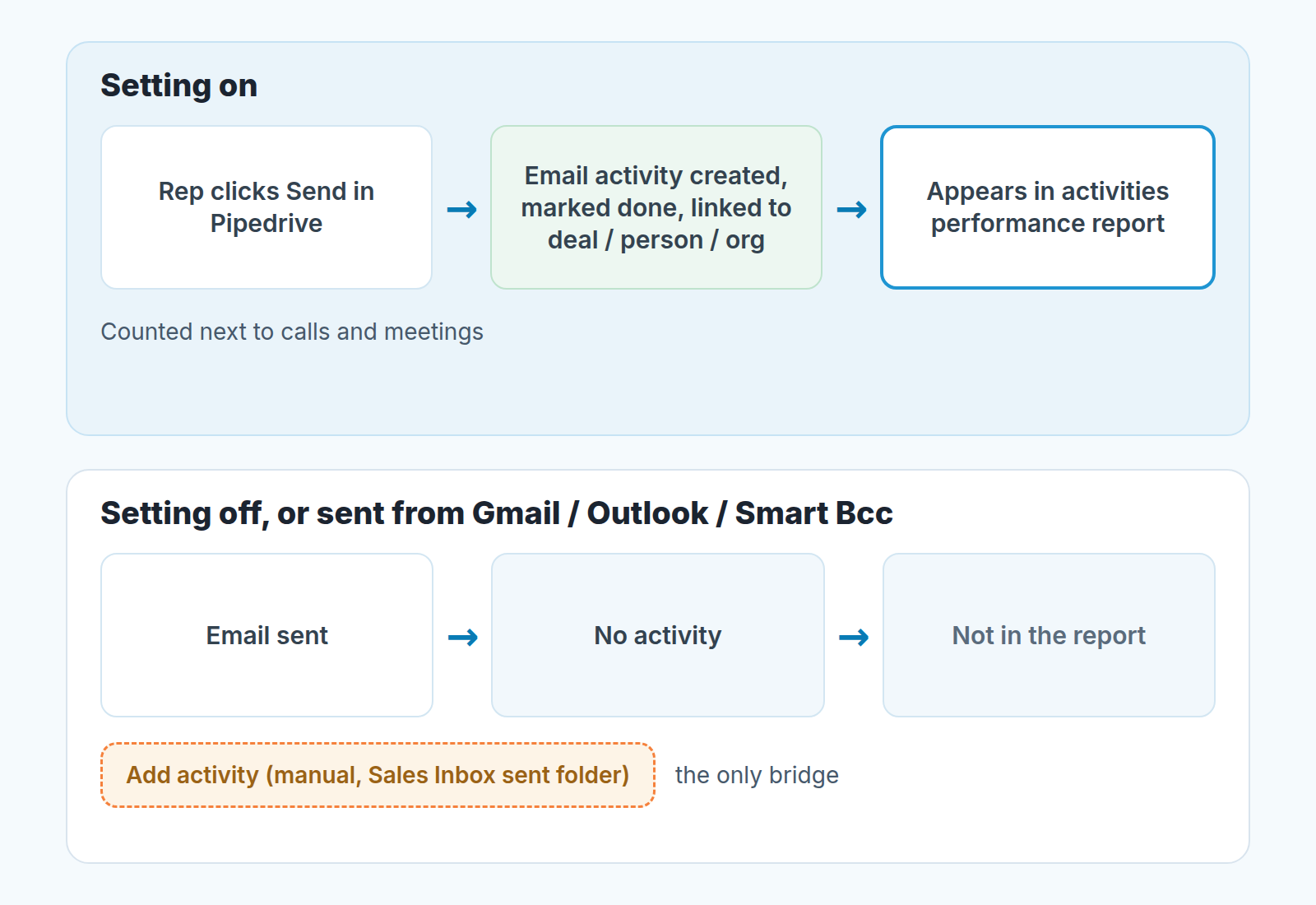
Per the help page, as soon as the rep clicks Send, Pipedrive creates an email activity. The activity is marked as done and linked to the same items as the email conversation, so it shows up on the deal, the person and the organization. The activity subject is the email subject; if the rep used an email template, it’s “Sent email” instead. The rep also picks which activity type these emails get, from the types the company has set up. Remember that one: two reps can be logging teh same emails under two different types.
Now the part the setting skips. Only emails sent from Pipedrive are added automatically. If a rep uses Smart Bcc, or sends from Gmail, Outlook or another provider, those emails are not added as activities on their own. They can be added by hand: open the Sales Inbox sent folder, select one or several conversations, click “Add activity”. Nobody does that at the end of a long day. So in practice Pipedrive-sent mail counts and everything else does not.
The help page puts the setting under Personal preferences, so each rep sets it in their own account. It doesn’t describe a company-wide switch, which is how a team ends up with a mix.
Why the activities performance report jumped
The activities performance report in Insights tracks the completion of the team’s activities, like calls, meetings and tasks (Pipedrive: activities performance report). Emails are included in that report if they have been added as activities. That one sentence is the whole mechanism. The setting adds them as activities, and from that moment they are counted next to calls. Mail is not the only thing that can inflate that report; Meeting scheduler bookings land in the same bucket unless they get their own activity type.
A call activity is usually scheduled first and marked done later. An auto-logged email is created already done, so whichever way the report is measured, by add time or by marked-as-done time, it shows up at once. The default filter on the report is Add time is this month, so the day a rep flips the switch, this month’s bar starts climbing with no scheduled work behind it.
Nothing in that rep’s day changed. The same emails went out last month, as emails. This month they also exist as as completed activities, and the report doesn’t label the extra height as mail. It just draws it.
Read together, the two help pages agree: a sent email from Pipedrive with the setting on is a done activity, and done activities are in the report. Neither page treats auto-added emails differently from manually added ones. For email as email (sent, received, opened) Pipedrive points you to the emails performance report instead, which tells you the activities report was never meant to measure mail volume.
It’s the same family of problem as a report that shows different numbers depending on who opens it (why Pipedrive Insights shows different numbers). The number depends on things that aren’t on the chart, and a personal setting is one of them.
One setting for the whole team
The decision is binary and it belongs to the manager, not to each rep’s taste: email logging is on for everyone or off for everyone. We lean toward on, with conditions, because a follow-up email is real work and the activity already sits on the deal timeline. The condition is that nobody reads the total after that.
Since each rep sets it in their own account, rolling it out means asking everyone. Here is the order that has worked for us.
- Decide on or off for the whole team, and say why in the meeting where you decide it. “Dana has it on and Marcus doesn’t” is the problem statement; the decision is the fix.
- Pick one activity type for email and name it. Each rep chooses the type in their own preferences, so unless you say “use the Email type” out loud, you will get mail logged under three different types. If none of the existing types fits, a global admin can create a custom one.
- Have every rep open Personal preferences > Email sync > General and set the toggle the same way, with the same activity type. Do it on one day.
- Write that date down. The report before it and the report after it are two different instruments.
- Decide what happens to mail sent from Gmail or Outlook. Either reps send from Pipedrive, or they add the important conversations from the Sales Inbox sent folder, or you accept that those emails are not activities and nobody is penalized for it. Any of the three is fine. “Some reps do, some don’t” is not.
If you go with off, the list is shorter: everybody turns it off on the same day and email drops out of the activity report for good. Calls, meetings and tasks are what the report measures, and email is read on the deal timeline.
Reading the report by activity type
Once the setting is uniform stop looking at the total bar. The report is built from three fields: view by, measure by and segment by. Set view by to user, measure by to completed activities, and segment by to activity type. Each rep’s bar splits into stripes and the email stripe becomes its own thing instead of hiding inside the height.
You’re looking for the shape, not the size. Two reps with similar call and meeting stripes and wildly different email stripes simply write mail in different places. Two reps with similar email stripes and a missing meeting stripe on one of them is a coaching conversation. Keep the all-types view for one more job: spotting a rep whose email stripe has vanished, which usually means the toggle got switched off or they moved to Gmail.
Our habit is to keep a second saved report with the email type filtered out, and that is the one that goes into the weekly meeting. Calls and meetings are scheduled, happen at a time and have an outcome. A sent email has none of those in the report, and counting them together treats a 30-second reply the same as a 40-minute discovery call. If you record what each call produced, the activity outcome field gives you a second axis that email activities will never have.
What to compare and what to throw out
Compare reps only within the same period, only after the switch-over date, only with the same activity type set for email, and only by type. Auto-logged emails are not the only thing that moves these numbers: bulk-created activities add a spike of their own, so count what got done, not what got created.
Some comparisons are now just noise, and its better to say so out loud in the meeting.
- This month’s completed activities against last month’s, if the switch moved in between.
- Any rep against any rep on the total bar while the setting still differs between them.
- Email-heavy reps against call-heavy reps on the total, even after the rollout. Different jobs, same chart.
- A quarterly “activities per rep” trend that straddles the rollout date. Start the trend over.
The emails themselves are not the problem. Reading mail volume as effort is. In leading versus lagging sales metrics we argue that an activity metric earns its place when the rep controls it and it separates won deals from lost ones, and that any metric that is easy to game will be gamed. An auto-logged email costs one click, so a count that includes it fails the second test and is easy to game. Which metrics to track at all is a separate question.
That is why we’d rather move the conversation from “how many activities” to “which deals are being handled properly”. We build SalesBond. Deal Health checks every deal in the connected CRM against more than 20 rules, in categories that include activity, progression and data, shows the specific violations and explains what to do. If the activity report has been standing in for that question, check your CRM with SalesBond.
Back to Dana and Marcus. After the rollout their bars look alike, and Thursday’s talk is about why Marcus writes in Gmail, not about effort.


