
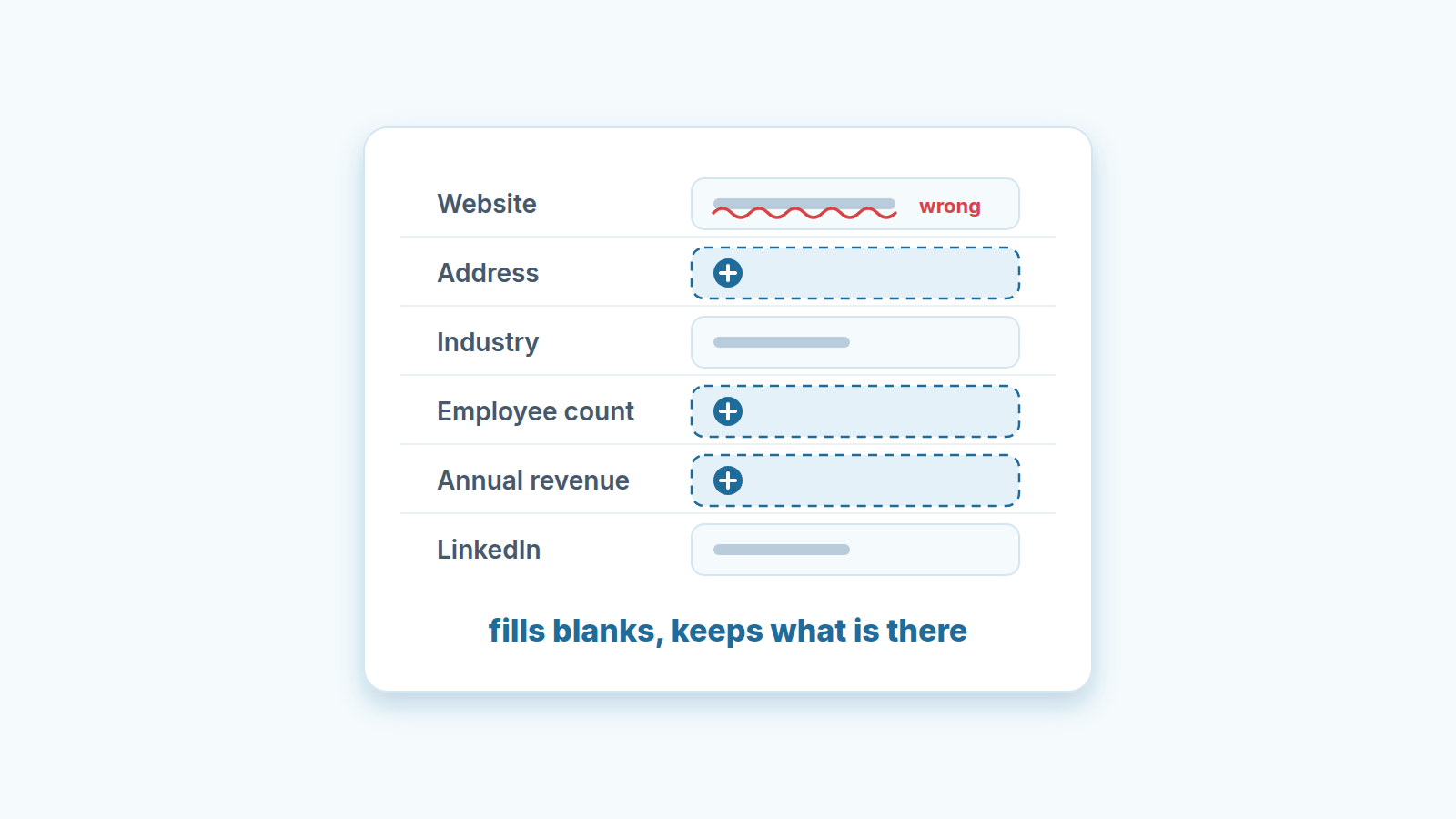
Pipedrive’s data enrichment fills only empty fields and never overwrites a value that is already there, and the lookup itself runs on the organization’s website, its email domain or its LinkedIn page (Pipedrive: data enrichment). That dictates the order of work. First fix the organization name, the website and the linked person on the records you care about. Then select up to 100 of them in the Contacts list and run bulk enrichment. Then read the summary screen, because it tells you how many lookups found nothing.
Three hundred companies from a trade show
A made-up scene, with made-up numbers, but the shape of it is common.
The show closed on Thursday, September 10. A rep exported the badge scans over the weekend, and on Monday, September 14 the file went into Pipedrive: 300 organizations and 180 people. Half of the organizations, 150 of them, have no website, because the badge system never asked for one. About 100 have names typed by whoever filled in the registration form, so the same company shows up as “Northwind Traders”, “NORTHWIND” and “northwind traders ltd”.
The manager has seen the Enrich items button. The plan is obvious: select everything, enrich, done by lunch.
Here is what that plan buys. For the 150 organizations with no website, no LinkedIn field and no linked person with a work email, there is nothing to look up. In a bulk run, the summary at the end reports credits reimbursed for unsuccessful lookups (Pipedrive: data enrichment). The misspelled names are a different problem. The help asks for the correct organization name before you enrich, and three variants of one company are three records where the merge should have come first (more on that in duplicate records in Pipedrive).
So the honest result of “select all and enrich” on day one is a partial fill on the clean half of the list, a stack of reimbursed credits for the other half, and three enriched copies of Northwind.
What enrichment will and will not touch
Enrichment in Pipedrive is additive. That is the one sentence to remember.
The data comes from Surfe, a third-party prospecting platform; Pipedrive provides the interface and does not own the data. For an organization it can fill address, industry, employee count, annual revenue, LinkedIn profile and website. For a person it can fill email and phone number. Only empty fields get filled. If a field already has a value, that value stays and no credit is spent on it (Pipedrive: data enrichment).
Whatever address lands in the email field, its marketing status comes with the address and not with the person; we explain what an address edit does to marketing status.
Credits are allocated per company and reset at the start of each billing cycle (Pipedrive: data enrichment credits and top-ups). An organization enrichment costs one credit, an email two, a phone number five, and you can buy top-ups when you run low (Pipedrive: data enrichment; Pipedrive product updates, December 2025).
Two consequences follow, and the second one is the one teams miss.
The first is pleasant: you cannot damage a good record by enriching it. The second is the catch: you cannot repair a bad record by enriching it either. A website with a typo, an employee count from an old import, a phone number that reached a receptionist who left in 2024, all of those are “existing information”, and the lookup walks past them. A list that is 40% blank and 20% wrong comes out of enrichment 0% blank and still 20% wrong. That needs a different tool, a person, and it gets its own section below.
(If the enrichment fields clutter your views, since March 2026 you can hide them; hiding a field does not empty it. Pipedrive product updates, March 2026)
What the lookup needs before it can find anything
The help page lists the inputs, and they are the whole cleaning checklist.
To enrich a single organization you need the correct organization name and at least one of: a linked person with a work email address, a filled-in Website field, or a populated LinkedIn profile. For a person, phone enrichment needs the name plus one of: a link to the correct organization, an email address, or a LinkedIn profile. Email enrichment needs the name plus either the organization link or the LinkedIn profile (Pipedrive: data enrichment).
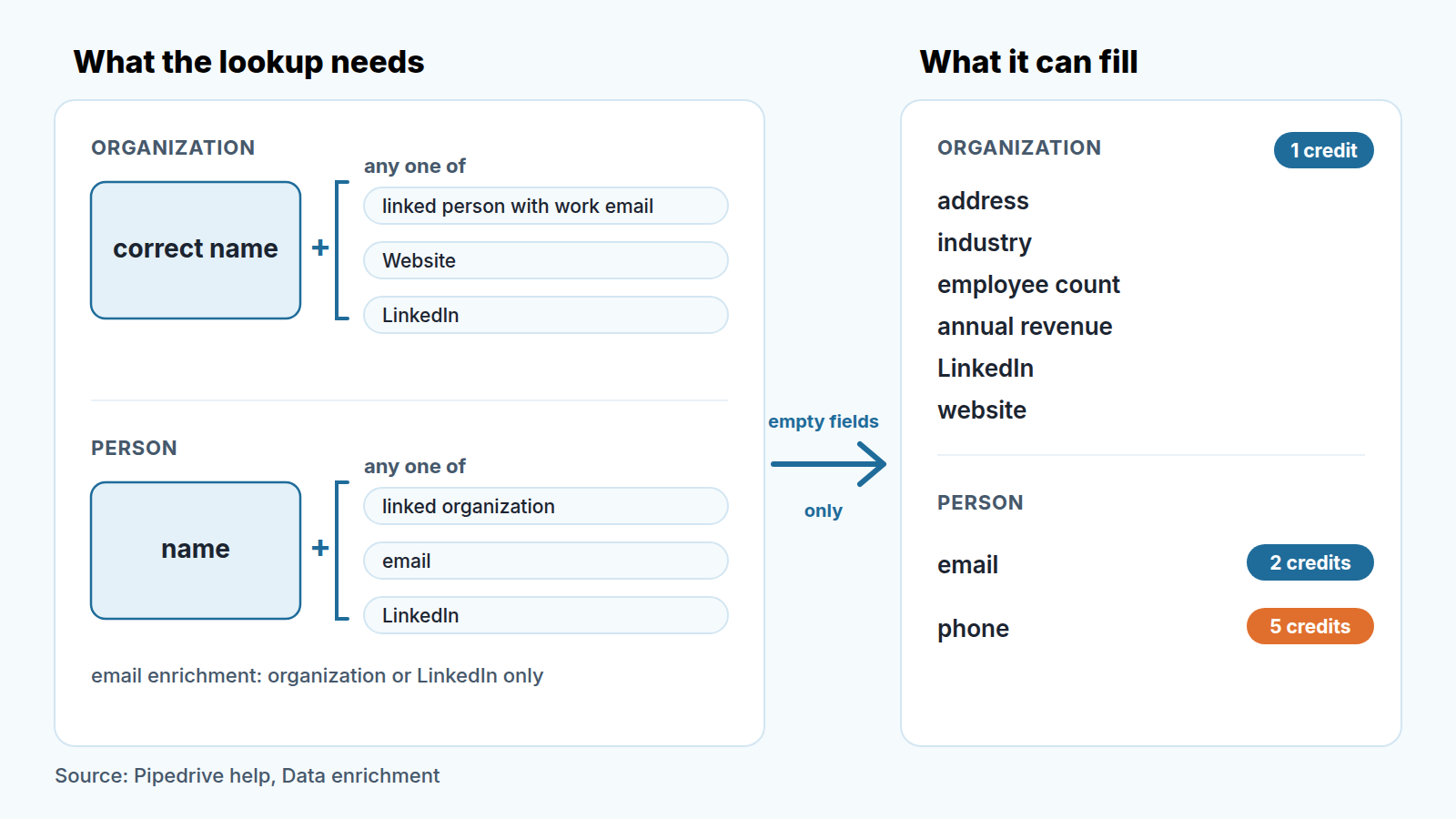
Read that list against the trade-show file and the cleaning pass writes itself.
Names first. The three Northwinds get merged into one, and the one keeps the name the company uses on its own site. Do this before anything else, because a merge after enrichment means you paid for three lookups and will now throw two of them away.
Then the website gap. For the 150 organizations without one, the fastest fix is usually not typing websites. It is making sure each person from the badge scan is linked to thier organization and that their email is the work address, since a linked person with a work email is one of the three accepted inputs. Where the only email is a personal one, the website has to be typed by hand or the record waits.
That is an afternoon of linking and merging for a 300-record import, and it is the part no credit can buy.
A bulk run in four steps, 100 records at a time
With the inputs in place, the run is short. The steps come from the help page; the notes after each one are ours.
- Go to Contacts, pick People or Organizations, and narrow the list with a filter or a search. Filter for what you actually want filled. For the trade-show list that means a filter that leaves only organizations with no website, so you are paying for blanks.
- Select the records, up to 100. Three hundred organizations is three runs, not one. Start with the companies a rep plans to call this week.
- Click Enrich items and review the fields suggested for enrichment. This screen is the last moment to notice a record you did not clean. Drop it and come back to it.
- Confirm with Enrich data. At the end you get an overview of what was added to each contact and how many credits were reimbursed, which happens when a field was already filled or the lookup failed (Pipedrive: data enrichment).
Keep the overview numbers, even as a note on the import: they are the first measurement of how clean the list was. Three runs of 100 organizations cost at most 300 credits; if the summaries show 90 reimbursed, that is 90 companies nobody could find, and the question is whether they belong in the CRM at all.
People are where the credits go. Email enrichment for the 180 people is up to 360 credits; phone numbers for all of them would be up to 900. So we do not run phone enrichment on a whole import. We run it on the people a rep has already decided to call, after the organization pass has shown which companies are real.
The wrong values it leaves in place
Now the part the button cannot do.
Picture the organization record for a company that was in the CRM before the show. Website: filled in 2023, points at a domain that now redirects somewhere else. Employee count: 12, typed by a rep from memory. Industry: “Other”. Enrichment looks at this record, sees three filled fields, spends nothing and moves on. The record looks complete in every report and is wrong in every field a rep would actually look at.
Both ways to deal with it involve a human. The first is to fix the value by hand, which is right for the accounts that matter: the ten companies on a rep’s call list this week deserve two minutes each. The second is to clear the field and let enrichment fill it on the next run, which is right when you trust the lookup more than the old entry. An empty field is, by the help page’s own rule, the only kind enrichment will fill, so clearing is how you hand a field back to it.
Finding these records is the harder part, because a wrong value does not look different from a right one in a filter. What works for us is a mismatch check: export the Organizations list with the Website column and the linked person’s email, and look for rows where the email domain and the website domain do not agree. “Other” in Industry and round numbers in Employee count are the other two tells. The same filler-value habit shows up in required fields, and the audit we described in required fields in Pipedrive catches most of it.
A warning on clearing in bulk. It is tempting to blank an entire column and re-enrich everything. Do not do that to a field reps type into: a phone number a rep got from the customer is not public data, and no lookup will give it back. Clear the fields you know are stale, not the fields you cannot be bothered to read.
What to check a week later
Tuesday, September 22, a week and a day after the import. Three things.
Run the same filter you used for the batches, the one that leaves only organizations with no website. The count that remains is the list of companies nobody could find with the inputs you had. Some deserve a second pass once a rep adds a LinkedIn profile. The rest are badge scans of people who walked past the booth and the honest move is to not treat them as accounts.
Open the enriched fields and check that they are usable, not only present. Address can be used to filter by city or country (Pipedrive: data enrichment), so build the territory filter you wanted and see whether the records land where they should. Industry and employee count are the fields reps use to size up an account; check them again on the next pipeline hygiene review.
Then look at the credits: allowance used, credits reimbursed, and what the ratio says about the import template. If a third of the lookups failed for lack of a website, the fix is not more credits next month, it is a Website column in the file before it reaches Pipedrive. A full field is not the same as a right one, which is why the data quality metrics piece does not count completeness.
A disclosure, since the follow-up is where this overlaps with what we build: SalesBond is a sales management layer on top of the CRM a team already uses; we started with Pipedrive. Deal Health checks every deal in the connected CRM against more than 20 rules, in categories that include Data. It will not fill an empty organization field, and it will not tell you whether a website is the right one. It shows the specific violations on each deal and explains what to do, which is the the list a manager wants on the Tuesday after an import. If you want to see how your pipeline looks against those rules, check your CRM with SalesBond.
Give enrichment a correct name and one good handle, run it in hundreds, read the summary, and keep the credits for the people you are going to call.


