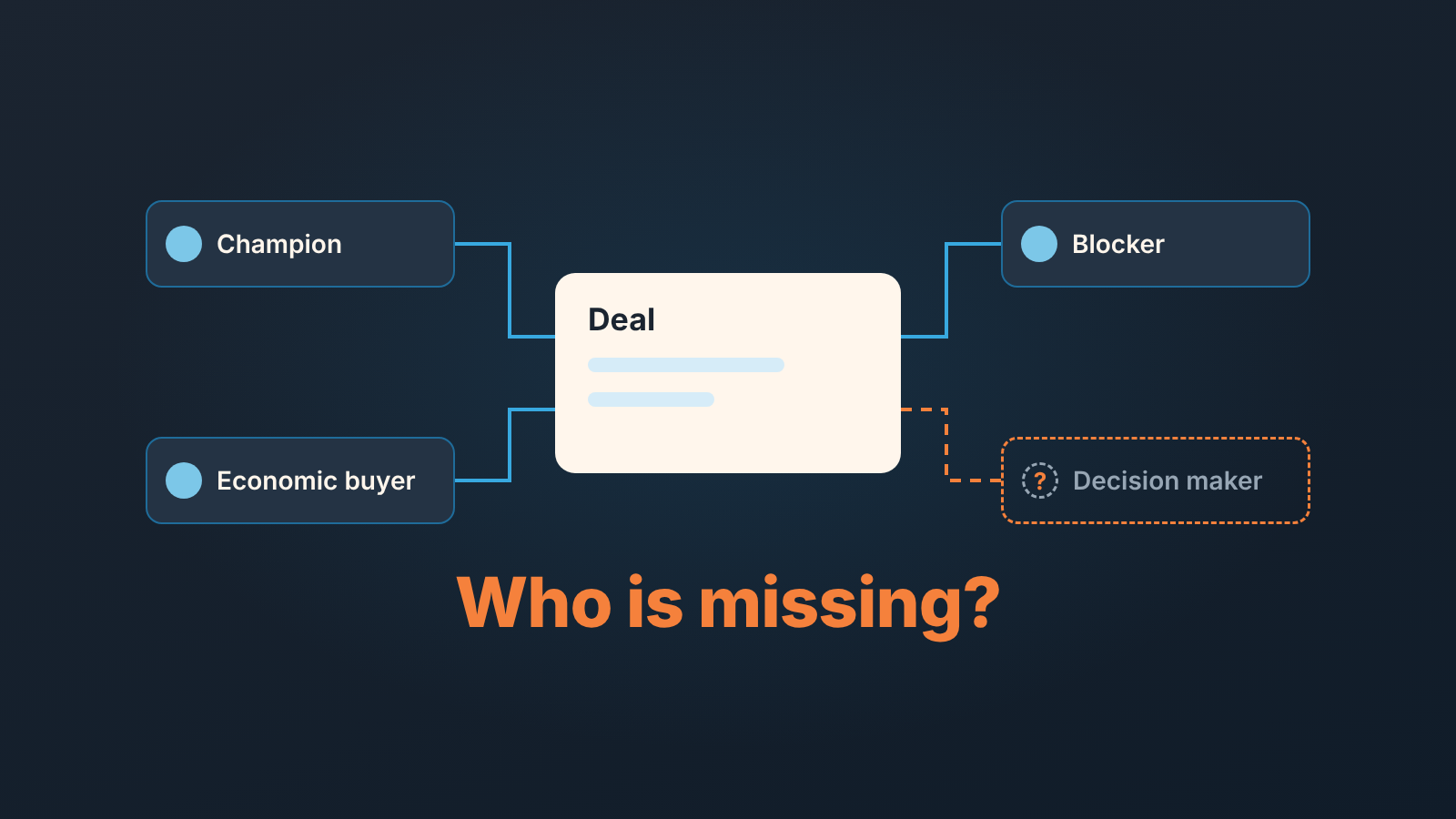
An association label in HubSpot is a name on the link between two records, so a contact attached to a deal reads “Decision maker” or “Champion” instead of plain “associated”. HubSpot’s own example is a contact labeled Buyer on a deal labeled New business, and once labels exist you can filter by them in segments, workflows and custom reports (HubSpot: Create and use association labels). Creating them takes Super Admin permissions, and they are available on Professional and Enterprise. The reason a sales manager should care is one question the CRM cannot answer without them: which late-stage deals have nobody marked as the decision maker.
What an association label is (and what it is not)
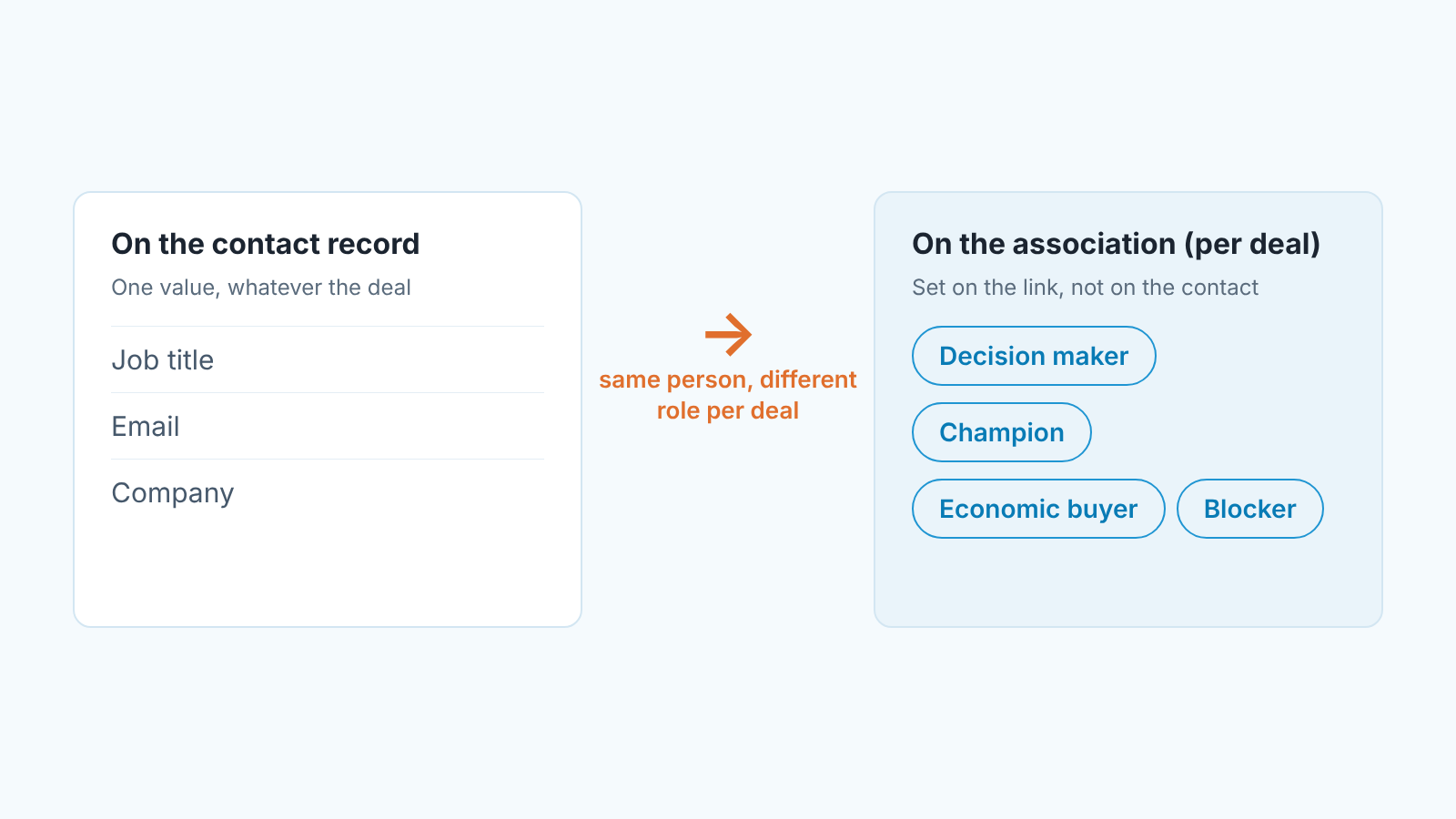
The label sits on the relationship, not on either record. That is the whole point, and where most teams get confused.
A contact property called “Role” cannot hold “decision maker on deal A, champion on deal B”, and a job title can’t either: a VP of Operations can be the blocker on one deal and the economic buyer on the next. The label is where “this person, in this deal, plays this part” lives. Salesforce teams get the same thing from contact roles on the opportunity.
HubSpot offers two shapes: a single label, where both sides are described the same way (Partner, Colleague), and a pair, where each side gets its own word (Manager and Employee, Parent and Child). A pair counts as one label toward the limit. For deal-to-contact roles single labels are enough.
Four deal-contact labels worth creating
We suggest four, and no more, on the Contact to Deal pair:
- Decision maker: says yes or no. Its absence is what the manager checks every week.
- Champion: wants this to happen and will sell it inside the account when the rep is not in the room.
- Economic buyer: owns the budget. In a small company this is often the decision maker too, and then both labels go on one contact.
- Blocker: has said no, or benefits from the status quo. Reps hate logging this one, which is exactly why its useful.
Names are your call, as long as a rep can pick one in two seconds without a debate.
Decide two things in the setup dialog before you click Create. The internal name (the one integrations and the API see) cannot be edited once the label exists, so don’t create “Decison maker” and plan to fix it later. And each label has a limit per direction, “Many” or a custom number. Setting Economic buyer to a custom limit of 1 per deal is a cheap guard: a deal with two budget owners usually means the rep hasn’t found out who signs.
Who can create them, and the limits
Only Super Admins can create association labels, and only on Professional and Enterprise. The path: More, then Data Management, then Data Model; click Edit Data Model, switch to the graph view, search for Contacts, click View all on the card, then the three-dot menu on Deals and Create association label. HubSpot allows up to 50 labels per object pair, and some objects, line items among them, can’t have custom labels at all (HubSpot).
A deleted label cannot be restored, and a label still used on records or in other HubSpot tools has to be removed from them first. Treat the four labels like deal stages: agree once, then leave them alone.
Reps set the label on the deal: hover the association card, click More, then Edit association labels, pick from the dropdown, Update.
The manager check: filter deals by association label, then find who is missing
HubSpot has no deal filter for “no associated contact with this label”. With a label selected, an association filter keeps a deal only when an associated contact with that label meets the criteria, so it can only find deals that have a decision maker (HubSpot: create segments). The way around it is two segments and the “is not member of segment” filter.
Build the first deal segment, call it “Has decision maker”, from a Contact filter: switch Any contact to the Decision maker label and pick any contact property that every contact has a value for, set to is known. The second segment takes late-stage deals (Proposal or later) that are not members of “Has decision maker”. That second segment is the Monday agenda. The question to each rep is the same: who is it, and if you don’t know, why is the deal in Commit?
For a chart instead of a list, custom reports accept association labels as a filter or a breakdown.
A disclosure, since this is the kind of check we build for: we build SalesBond, a sales management layer on top of the CRM a team already uses. Deal Health checks every deal against more than 20 rules and hands the manager the list of violations instead of a filter to maintain. It doesn’t set labels; a person still does. Check your CRM with SalesBond to see what it finds.
Labels and MEDDPICC properties: who, and where it stands
Our MEDDPICC deal properties article gives Economic buyer and Champion a dropdown on the deal, from Not identified to Confirmed they sign, and from None to Confirmed. Labels don’t replace those fields.
The label answers who: which contact is the economic buyer, which one is the champion. The property answers where it stands: met, tested, confirmed. You want both: “Confirmed they sign” means little if nobody can click through to the person, and a labeled contact says nothing about whether the rep has met them. If you want a gate, require the Economic buyer dropdown at the stage before Commit, like any other stage-required property in HubSpot, and use the label to show who it is. The other letters stay where that article puts them: Paper process and Competition as properties, Metrics, Identify pain and Decision criteria in notes, Decision process in a mutual action plan.
The mess this avoids is a deal property with a name typed into it that nobody updates when the person leaves. A label points at a contact record, with a title and an email. A typed name points at nothing.
What workflows and imports can and cannot do with labels
Can a workflow add the label? No. HubSpot’s help page lists what workflows do with labels (enrollment triggers, branches, Edit record on labeled associations, email to labeled contacts), and setting the label isn’t on it; for automating associations the page points to operations apps in the HubSpot App Marketplace. A 2025 community thread asking for automatic First and Most Recent labels shows the gap is real (HubSpot Community).
What you can do is set labels in bulk through an import, which is how a backlog of open deals gets labeled. One trap: non-alphanumeric characters in a label name, semicolons in particular, cause import errors, because HubSpot uses the semicolon to separate multiple values in one cell. Letters and spaces only.
Renaming later is fine for the display name. The internal name stays as it was created.
So the order of work is short. Create Decision maker first, label the contacts on your open late-stage deals by import, and build the the two segments before your next pipeline review. Champion, Economic buyer and Blocker can wait a week.