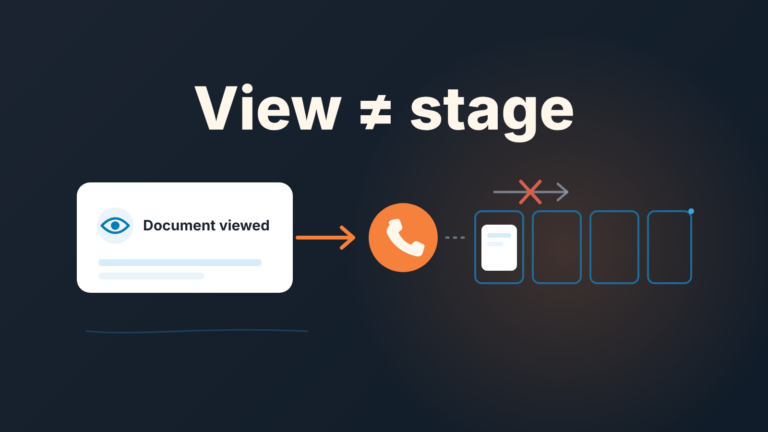
Opportunity contact roles in Salesforce tie specific people, and the part each of them plays in the buying decision, to a single deal. That is what makes them useful to a manager: once reps fill them in, you can report on open opportunities that have only one contact, or none with a Decision Maker, and ask for a second thread before the deal moves to Proposal. A single-threaded deal is one where the whole relationship with the buyer runs through one person, so if that person stalls, leaves or loses the internal argument, the deal goes with them.
This is for sales managers on Salesforce. The admin side (switching on the related list, editing the picklist) is covered well elsewhere. What we did not find covered is the part where roles become a risk check.
Contact roles are not the account’s contact list
Every rep has contacts on the account. That is not the same thing, and the difference is the whole point.
In Salesforce a contact role is its own record, OpportunityContactRole, which “represents the role that a Contact plays on an Opportunity” (Salesforce object reference: OpportunityContactRole). It links one contact to one opportunity and carries a Role picklist and a Primary checkbox (IsPrimary in the API). On the opportunity page it shows up as the Opportunity Contact Role related list. So an account with twelve contacts can have an opportunity with one contact role, and that is exactly the situation a manager wants to see.
Two things get confused with it. Account Contact Relationships is a separate feature for relating one contact to several accounts; it says nothing about which deal the person is in. And the opportunity team is your side, not the buyer’s; we covered that in opportunity teams vs account teams in Salesforce.
One quiet detail from the object reference matters for the report later: Role is nillable. A rep can add a contact to the opportunity, leave the role blank, and Salesforce will save it. Your report has to treat a contact role with no role as a gap, not as coverage. Empty contact roles also leave Campaign Influence blank, which is covered in contact roles and campaign members.
Three roles worth tracking, and why the picklist has more
Salesforce’s own documentation gives “Business User or Decision Maker” as examples of Role values (same source), and most orgs carry a longer list than that. Some have a dozen. We would not ask reps to classify against twelve. A rep who has to choose between Evaluator and Influencer for the same person will stop choosing.
Our position: a manager needs three roles filled in reliably. The rest can exist for whoever wants them.
Decision Maker. The person who can say yes. Not the person who said “I’ll take it to my boss.”
Economic Buyer. The person whose budget it comes out of. Sometimes the same person as the Decision Maker, often not, and when they differ the deal tends to slip at the end.
Champion. The person inside the account who wants this to happen and will do work for you when you are not in the room. If your champion is the only contact role on the deal, you have a champion and nothing else, which is what this article is about. More on what the role actually requires: what makes a sales champion.
If your picklist has no Economic Buyer or Champion, ask your admin to add them before you ask reps for anything. A rule on a value that doesn’t exist is a rule nobody can follow.
One primary contact per deal
“Each Opportunity has only one primary contact,” says the object reference. Reps tend to read primary as “the person I talk to most.” We’d suggest a stricter reading: the primary is the person whose answer you would trust about where this deal stands.
That reading does work for the manager. When you want one name to ask about, the primary is it. When the primary is a junior admin who books the meetings, the deal is telling you something.
The same page notes that more than one contact role between the same contact and the same opportunity is allowed, but not recommended. Put that in your team’s rule as one person, one role record. If someone genuinely holds two roles pick the one that matters for the close.
A Salesforce contact roles report for single-threaded deals
This is the step that turns a related list into a management check. You want each row to be an opportunity with its contact roles underneath, filtered two ways: open deals with one contact role, and open deals where no role is Decision Maker.
- Create a new report on a report type that joins opportunities to their contact roles. If your org doesn’t have one, your admin can set it up once.
- Filter Stage to exclude Closed Won and Closed Lost. Add Owner if you want it per rep.
- Group by Opportunity Name. Add the columns Contact: Full Name, Role, Primary and Stage.
- Count rows per group. A count of 1 is your single-threaded list. Groups where no row shows Decision Maker in Role are your no-decision-maker list; sorting by Role inside each group makes them easy to spot.
- Deals with zero contact roles won’t appear in that report at all. Catch them with a plain Opportunities report that excludes every opportunity with a contact role (your admin will know how your org expresses that filter). These deals aren’t single-threaded, they’re unthreaded, and they go to the top of the list.
- Save both and sort by Stage, descending, so the single-threaded deal at Negotiation is the first row you read.
Field labels vary by org, so expect to adjust once. The structure holds.
What a single-threaded deal looks like in the list
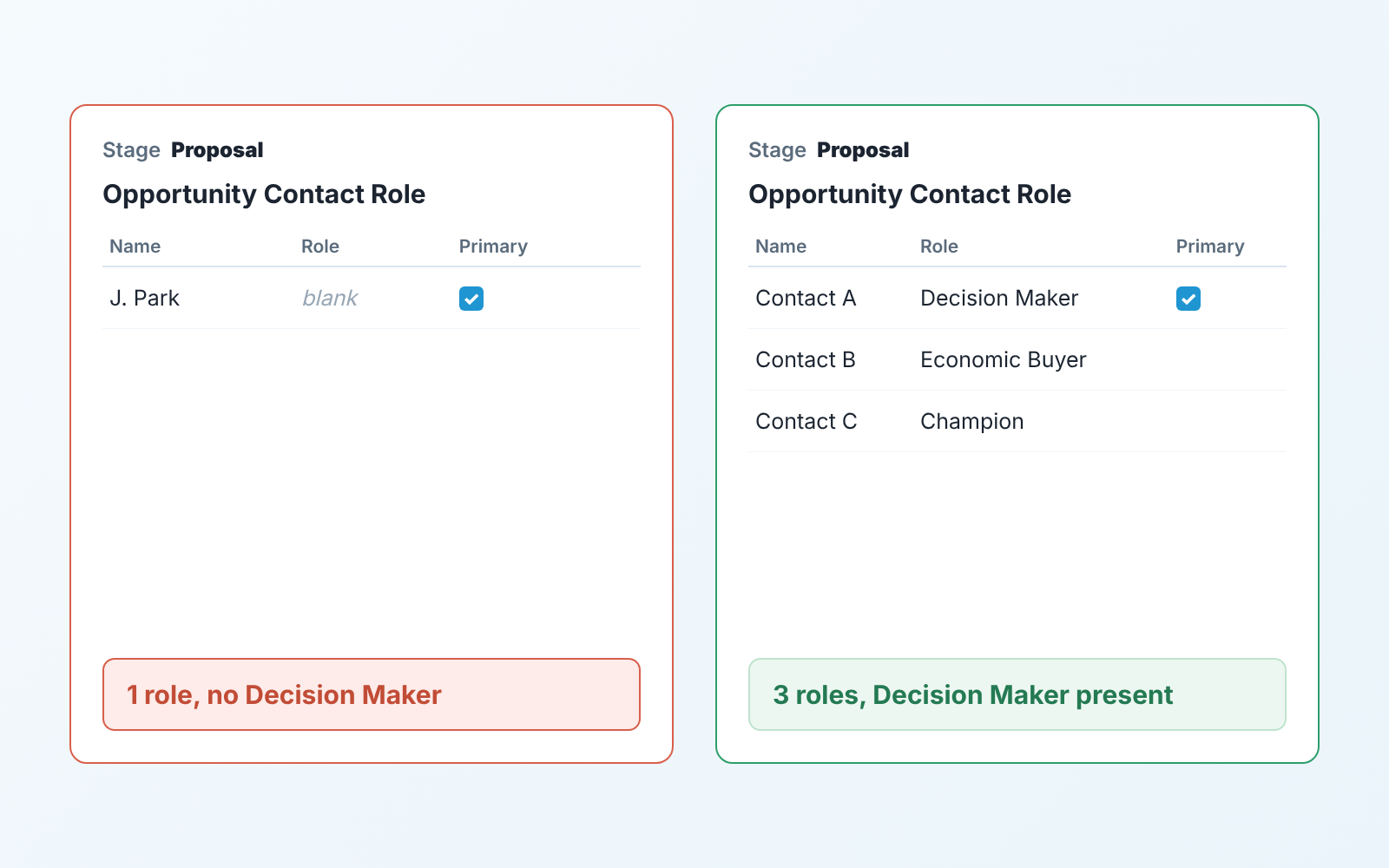
Here is a deal we have watched more than once, names changed. Stage Proposal, Amount healthy, Close Date next month, Next Step filled in. By every field on the opportunity audit it is clean. Open the related list and there is one contact role: the person who replied to the first email, Primary checked, Role blank.
Ask the rep and the story is good. “She’s great, she loves it, she’s taking it to her director this week.” Ask who the director is, and the rep has a first name. Ask whether the director has seen the proposal, and the honest answer is no.
The proposal is in the hands of someone who can’t sign, and the deal moves only if she does the selling. Sometimes she does. The report can’t tell you the odds. It can tell you the rep isn’t in the room where the decision happens, and that at Proposal that is late.
So the warning sign we trust is not the count alone. It’s the count plus the stage. One contact at Qualification is a Tuesday. One contact at Negotiation is a deal waiting on someone you have never met.
The stage rule: roles in place before Proposal
A report nobody acts on is a dashboard widget. It needs a rule, and we tie ours to stage, because stage is the one thing the rep already updates.
Before an opportunity moves into Proposal, it has at least two contact roles, and one of them is Decision Maker or Economic Buyer. Before Negotiation, all three are named. That’s the whole rule, and it sits naturally next to the rest of your stage exit criteria.
Say it on the planning call like this: “From next week, I won’t accept a deal in Proposal with one contact on it. If the second person doesn’t exist yet, the deal isn’t ready for a proposal, and that’s fine, it stays in Qualification.” The second sentence matters more than the first. Reps hear a rule as “fill in the field”. The rule is “find the person”, and moving a deal back a stage until they do is the pipeline being honest.
Should you enforce it in Salesforce itself? We lean no for the first two months. Automating it is admin work, and you don’t yet know whether the rule survives contact with your team. Run it from the Monday report first. If after eight weeks reps still arrive at Proposal with one role, automate it then. Most teams we have seen never get there, because a manager asking “who’s the second contact?” every Monday is enough.
Roles go stale when people change jobs
A contact role is a snapshot. The Decision Maker in March may have left in June, and nothing on the opportunity changes when that happens. The deal still shows a Decision Maker, your report still counts it as covered, and it is single-threaded again without anyone touching it.
We haven’t found a clean automated answer for this, and we’d rather say so than invent one. What works is a habit: when a rep learns someone on the buying side changed roles or left, the first edit is the contact role on every open opportunity for that account, before the note, before the task. A champion who left is not a champion, and a deal that still shows one looks healthier than it is.
Two signals catch the ones reps miss: a bounced email from a contact who holds a role on an open deal, and a contact whose new title no longer fits the the role. Neither is a report filter out of the box. You notice both when you read the list rather than count it.
The Monday check
It takes about ten minutes, and it only covers deals at Proposal or later. Earlier than that one contact is normal, and reps know the difference between a manager checking the deal and one checking the fields.
For each deal on the single-threaded list, ask for the second name, not the field. For each deal with no Decision Maker or Economic Buyer, ask who signs. Where Role is blank, ask what the person actually does, then fill it or delete the record. If the primary contact couldn’t tell you where the deal stands, change the primary. And if anyone on the buying side changed jobs this month, fix their roles on every open deal for that account before the call ends.
A disclosure, since this is a “who checks it every week” question: we build SalesBond, a sales management layer on top of the CRM a team already uses; we started with Pipedrive, and it works with Salesforce. Deal Health checks every deal against the rules you enable, shows the specific violations and explains what to do, so a manager reads exceptions instead of the whole pipeline. The report above is the hand-built version of that check, and its worth building once anyway, so you know what the list means before anything summarises it for you. If you’d rather start from your own pipeline: Check your CRM with SalesBond.