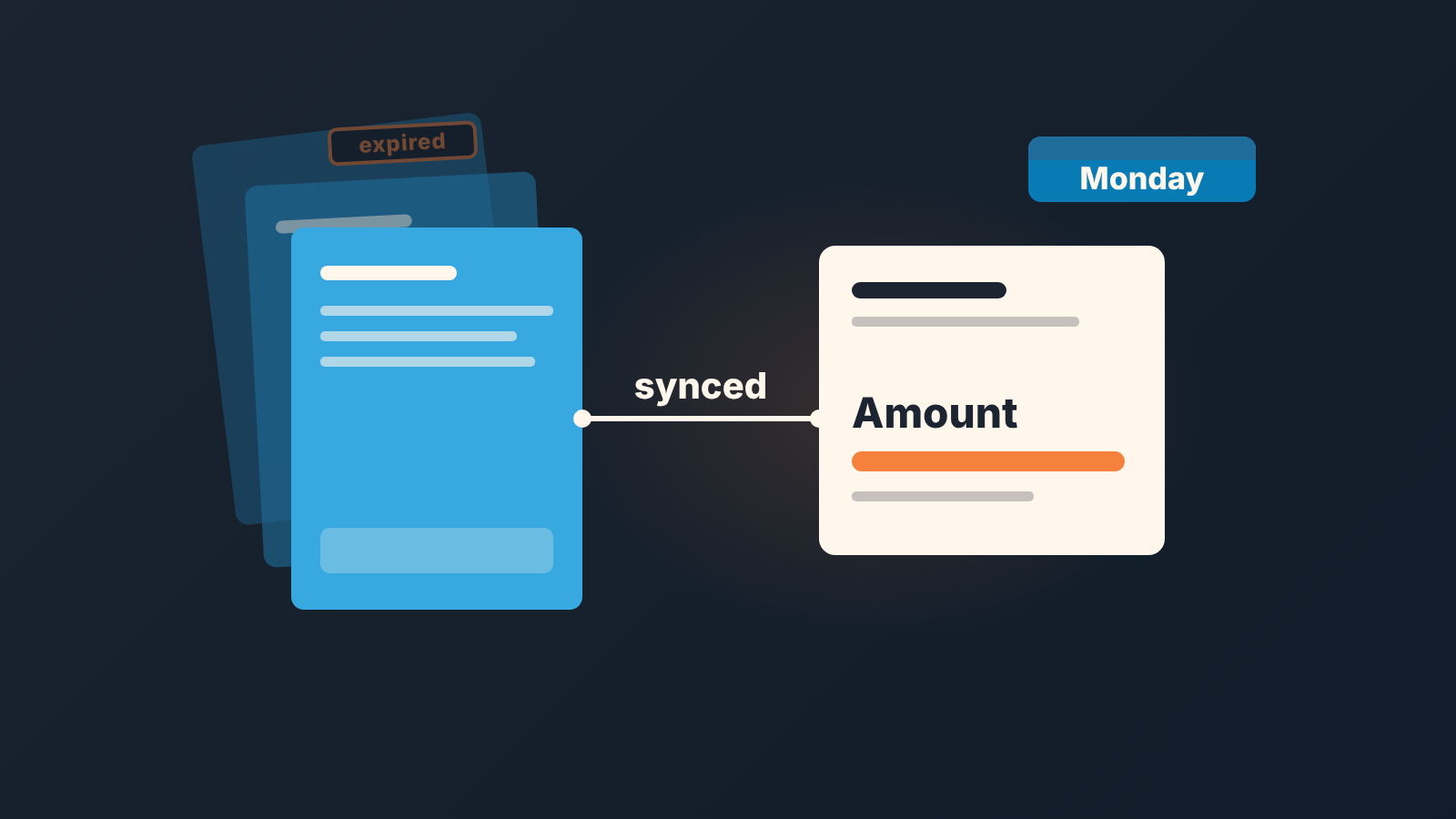
In standard Salesforce, an opportunity can have many quotes but syncs with only one of them at a time, and syncing keeps that quote and the opportunity updated together (Trailhead: Generate Quotes and Sync Them Easily). So once a week the manager checks that every late-stage deal has one synced, unexpired quote matching the forecast.
The rest is how to do that in ten minutes, and what to ask the rep when it isn’t true.
Standard quotes, not CPQ: what this covers
This is about the quotes object that ships with Sales Cloud, the one you switch on under Quotes Settings. Salesforce CPQ is a separate product with its own quote model, and nothing below is a CPQ instruction.
Not sure which one you have? Open any opportunity. Standard quotes live in a Quotes related list, and the quote record has an Expiration Date, a Quote Line Items section and a Start Sync action in its menu (Trailhead). No Quotes related list means quotes aren’t enabled yet: in Setup, enter Quotes in Quick Find, open Quotes Settings, click Enable Quotes, and add the list to the Opportunity Layout. That is the whole setup.
What quote syncing actually does
A quote is created from an opportunity, so it always knows its parent. Syncing is a stronger link. In Salesforce’s words, quote syncing lets you link a quote to the opportunity it was created from and synchronize all updates between the two records (Trailhead). The rep opens the quote, picks Start Sync from the actions menu, confirms on the Sync Quote pop-up, and from then on a change on one record shows up on the other.
That cuts both ways. Useful, because the rep edits the quote the buyer is looking at and the opportunity follows. Dangerous, because an unsynced quote is a free-floating document: the rep can change quantities, add a discount, send a new PDF, and the opportunity never hears about it.
It also means you don’t need a roll-up summary or a Flow to copy the quote total onto the opportunity, which is what some AI answers suggest. For an opportunity with products, the Amount is the sum of those products, and the object reference says an attempt to update the field on such a record is ignored (Salesforce Developers: Opportunity object). The sync is the mechanism. Your job is making sure its pointed at the right quote.
The link shows up on both objects. The quote has a filterable boolean, IsSyncing, which indicates whether the quote is syncing with an opportunity (Salesforce Developers: Quote object). The opportunity has SyncedQuoteId, the ID of the quote that syncs with it (Opportunity object). Remember both, the Monday list is built on them.
One synced quote per opportunity, and it should be the one the buyer holds
Several quotes on one deal is normal: two bundles, a three-year option, a version without services. Salesforce is fine with that. An opportunity can have multiple quotes, but it can sync with only one quote at a time (Trailhead). The trouble starts when the synced one is not the one in play.
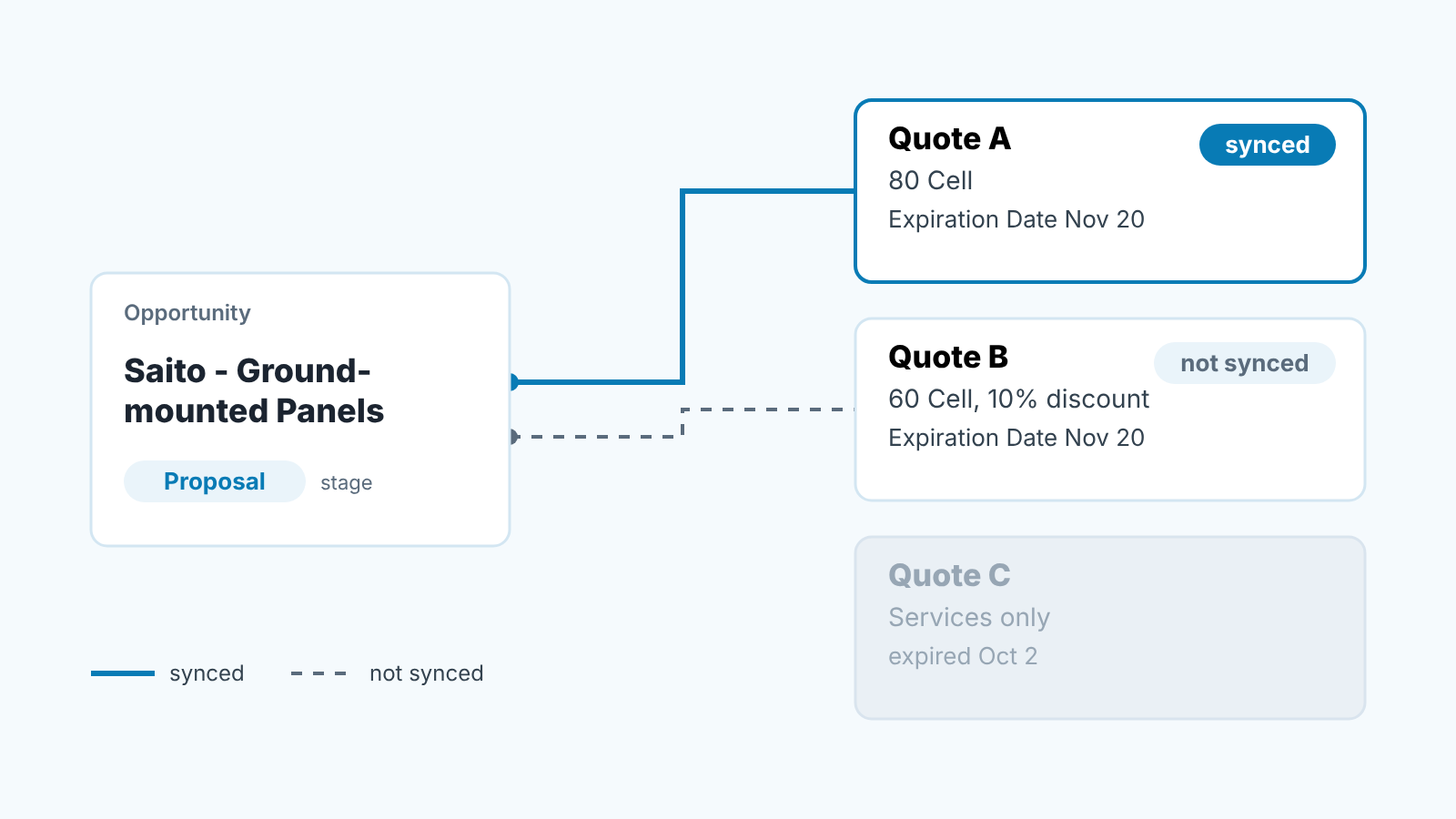
Here is the pattern we see most. Week one, the rep builds Quote A and syncs it. Week two, the buyer asks for a bigger quantity and a discount; the rep clones the quote into Quote B, edits the products, sends the PDF, and never moves the sync. The opportunity is still following Quote A. Your forecast is quoting a deal the buyer hasn’t seen for a week.
The rule we’d write into the playbook is one line: the synced quote is the quote the buyer has. If a new version goes out, the sync moves with it, the same day. We wrote up the same discipline for Pipedrive in how to handle revised quote versions; here the mechanism is just the Start Sync action.
Found a deal with three quotes and the oldest one synced? Don’t fix it yourself. Ask the rep which version the buyer is holding. Usually they know, they just never clicked.
Quote total vs opportunity Amount in the forecast
On a synced quote, the quote total and the opportunity Amount should tell the same story; if they don’t, check three things before you blame anyone. Is there a sync at all? Is it pointing at the right quote? Are you comparing the same total?
That last one catches people. A quote carries several totals. TotalPrice is the total of the quote line items after discounts and before taxes and shipping; GrandTotal is the total price plus shipping and taxes (Salesforce Developers: Quote object). The opportunity’s Amount, once it has products, is the sum of those products (Opportunity object), and none of that involves tax or shipping. Hold the Grand Total from the quote header next to the Amount and a quote with shipping on it will look “out of sync” when nothing is wrong.
So decide once which number your forecast means. For most SMB teams it’s the pre-tax total, because tax is not revenue and shipping is not the rep’s win. Write that down next to your forecast fields; if you don’t have that list yet, the CRM fields a sales forecast template needs is where we’d start.
Then the check is a comparison, not a calculation: the agreed total on the synced quote against the Amount. If they still disagree, the opportunity is following a different version, or nothing is synced.
One note that saves an admin an afternoon. GrandTotal is a system-calculated summary field and isn’t directly usable in custom formula fields on the Quote object; for calculations on a quote’s total, the object reference points to a Roll-Up Summary from the quote line items instead (Quote object). If someone proposes a formula that compares GrandTotal with Amount, show them that line before they build it.
Expiration Date is a forecast field too
Every standard quote has an Expiration Date, set when the rep creates it; Trailhead’s example sets it one month out (Trailhead). The object reference describes it plainly as the date when this quote is no longer valid (Quote object).
Most teams treat that date as a line on a PDF. We treat it as a forecast input. A synced quote that expired two weeks ago is still feeding the the opportunity, the opportunity is still in the commit column, and the price on it is one the buyer is no longer entitled to. Either the rep re-quotes and re-syncs, or the deal moves back a stage and the forecast loses that amount until there is a live price again. Both are honest. Leaving it is not.
So the expiry check sits next to the sync check. The fuller argument is in quote expiry and validity dates in Pipedrive, and nothing in it depends on the CRM.
What a quote line item is, and how it relates to opportunity products
A quote line item is a product on a quote. The object reference calls it a member of the list of products associated with a quote, together with the quantity, price and discount for that line (Salesforce Developers: QuoteLineItem object). Reps edit them in the Quote Line Items section through Edit Products, where Quantity and Discount live (Trailhead).
Each quote line item also carries an OpportunityLineItemId, the ID of the related opportunity line item, filled in when the line is created and not editable afterwards; other fields on it refer to “the opportunity line item that the quote line item is synced with” (QuoteLineItem object). So a synced quote isn’t one number copied across. It’s a set of lines paired with the opportunity’s products.
For a manager, the check is a glance: does the opportunity’s product list look like the quote the buyer holds? If the rep added a line on the quote and the opportunity still shows last month’s bundle, the sync is missing or on the wrong quote. That’s a conversation, not an admin ticket. The weekly report for the product side is in Salesforce opportunity products and the deal Amount.
While you’re there, look at discounts. If your team runs an approval gate on them, the discount on the synced quote’s lines is where the approved number actually reaches the buyer. The Salesforce approval process for discounts covers the gate itself.
The Monday list: deals with a quote and no sync
Now the ten-minute part. Build one list and read it every Monday before the pipeline meeting, with the rep’s name as the first column.
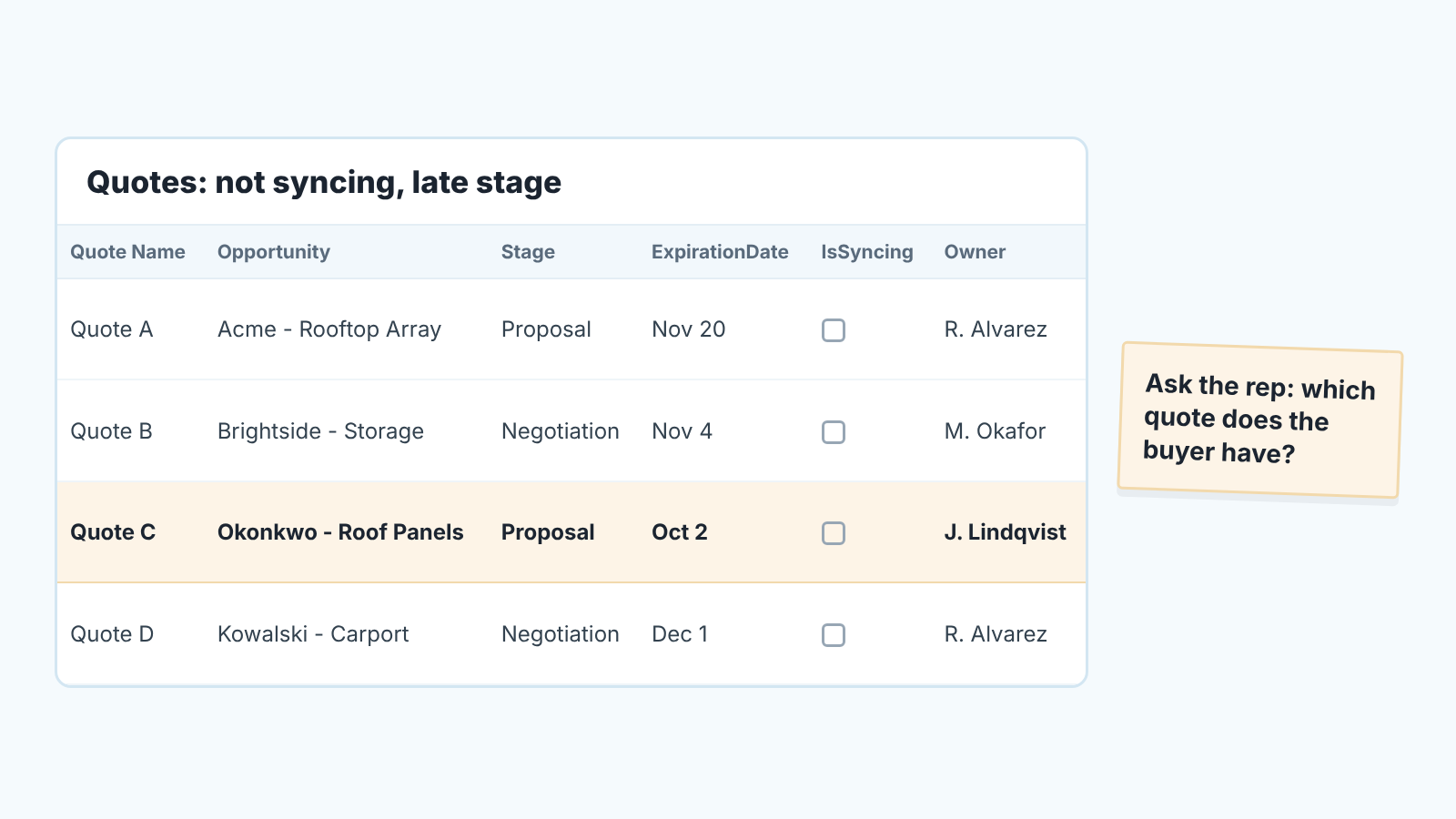
- Start from quotes, not opportunities. Filter on IsSyncing equal to false, so you see every quote floating free of its opportunity.
- Add the opportunity’s stage and close date as columns and keep only late stages, proposal and later, whatever your stage names are. An unsynced draft on a discovery-stage deal is fine.
- Add Expiration Date and sort oldest first. Expired and unsynced on a late-stage deal is the row you read out loud.
- For each row, ask the rep one question: “Which quote does the buyer have, and why isn’t it synced?” The answer is either “I’ll sync it now” or “the deal isn’t really at that stage.” Both fix the forecast.
Then a shorter pass from the other side: late-stage opportunities where SyncedQuoteId is blank. That catches deals with no quote at all, which in most SMB teams means the proposal went out as an email attachment built in a spreadsheet. The pipeline report cannot see that document. Either it becomes a quote in Salesforce or the stage is wrong. Which document belongs at which stage is laid out in quote vs invoice vs estimate vs proposal.
A disclosure, since this is the “who reads the list” moment: we build SalesBond, a sales management layer on top of the CRM a team already uses; we started with Pipedrive. The list above is a plain Salesforce list view or report, free and quick to build, so build it first. What SalesBond adds is the rest of the Monday picture: Deal Health checks every open deal in the connected CRM, Salesforce included, and shows which ones need the manager’s attention, with the reason. Check your CRM with SalesBond when the quote list is one of five lists you are reading before 9 a.m.
When standard quotes stop being enough
Standard quotes do one job well: a priced document tied to one opportunity, with a date on it and a switch that keeps the two in step. For a team selling a short product list with simple discounts that is enough.
You outgrow it when the quote itself becomes the hard part: bundles with rules about what can be sold together, pricing that depends on term and volume, several approval layers on one quote, renewals quoted from an existing contract. That is the ground CPQ was built for, and the moment to look at it is when reps spend thier time in spreadsheets working out what the quote should say. Switching tools does not fix a sync nobody clicks. If the forecast and the quote disagree, fix the habit first; it carries over to whatever quoting tool you use next.
Running a team on HubSpot as well? The mirror of this check is in HubSpot quotes: the deal amount and stage check. The field names differ; the Monday question is the same.