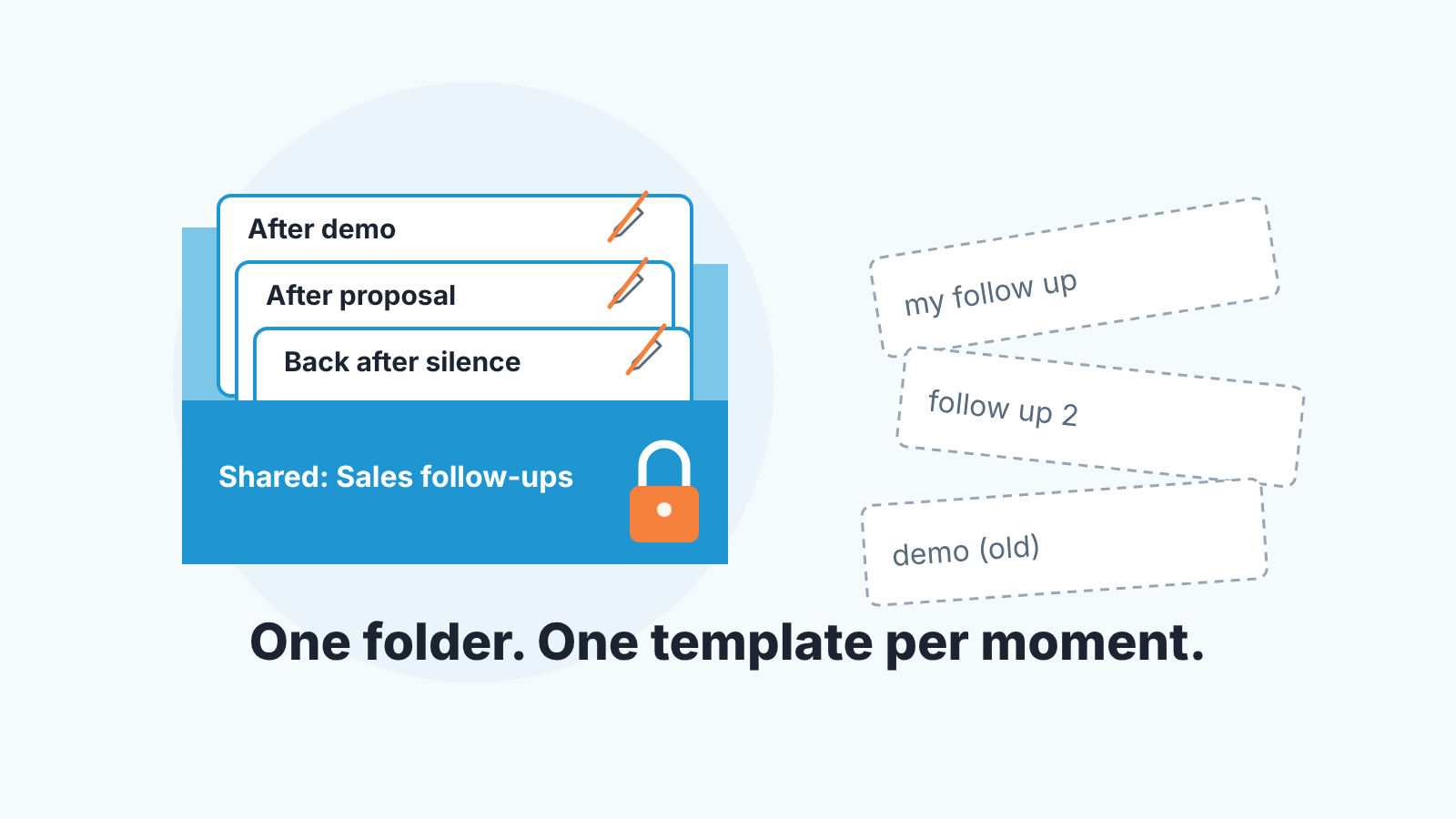
Lock down Salesforce email templates by keeping the shared ones in one folder that only managers and admins can edit, writing one template per deal moment (after the demo, after the proposal, back after silence), testing every merge field against a record where that field is empty, and checking once a month which templates actually get used.
Why templates are a manager problem, not an admin one
The admin can build any template you ask for. What the admin can’t decide is what the team says after a demo, or whether a rep may rewrite the shared version because they like their own phrasing better. Those are sales decisions. When nobody makes them, templates get made anyway, by whichever rep needed one on a Tuesday afternoon. If your team is on Zoho CRM, our cold email templates for Zoho CRM show what those decisions look like for a first email.
The pattern is familiar. The first template is good, because a strong rep wrote it. The copies are worse, because each one drops something the original author put there for a reason. A few months later a customer forwards a follow-up back, and the manager doesn’t recognize it as the team’s email.
So treat templates like pipeline stages: a shared definition with one person accountable for it. The admin keeps the permissions in place; the manager decides what goes in the folder. If you already run a rule for the next step field, this is the same kind of rule (we wrote that one up in the Salesforce next-step rule for tasks).
Classic vs Lightning: find out what your team is building
Before you lock anything down, find out which kind of template the team has been making. Salesforce has two, and they live in different places.
Lightning email templates are the newer kind. You create one from the App Launcher: open Email Templates, click New Email Template, give it a name, pick a Folder, and set the Related Entity Type to the object whose fields the template will pull, which for deal follow-ups is usually Opportunity (Trailhead: create your email template). The same form has an Enhanced Letterhead field (Trailhead: configure an email letterhead and template).
Since Winter ’21 these templates can also be built in the Email Template Builder, a drag-and-drop editor with responsive HTML, images and merge fields. Access to it is a user permission, “Access drag-and-drop content builder” (Salesforce Admins: Lightning email templates in Winter ’21). If a rep says the builder never shows up when they create a template, that permission is the first thing to check.
Classic templates are the older kind, and guessing which one you have from the screen is unreliable. The template record itself carries a UI Type field, plus Folder Name and “Made in Email Template Builder” (Salesforce field reference: EmailTemplate). Ask the admin for one list of every template with those three columns. Ten minutes, and you know.
Our position: if the team sends from Lightning Experience, keep the shared library in Lightning templates and stop adding Classic ones. Nobody reviews two libraries.
Folders and who can edit shared templates
The folder is the unit you control, not the individual template. One folder for the team’s shared follow-ups, and one rule: a rep who wants a change asks the manager instead of saving a personal copy. Personal templates can stay personal. Nobody needs to police a rep’s own “thanks for the call” note.
Folders for Lightning templates depend on a setting called Folders and Enhanced Sharing, under Setup > Lightning Email Templates. Trailhead’s own exercise points to it when the letterhead editor throws an “insufficient privileges” error (Trailhead: configure an email letterhead and template). Sit down with the admin, confirm it’s on and look together at who can edit the shared folder today. Sharing options differ from org to org, so check rather than assume.
Name the folder “Sales follow-ups (shared)”, not “Public Email Templates”, and name templates by moment, not by author: “After demo”, not “Priya’s demo email”. The author will leave one day and the template should not leave with her. It’s the same move we described for Pipedrive’s shared templates and for HubSpot snippets and templates; only the menus differ.
Templates you need per deal moment
Fewer than you think. We keep the shared folder to the moments where a late or sloppy email actually costs a deal, and leave the rest to the rep’s judgment.
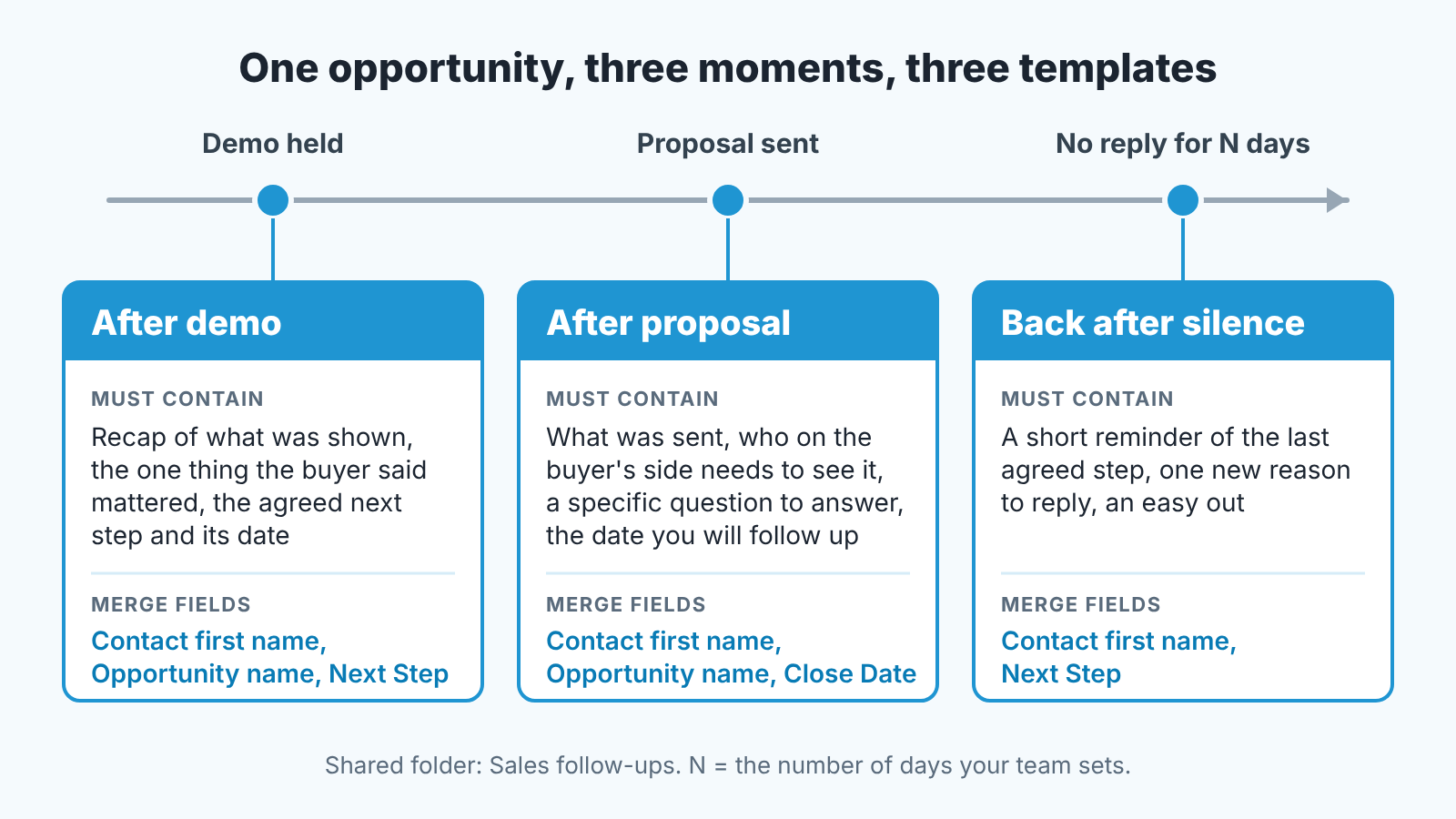
| Deal moment | Template | What it must contain | Merge fields it relies on |
|---|---|---|---|
| Demo held | After demo | Recap of what was shown, the one thing the buyer said mattered, the agreed next step and its date | Contact first name, Opportunity name, Next Step |
| Proposal sent | After proposal | What was sent, who on the buyer’s side needs to see it, a specific question to answer, the date you will follow up | Contact first name, Opportunity name, Close Date |
| No reply for a set number of days | Back after silence | A short reminder of the last agreed step, one new reason to reply, an easy out (“if this is on hold, tell me and I’ll stop”) | Contact first name, Next Step |
Three templates, each tied to a moment the manager can see in the pipeline. That is deliberate: “did the follow-up go out” becomes a question you answer from the opportunity, not from the rep’s memory. The proposal one gets skipped most often, which is why we covered its timing in follow-up after a proposal. The sequence there works in any CRM even though the screenshots are from Pipedrive.
Cold outreach stays out of this folder. So do the one-off “quick question” emails reps write faster than they could find a template.
Merge fields: how an email goes out with a blank name
Every manager has seen the email that opens with “Hi ,”. The cause is always the same.
A merge field is a placeholder that pulls a value from the record (say, the contact’s first name) when the email is sent; Trailhead describes it as text in brackets that “pulls information from the … record” (Trailhead: create your email template). If the record has nothing in that field, the email goes out with a gap where the name should be. Neither the builder nor the Trailhead exercise warns you about that, so test it yourself, once per template, before it goes into the shared folder.
- Make a test contact and a test opportunity with nothing filled in beyond what Salesforce forces you to enter.
- Open each shared template against that record and preview it. Every blank is a merge field that depends on data your reps don’t always have.
- For each blank, decide: either the field becomes required at the stage before the template is used, or the merge field comes out and the rep types that part by hand.
- Preview again on a real, complete record to catch fields that merge the wrong thing (a company’s legal name where the rep would have written the short one).
Our rule of thumb: a merge field earns its place only if the field behind it is required at that stage. First name and opportunity name are usually safe. Next Step is safe only if your team already fills it in, which is the discipline we argued for in the next-step rule. On an optional field, the merge field is a coin toss.
Letterheads and consistency
The letterhead is the part of the email a rep never touches: logo, colors, header and footer. Trailhead’s exercise frames it plainly: a consistent look makes the team’s emails recognizable. In practice you upload the logo to Files first, create the letterhead under Enhanced Letterheads in the App Launcher, and then pick it in the Enhanced Letterhead field when you save a template (Trailhead: configure an email letterhead and template).
One letterhead for the sales team is enough. The point isn’t design. A customer who gets emails from three reps over a quarter shouldn’t be able to tell from the look of them that three people were involved, so keep it plain and don’t let anyone add a personal banner to a shared template.
Emails written in Outlook won’t carry the letterhead, and that’s fine: they are usually quick replies, not follow-ups. How those land on the opportunity is in Salesforce Outlook email sync and opportunities.
Is anyone actually using them?
Check a sample of ten opportunities by hand. The template record does carry Times Used and Last Used Date fields (Salesforce field reference: EmailTemplate), and they tell you whether a template is dead. They don’t tell you which deal got it, or whether the rep sent a personal rewrite instead.
Take five opportunities that passed the demo stage in the last two weeks. Open each one, find the email sent after the demo on the activity timeline, and put it next to the “After demo” template. Was a follow-up sent at all? Was it the shared template or a rewrite? Did the merge fields fill? Then do five with a proposal sent. Ten records, about half an hour, and you know more about follow-up consistency than any template count tells you.
The rewrites are the useful finding. A rep who keeps changing the shared template is telling you something about the template, not about herself. Sometimes its too long, sometimes a merge field pulls something awkward, and sometimes the rep is simply right. Then you change the shared one instead of letting a personal version drift away from it.
Write the findings down next to your stage definitions, so the next review has a baseline.
A disclosure, since this is where a manager starts wanting the check without opening ten records by hand: we build SalesBond, a sales management layer on top of the CRM a team already uses; we started with Pipedrive. Its Deal Health checks open deals against more than 20 rules and shows which ones need attention. The template is still yours to write. Check your CRM with SalesBond if you want that list without building the filter yourself.
Monthly template review
Thirty minutes on the first working day of the month, with the manager and whoever sends the most email. The agenda never changes, which is why it survives.
Open the shared folder and count what’s in it. Anything new that didn’t go through you is up for deletion or adoption, so decide on the spot. Take the ten-record sample again and look at the the rewrites. If two reps changed the same line the same way, they have already fixed the template for you. Re-run the blank-record preview on any template that changed, because a new merge field is a new way to send “Hi ,”. Last, read each template out loud once.
A line that sounded fine in March can sound stale in October. On a long deal the customer reads the same template more than once, and they notice before you do.