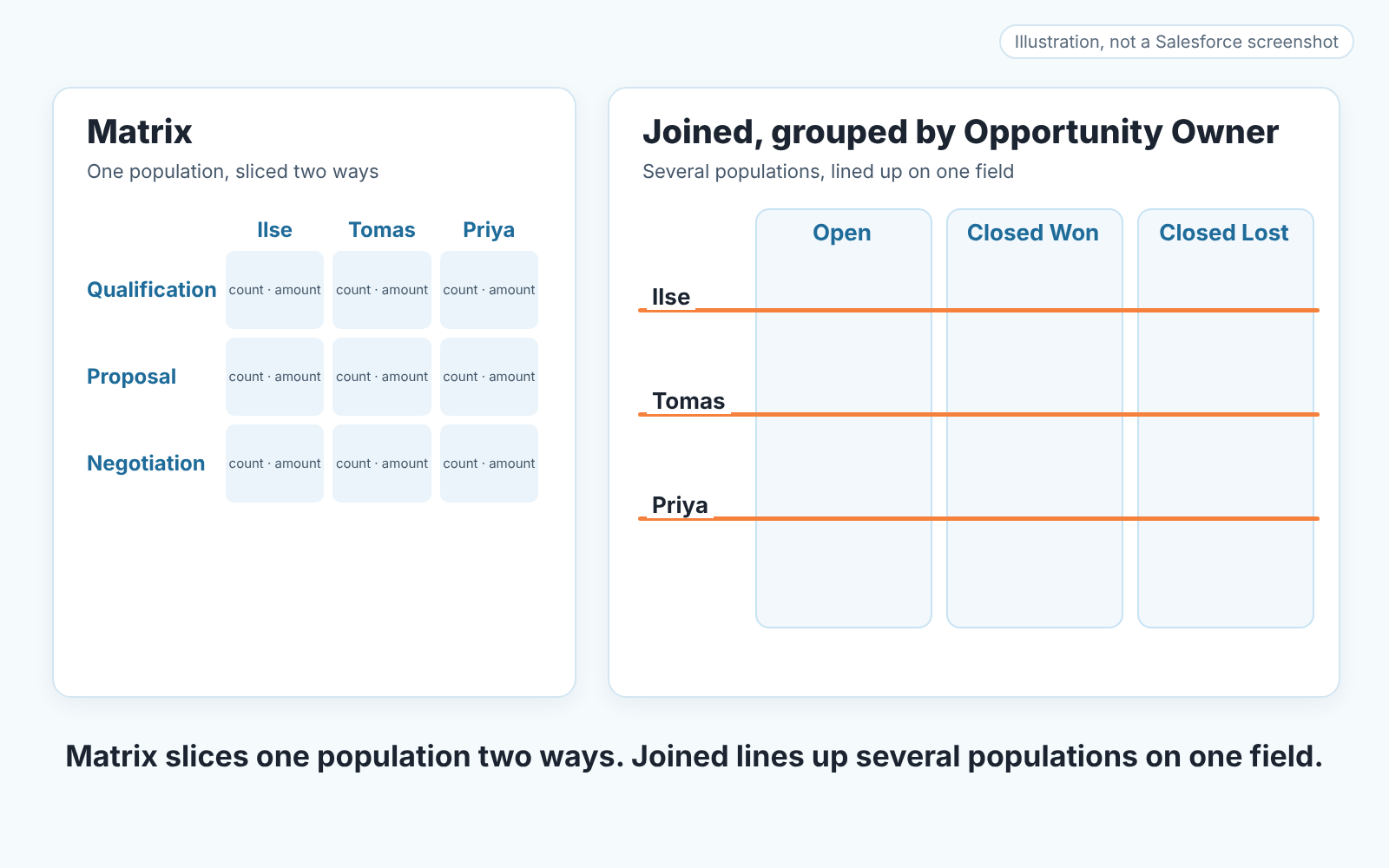
Use a matrix report when the question is one measure across two groupings, such as pipeline amount by stage and by owner. Use a joined report when you need blocks from different report types, or differently filtered blocks of the same type, side by side, such as open opportunities next to closed ones for the same owner. A joined report holds up to five blocks, each with its own columns and filters, and the blocks line up on a field they share (Trailhead: Create a Joined Report).
Start from the question, not from the format menu
The Salesforce report builder asks you to pick a format before it asks what you want to know, and that order is backwards. We walked through the four formats in the Salesforce reports a sales manager opens on Monday, so we won’t repeat that table here. This article is about the decision it left open: when matrix stops being enough and joined earns its complexity.
Our rule is short. Write the question down in one sentence. One number and two “by” words: matrix. “Next to” or “compared with”, and the two halves come from different places: joined. Neither: a summary report, which is faster to read.
Matrix: stage by owner, count and amount
A matrix report is a grid. Rows are one grouping, columns are another, and every cell holds a summarised measure. For a pipeline review the grouping almost always ends up as Stage down the side and Opportunity Owner across the top, with Amount summed and Record Count shown in each cell.
That grid answers the question most managers ask first on Monday: where is the money sitting, and whose is it. Read down a column for one rep’s distribution across stages. Read across a row for who owns the Negotiation deals. Twelve deals in Qualification and nothing past Proposal is a top-heavy column, visible before you open a single record. Count and amount sit in the same cell, so “many small deals” and “one big deal” look different at a glance.
What a matrix cannot do is show two populations with different filters. It has one filter set. If the filter says Closed equals false, every cell is open pipeline and the the won deals are gone. The moment you want “open pipeline by owner, and next to it what the same owner closed last quarter”, you have left matrix territory.
Joined report: blocks side by side, up to five
A joined report is a set of up to five blocks placed next to each other, each block acting as its own report with its own report type, columns and filters. The blocks are anchored by a common field you group on, so a row for one owner in block 1 sits on the same line as that owner’s row in block 2.
Building one is quick: New Report, pick the principal report type, then Report, Joined Report, Apply, and Add Block for each extra block. Trailhead’s Create a Joined Report unit has the clicks.
The blocks don’t have to come from different report types. Trailhead’s Compare Case Priority and Status example uses three Cases blocks grouped by Priority, each filtered to a different status. In sales terms: block 1 is Opportunities filtered to open, block 2 is Closed Won this quarter, block 3 is Closed Lost this quarter, all grouped by Opportunity Owner. One line per rep, three columns of truth.
Mixing report types is where joined gets its reputation. You can add report types to one joined report when they have relationships with the same objects; Trailhead’s example is Opportunities and Cases, which both have fields in common with Accounts. For a sales team the natural pairing is deals next to activity on the same account, grouped by Account Name, provided the activity report type you pick relates to Account the way the Opportunities one does.
Filters apply per block, so one block can say Closed Won and another Closed Lost without fighting. And summary formulas can run across blocks, which is how a win rate column gets computed from block 2 and block 3 instead of in a spreadsheet afterwards.
Where a joined report stops: common fields, the OR, what’s missing
The limits are the part nobody writes about, and they are why some joined reports feel broken on first use.
First, the alignment field has to be common to the blocks. Trailhead calls it a Common Field, with Account Name as the example. If the field you wanted to group by doesn’t show up as common once a second report type is in, that’s why, and Account Name or Owner is usually the way out. The community question “What determines common fields in joined reports?” still shows up in search because this is the first wall people hit.
Second, the principal report type controls how those common fields are named, since some of them have different names or are handled differently in different report types (Trailhead: Create a Joined Report). Make the Opportunities block principal when the report is about deals, or the Owner grouping may show up under a name your reps don’t recognise.
Third, and this is the one that produces wrong conclusions: a record appears in a joined report if it meets the criteria of any block. Trailhead calls it an OR filter across blocks: an account stays in because of its open cases even when it fails the Hot rating filter in the accounts block. So an owner with open deals and no closed deals still shows, with an empty Closed Won block. That is fine. Reading the report as “owners who have both” is not, because it was never that. A joined report is a side by side, not an intersection.
Fourth, not every report type can go into a joined report at all. Salesforce marks each report type as compatible with the joined format or not (the supportsJoinedFormat flag in the Reports and Dashboards REST API reference), so a custom report type that won’t appear in the Add Block list is not a bug.
And a joined report is built to be read block by block. For a number to glance at, a dashboard component on a summary or matrix report is simpler; see the dashboard components a sales manager needs.
Three manager questions and the format for each
Here is the mapping we use when somebody on a sales team asks which one to build.
“Where is the pipeline by stage, and whose is it?” That’s a matrix: Stage by Opportunity Owner, sum of Amount and Record Count. One population, one measure, two groupings. A grid is the honest shape of the question.
“Show me each rep’s open pipeline next to what they won and lost this quarter.” Joined, with three Opportunities blocks grouped by Owner and filtered to open, Closed Won and Closed Lost. Three populations, three filter sets, and a matrix only has one. A cross-block formula gives you the win rate.
“Which accounts have deals in play but no logged activity?” Joined again: an Opportunities block and an activity block, grouped by Account Name. Read the rows where the activity block is empty. Remember the OR here. The account stays in the report because it has a deal, which is exactly what you want this time.
A fourth question comes up often enough to mention: “how has the pipeline moved since last month”. Neither format answers it. That’s a job for reporting snapshots for a pipeline trend and the Opportunity History report. A “last month” block next to a “this month” block won’t do it: both read the opportunities as they are today.
A weekly review set: one matrix, one joined
We think a manager needs exactly two of these saved, and we are stubborn about the number.
The matrix is the first screen. Stage by Owner, open deals only, Amount and count. Read it top to bottom with the team, ask about teh top-heavy columns, move on.
The joined report is the second screen and it makes the first one honest. Open next to Closed Won next to Closed Lost, by owner, current quarter. The rep whose matrix column looked thin but who closed three deals last week gets credit in the second block. The rep with a fat column and an empty Closed Won block gets a different conversation. Neither report alone tells you which rep you are looking at.
Keep both in one folder and have them arrive by email before the meeting; the mechanics are in scheduling a report subscription. Hygiene questions like stale close dates belong in a list view a rep can act from, not in a third block. So build the matrix this week, add the joined report next week, and only reach for a third format when a question shows up that neither of them can answer.
One admission, since we build a product in this space. The joined report tells you Tomas has nine open deals and closed nothing this quarter. It does not tell you which of the nine will slip on Friday. We build SalesBond, a sales management layer on top of the CRM a team already uses, Salesforce included; Deal Health checks each open opportunity against more than 20 rules and explains which deals need attention and why. Check your CRM with SalesBond if that is the gap you keep hitting once the two reports exist.