A Salesforce reporting snapshot saves the rows of a report into a custom object on a schedule, so next week you can compare the pipeline as it stood before with the pipeline as it is now. Freeze one open-opportunity report weekly and compare stage, amount and close date between the two dates. That is the whole method.
What a snapshot answers that a live report cannot
A live report answers one question: what is in the pipeline right now. Ask it what was there last Friday and it has nothing to say, because the records it reads have already moved. The deal that slipped from October to December shows December. The amount that was cut by a third shows the new amount, with no trace of the old one.
That is why the same question keeps coming back on r/salesforce: “Can Salesforce do snapshot reports and dashboards from…” (r/salesforce). People want last week next to this week.
A reporting snapshot does exactly that. Salesforce describes it as a way to report on historical data: the results of a tabular or summary report are loaded into fields on a custom object, on a schedule you set (Metadata API, AnalyticSnapshot). Each run adds new records, so you end up with a pile of dated copies of your pipeline. That pile is what trend means in practice.
We think a small team should start with one weekly snapshot and nothing else. One snapshot forces you to decide what actually matters on a pipeline review, and that decision is worth more than the data.
Pick the one report to freeze: open opportunities, five columns
Freeze a report on Opportunities filtered to open deals, with five columns:
- Opportunity Name, so a person can read the row
- Stage
- Amount
- Close Date
- Opportunity Owner
Stage, Amount and Close Date are what change when a pipeline drifts. Owner tells you whose deals are drifting, and Name lets you talk about it.
Why open deals only? Because the question is “what happened to the deals we were counting on”. A deal that was already closed last Friday did not change. The filter also keeps the report small, which matters for the limits below.
Leave out probability, lead source, campaign and next step. Each column needs its own field and mapping on the snapshot side, so columns are cheap to add and expensive to maintain.
Setting up a reporting snapshot: where it lands and when it runs
This is the admin’s part. It takes an afternoon and no code:
- Build the source report. It has to be a tabular or summary report; here, Opportunities, open deals, the five columns above.
- Create a custom object to receive the rows, with a field for each column. Add one Date/Time field for the run itself, “Snapshot Date”, and name the object so nobody mistakes it for live data (“Pipeline Snapshot” works).
- In Setup, type “Reporting Snapshots” into Quick Find and create a new one: pick the source report, the target object and the running user. The running user matters, because the snapshot sees exactly what that user’s role and sharing settings allow.
- Map each report column to its field, and map the snapshot’s own Execution Time to “Snapshot Date” (AnalyticSnapshot mappings).
- Schedule the run. Elevation Solutions lists daily, weekly and monthly as the frequency options (Elevation Solutions).
For a weekly review, run it weekly on Friday evening, after reps have finished updating deals. Kicksaw notes that snapshots run asynchronously, so the exact start time can vary with available system resources (Kicksaw). Don’t schedule the run for 8:55 and the review for 9:00. Friday night for the run, Monday morning for the review, and the rows are always there.
Reading Friday against Friday: three comparisons for a manager
Once two runs exist, build a report on the snapshot object, not on Opportunities. Group it by Snapshot Date so each run becomes its own block, and put the two most recent runs side by side. Then read three things, in this order.
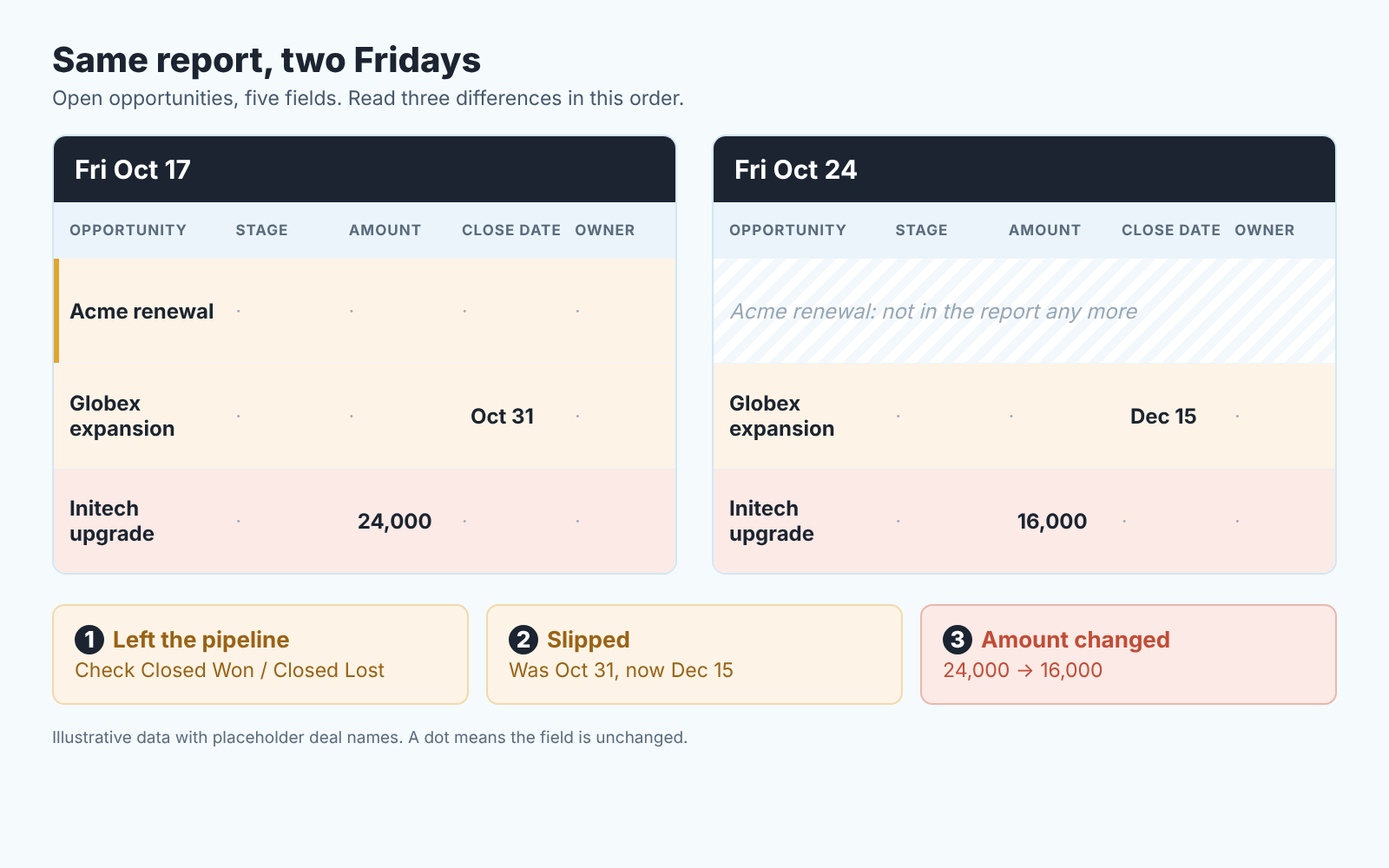
Left the pipeline. A deal that is on last Friday’s list and missing from today’s has left the open filter. Either it closed, won or lost or someone changed it so it no longer fits the report. Count these first. The number of deals that left, and their total amount, is the honest answer to “how did the week go”.
Slipped. Same deal on both lists, later close date on the right. A live report hides this best, because the old date is gone the moment a rep changes it. Add up the amount of everything that slipped out of the current month; that is the gap that opened in your forecast this week.
Changed amount. Same deal, different Amount. Down is the usual direction. A rep who cut a deal by a third has learned something about the buyer that is worth two minutes on the review. Up deserves a question too: a deal that doubled a week before close needs a sanity check.
Three lists, each with a count and a sum, read in the same order every Monday. Say the readout is “four deals left, two of them won; three slipped out of October, worth 61k between them; one got cut”. Reps stop arguing about pipeline health and start explaining rows. If you want a format for that conversation, here is a 15-minute weekly pipeline review.
If you already use Pipeline Inspection in Salesforce, the snapshot is the part you own: Pipeline Inspection shows the week’s changes on screen, the snapshot stores them as records you can report on in six months. A report subscription is different again: it emails the current state and stores nothing.
Reporting snapshot limits you will hit
Two numbers and one rule decide whether your snapshot keeps working. Kicksaw lists them this way: a snapshot captures at most 2,000 rows of the source report, and the rest are left behind; the source report can hold up to 100 fields; and the target object can’t be the subject of any automation that runs on creation, which means no workflow rules, process builders, flows or Apex triggers on insert (Kicksaw, updated 2024-01-05).
For a small team the row limit is the one to watch. A report that includes closed deals grows every week until one Friday it crosses 2,000 and the bottom of your pipeline silently drops out. The open-deals filter is the fix: open pipeline does not grow forever.
The automation rule bites people who want to stamp something on each row as it arrives. Don’t. Kicksaw’s workaround is a scheduled flow that runs at least an hour after the snapshot. We would skip the enrichment entirely, since the Snapshot Date field already separates the runs.
One habit covers all three limits. Once a month, open the snapshot object and check that the latest run has roughly as many rows as your open pipeline. A snapshot that has quietly been failing for six weeks is worse than no snapshot, because you will trust it.
How this differs from Opportunity History, Historical Trend Reporting and collaborative forecasts
Salesforce already keeps history. The difference is the unit.
Opportunity History tracks one deal: when its stage, amount or close date changed, and from what to what. It is the right tool when a rep says “this deal has been in Proposal for a month” and you want the dates (how to build the Opportunity History report), and field history tracking does the same for any field you choose (auditing opportunity field history). It is the wrong tool for “what did the whole pipeline look like last Friday”: you would rebuild that from hundreds of change rows. A snapshot stores the pipeline as a set, on a date, in the shape you read it.
Historical Trend Reporting is the closest built-in alternative. An admin turns trending on for selected fields, and a historical trend report then compares those values across dates you pick; turning on Pipeline Inspection also turns it on for opportunities (OpportunitySettings, CustomField trackTrending). If it is on, use it for quick checks. We still keep the snapshot. Trending covers only the fields an admin switched on, while snapshot rows are records in your own object that you can report on and keep as long as you like.
Collaborative forecasts roll amounts up by period and let a manager adjust the number without touching the deals (manager adjustments in collaborative forecasts). That is a judgement about the future; a snapshot is a record of the past. The two work together. If your quarter forecast drops by, for example, 80k between two Mondays, the snapshot comparison tells you which rows did it: three slipped, one cut. The forecast gives you the number, the snapshot gives you the names.
If you are still choosing which reports a manager should open every week, start with the weekly report set for Salesforce and add the snapshot as the one that remembers. Ask your admin for the afternoon this week, and by the the Monday after next you will have two Fridays to compare.