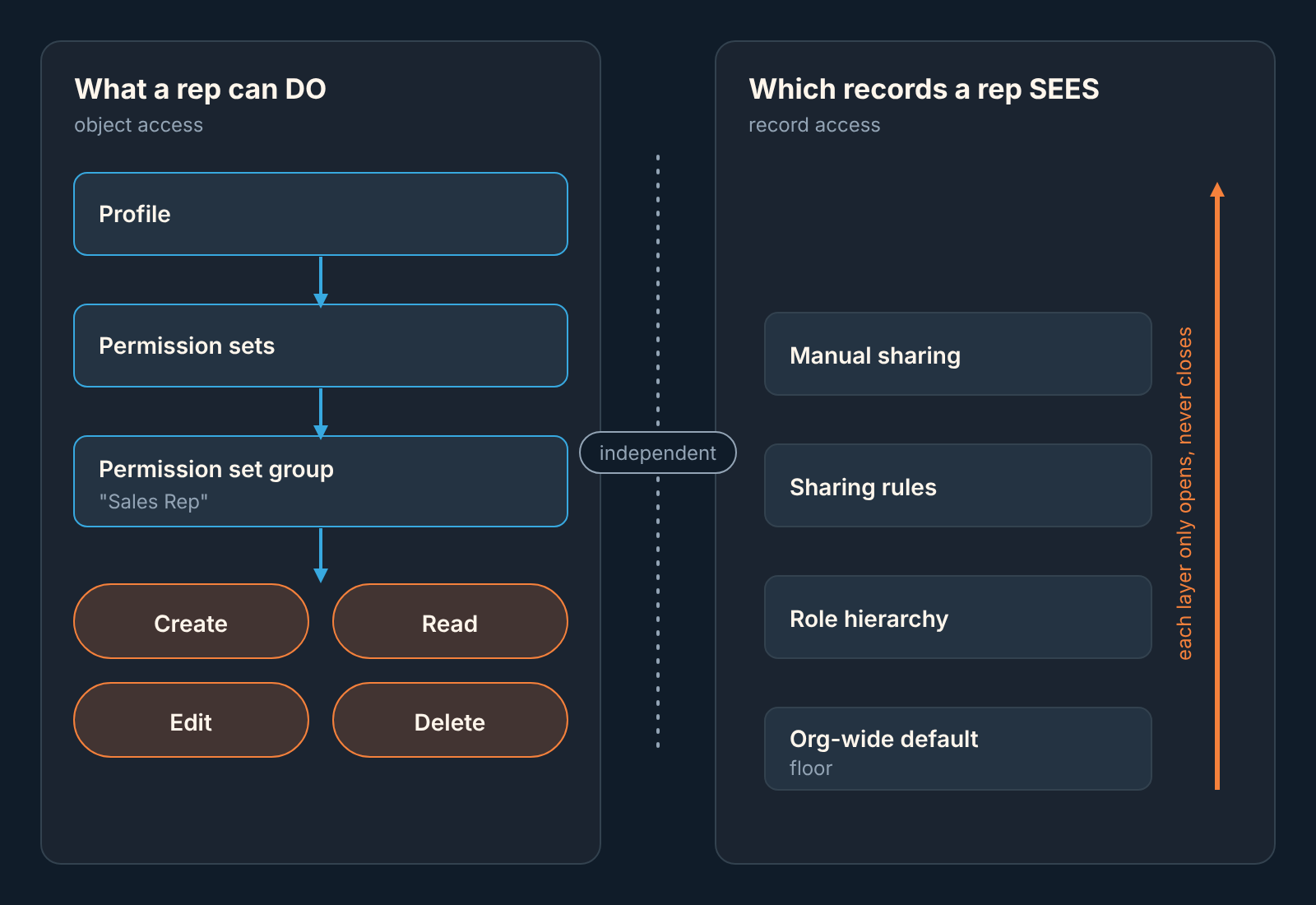
Salesforce sharing rules are the last of three layers that decide which opportunities a rep sees. The org-wide default (OWD) sets the floor for opportunities she does not own, Private or Public Read Only. The role hierarchy lifts managers above that floor automatically. A sharing rule then opens specific records to extra people, and it only ever expands access, never restricts it. What a user may do with a record (create, edit, delete) is a separate layer again, set by profile and permission sets. For a small sales team we recommend: Opportunity default Private, a manager role above the rep role, one sharing rule for shared accounts, and permission sets for the verbs.
Two questions Salesforce keeps separate: what a rep can do, and which records they see
Sharing rules decide which records a user sees; profiles and permission sets decide what the user can do with them.
The question managers usually bring is narrower: “why can’t she see that deal?” The answer sits in two mechanisms that do not know about each other. The first is object access: whether a user may create, read, edit or delete opportunities at all. Trailhead puts a user’s baseline permissions on any object down to their combined profile, permission sets and permission set groups (Trailhead: Control Access to Records). The second is record access, built from org-wide defaults, the role hierarchy, sharing rules and manual sharing. The default locks records down; the other three open them back up for the people who need them (same source). When a rep reports an insufficient privileges error, this is what a manager checks before messaging the admin.
A rep can hold Edit on the Opportunity object and still not see a single opportunity owned by a colleague, because the default is Private and nothing has opened those records to her. And org-wide defaults can never grant more access than her object permission allows (same source).
Teams coming from HubSpot or Pipedrive feel this most; we covered their models in HubSpot user permissions for deal visibility and in Pipedrive permission sets for a new rep. Salesforce splits “see” from “do”, so you configure them in two places and check them separately.
Org-wide defaults (OWD) for Opportunities: Private or Public Read Only
Setup > Sharing Settings is where the floor is set. The options are Private, Public Read Only, Public Read/Write and Controlled by Parent, where access follows the record a child belongs to (Trailhead: Control Access to Records). Private means only the owner and users above the owner in the role hierarchy can view, edit and report on the record.
For Opportunities in a team of five to fifteen we see two honest choices.
Private is the right OWD when reps work separate books and the manager decides who else gets in. Public Read Only fits a team that already runs an open pipeline: everyone reads everyone’s deals in the Monday review, and only the owner and the people above her can edit.
What we would not pick is Public Read/Write on Opportunities. It makes every rep an editor of of every deal, so a stage change or a pushed close date has no clear author. If one named colleague should edit, that is a job for a sharing rule or an opportunity team, not for the default.
Role hierarchy: the manager sees the team without a sharing rule
You do not need a sharing rule for the manager. Users at any role level can view, edit and report on all data owned by or shared with users below them in the hierarchy (Trailhead: Control Access to Records with Roles). Put a “Sales Manager” role above an “Account Executive” role in Setup > Roles, assign the people, and the manager sees every rep’s opportunities with Private still in place.
Two details matter for a small team.
First the hierarchy does not have to copy your org chart. Trailhead is explicit that each role represents a level of data access, not a job title (same source). If two senior reps mentor two juniors but you do not want the seniors reading the juniors’ deals, keep all four in one role and the manager above them.
Second, for a standard object like Opportunity the hierarchy always applies. Trailhead names custom objects as the only exception: there you can clear “Grant Access Using Hierarchies” (same source). If somebody tells you the manager “should not see the enterprise deals”, the answer is a separate role branch, not a checkbox.
Sharing rules: the one criteria-based rule a small team usually needs
With Private on Opportunities and roles set, the remaining gap is the records a rep needs but does not own. On a small team that is almost always shared or key accounts, where two reps work the same customer.
A sharing rule answers three questions: which records, shared with whom, and at what access level, Read Only or Read/Write (Trailhead: Control Access to Records with Sharing Rules). There are two kinds you will use. Owner-based rules share records owned by certain users; criteria-based rules share records whose field values meet conditions you set. The recipients are a role, a territory or a public group (same source).
Here is the one rule we would write first. Criteria-based, on Opportunity: records where a “Key account” field on the opportunity is checked are shared with a public group called “Sales Team”, access Read Only. The owner still edits; everyone else can read the history and the next step before they walk into a meeting with the same customer. If you want colleagues editing, change the level to Read/Write, but decide that on purpose.
Before writing a second rule, look at the account. Silverline’s overview, written in 2020, describes access to a parent account carrying access to its child opportunities (Silverline: Salesforce record access); the current Trailhead roles unit names the setting behind it, an Opportunity Access option on each role for child records of accounts its users own. A rep who can read the account may already read the deals under it.
For deal-by-deal exceptions there is manual sharing: a record owner, or a user with enough permissions, uses the Share button on the record to give read or edit access to someone who has no other way in (Trailhead: Control Access to Records). There are also opportunity teams, covered in opportunity teams vs account teams. If the team is split by region, territories are a third target for rules; see the manager’s check for territory management.
Profile or permission set: where edit and delete belong
None of the above decides whether a rep can delete an opportunity.
Trailhead recommends the Minimum Access – Salesforce profile (or a clone of it) plus permission sets and permission set groups (Trailhead: Control Access to Objects). A user gets one profile, which carries default settings such as apps, record types and page layouts. Permission sets hold the permissions for a job or task, and permission set groups bundle them into a persona such as “Sales Rep” (same source).
For a small team we think this translates into one group, “Sales Rep”, holding Read, Create and Edit on Opportunity, and a smaller “Sales Manager” set that adds what the manager alone should do. Delete belongs there: a deleted opportunity is a hole in the pipeline history, and a manager of five can absorb the occasional request.
Don’t try to get there by editing a standard profile. You can’t change object permissions on one anyway, and cloning a profile per person is exactly the sprawl permission sets were made to avoid (same source). A permission set has a name and a reason, and you can remove it from one person without touching the others.
Two permissions deserve their own warning. View All Data and Modify All Data override all other sharing settings; Trailhead says to use caution when assigning them to any profile other than System Administrator (Trailhead: Control Access to Objects). If a rep has either of these, nothing in the previous three sections applies to her. Private is not private, and the key-account rule is decoration.
Checking what a rep actually sees (before and after the change)
Configure in the morning, check the same afternoon, with the rep. Before the change, ask one rep to share her screen, open the Opportunities tab, switch to a list view that shows all opportunities rather than only hers, and count the records. Write the number down with the date. Do the same with the manager. Make the change, wait for the recalculation that a new sharing rule starts (Salesforce emails you when it finishes, per Xappex), and repeat both counts.
The manager’s count should equal the whole team’s pipeline; if it is short, a rep sits outside the manager’s role branch. The rep’s count should be her own opportunities plus the key-account records opened by the rule. If she sees everything, look for View All Data or a Public Read/Write default. If she sees less, check the permission set group before the rule.
Then the test people skip: ask the rep to open a shared record and edit a field. Read Only on the rule means the save should fail. If it goes through, the rule is Read/Write or the rep has broader access than you think. Keep the counts, they are the baseline for the quarterly review below.
Mistakes: View All Data on the wrong profile, stale public groups, rules used to restrict
Most of what goes wrong with opportunity visibility on a small team is one of three things.
The first is View All Data or Modify All Data on a profile cloned from the admin years ago, which switches off every sharing decision for those users (Trailhead: Control Access to Objects). The typical symptom: “the new rep can see the CEO’s deals”, with the rule and the default both correct.
The second is a public group nobody maintains. A group with a rep who left in spring and a contractor who was never removed keeps handing records to the wrong people. Xappex lists stale public groups among the common errors, next to using rules to restrict access and writing too many of them (Xappex). The fix is boring: whoever changes the roster changes the group the same day.
The third is a rule written to take access away. Sharing rules can never be stricter than the org-wide default; they only allow greater access (Trailhead). If the goal is “reps should not see each other’s opportunities”, the only lever is the org-wide default, and the rule you were about to write should be deleted.
A fifteen-minute access review each quarter
Sharing settings drift because people change and nobody owns the groups.
- Open Setup > Roles and read the tree against the current team. Every rep under the manager, nobody who left still holding a role.
- Open the public group used by your sharing rule, compare its members to the same list, and click View Summary to see which sharing rules use it.
- In Setup > Sharing Settings, confirm Opportunity is still Private (or Public Read Only, if that was the decision) and read the Opportunity rules. Each should have a reason you can say in one sentence; the ones you cannot explain are candidates for deletion.
- Check who holds View All Data or Modify All Data. The answer should be the admin and nobody in sales.
- Repeat the counts from the check above with the same rep and manager, and compare them to last quarter.
Fifteen minutes, and the manager knows the pipeline she reviews every Monday is the whole pipeline. That is where we have a stake. We build SalesBond, a sales management layer on top of the CRM a team already uses; it reads the CRM and shows the manager which deals have no next step, and it can only do that for the deals the manager is allowed to see. Get the roles right, then check your CRM with SalesBond and the Monday list is complete.