

In Salesforce, “insufficient privileges” means the signed-in user is missing one specific layer of access for the thing they just tried to do: permission on the object (profile or permission set), access to that particular record (org-wide default, role, sharing), access to the folder a report lives in, or a field-level setting. The message does not say which layer. You find out by naming the object and the action, and then you ask the admin to change that one layer, not to grant View All Data so the error goes away.
This checklist is for the sales manager. You won’t fix it yourself. What you can do is turn “Maria gets an error” into a ticket the admin can close in one round.
“Insufficient privileges” is a symptom, not a setting: five places it comes from
One red banner, several mechanisms. A user’s baseline access to an object comes from their permission sets, permission set groups and profile. Access to records they do not own starts from the org-wide defaults, and the role hierarchy and sharing rules can only open it back up (Trailhead: Control Access to Records). Field-level security narrows things further, one field at a time (Trailhead: Improve Field-Level Security Settings). Reports and dashboards add a question of their own: which folder the report sits in and who that folder is shared with.
So the first thing a manager needs is a map, not a fix. If the error fires when the rep saves an opportunity, look at object permissions. If the deal won’t open, or is missing from a list, it’s record access, and you decide with the admin who should see what. A report or dashboard points to folder access first and then to the objects the report draws on. A single field that is read-only or gone is field-level security. And if the error follows a button or an automation, the question is what that automation needed that the rep doesn’t have.
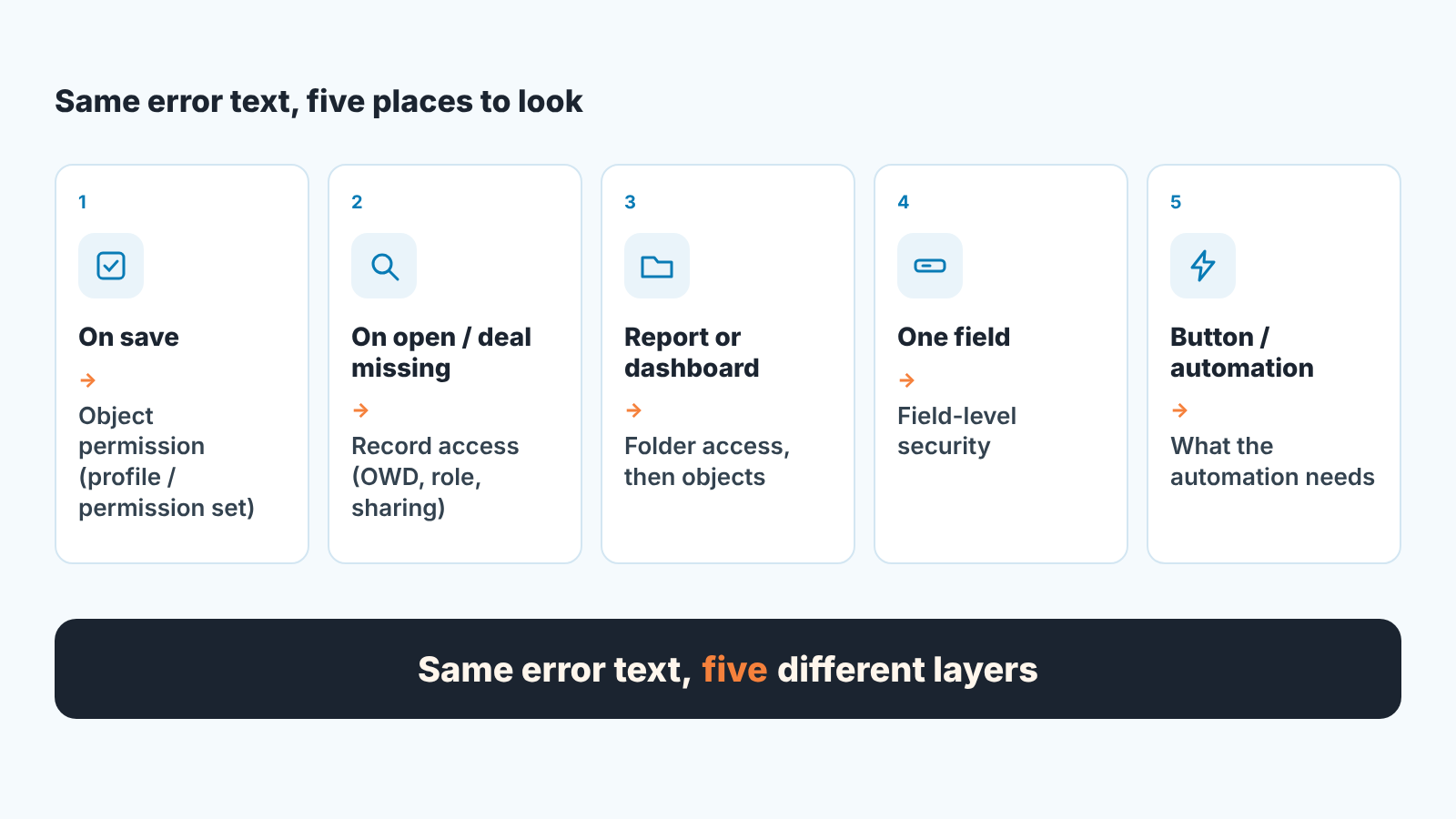
Admins get this error too, and even for an admin the message points to a layer, not to seniority. How record access fits together for a small team is covered in Salesforce sharing rules for a small sales team. Here we only read the symptom.
Start with one sentence: what the rep did, and on which object
Before you message anyone, get this sentence from the rep: “I tried to [action] on [object], and I got the error.” Not “Salesforce is broken again.”
The action matters more than the rep thinks. “I can’t see the deal” and “I can’t edit the deal” are different layers, and the admin checks different things for each. “I can’t open the report” is a third.
The object matters too. A rep who can edit opportunities may still be blocked on the Account the opportunity sits under, or on the custom object your admin built last year.
Last detail: was it the rep’s own record or a colleague’s?
Cannot create, edit or delete: profile and permission set
If the error fires on save, start here. Object permissions decide whether a user can create, read, edit or delete records of an object at all. Salesforce recommends setting them through permission sets and permission set groups, though profiles can carry them too (Trailhead: Control Access to Objects).
You don’t need to read the permission set, only compare: which sets does Maria have, and which do the reps who can save? If the three reps who save fine share a permission set group and Maria doesn’t have it, that’s the ticket. If everyone has the same sets and only Maria fails, the problem is elsewhere and you’ve saved the admin an hour.
The same Trailhead module warns that some standard profiles contain more access than users require. We’ve seen small teams end up there teh same way: a new rep set up from a profile nobody remembers choosing, plus a permission set added “for now”. If the rep is on a different license from the rest of the team, say so in the ticket (Salesforce license types for a five-person sales team).
One look-alike: a validation rule also stops the save, but with a different message. That case is in Salesforce validation rules for required opportunity fields.
Cannot see the deal: record access, not permissions
A rep with full edit rights on Opportunity can still fail to open one specific opportunity. That’s record access. The org-wide default sets the floor for records the user does not own, the role hierarchy lifts people above that floor, and sharing rules open specific records to more people (Trailhead: Control Access to Records).
The admin can tell you why Maria cannot see the deal; only you can say whether she should. If the opportunity belongs to a colleague and your team runs separate books, the error is the configuration doing its job. If she took the account over last week and ownership was never transferred, the fix is ownership, not sharing. And if a colleague once shared the record with her by hand, that share can disappear when the record changes owner (admin.salesforce.com). Records sitting in a queue nobody owns are their own problem, covered in Salesforce queues and unowned records.
For this checklist you need one answer: who owns the record, and should Maria see it?
The report opens for you but not for the rep
The manager tests the report, it works, and the rep is told it’s user error. It isn’t. The manager often sits higher in the role hierarchy, has broader access, and may be the person who created the folder.
So ask the admin two things, in this order. Where does the report live, and is that folder shared with the rep or with a group or role that includes her? Every report is stored in a folder, and a folder can be made private so that only its owner has access (Trailhead: Reports & Dashboards for Lightning Experience). Then: can the rep read the objects the report is built on? The admin.salesforce.com guide to this error says to check Read permission on the objects a report references (admin.salesforce.com).
Dashboards add one more question. Each dashboard has a running user, and when that’s a specific person, every viewer sees data through that person’s security settings, not their own (same Trailhead module). If a dashboard shows the rep more than her reports do, or less, ask who it runs as.
The habit that prevents most of this: team reports live in one shared folder the whole sales team can reach, and nothing the team relies on sits in a personal folder. We described that setup in Salesforce reports a sales manager runs weekly.
Field-level and automation causes
If the error names one field, or appears after a button or an automation, it’s usually one of these two cases. Reps describe both badly.
The field case sounds like “the deal saves but the discount field is gone” or “I can’t change the close date”. Field-level security controls whether a user can see and edit a particular field, independently of their access to the object (Trailhead: Improve Field-Level Security Settings). A rep can hold edit on Opportunity and still be read-only, or blind, on one field. Name the field in the ticket and the search shrinks to to one setting.
The automation case sounds like “I clicked the button and it failed”. Something ran for the rep: a flow, a custom button, an integration. How it’s set up to run is the admin’s question, not yours. What you can give them is the exact moment the error appeared and the click that came before it.
What to send the admin so the fix takes one round
Most of these tickets take three rounds because the first message is “Maria gets insufficient privileges, please fix”. This one takes one:
Subject: Insufficient privileges, Maria K., Opportunity edit
Who: Maria K. (same permission set group as Tom and Priya, who do not get the error)
What she did: tried to change Stage on opportunity “Acme renewal” and clicked Save
Where: the opportunity record, on save
Owner of the record: Tom (not Maria)
Does it happen on her own opportunities: no
What I think it is: record access, since it only fails on Tom’s deals
What I want: Maria to edit Tom’s opportunities on shared accounts. Please do not grant View All or Modify All; if the only clean option is a sharing rule or ownership change, tell me and we will decide.
The last line tells the admin which outcome you want and which shortcut you refuse. Without it, the fastest fix is always the broadest one.
Two more requests save the admin time. Ask them to reproduce the error as Maria’s user rather than their own, since an admin account will usually just work. And for a record she can’t open, ask them to look at the record’s sharing detail, which lists the users, groups and roles that have access to it (admin.salesforce.com).
Keep the exchange in the ticket, not in chat. Next time a rep gets the same error, the first thing you’ll want to know is which layer it was last time.
What not to grant to make it go away
View All Data and Modify All Data override all other sharing settings, and Trailhead says to use caution assigning them to any profile other than System Administrator (Trailhead: Control Access to Objects). They make the error disappear, and they make every deal in the org visible, or editable, to that rep,.
We think a sales manager should refuse this fix even when it’s offered, and say why: you set record access so that ownership means something. Once one rep bypasses it the next ticket is “why did someone change my close date”.
The same goes for giving the rep a copy of the admin profile “temporarily”, or adding her to a permission set group built for a different job. Each closes the ticket and leaves a privilege nobody will remember granting.
A quarterly check: reps with permissions nobody can explain
The opposite of this error is worse. A rep with too much access gets no error at all, and nobody finds out until a report shows a deal she shouldn’t have seen.
Once a quarter, ask the admin for a short list and go through it together:
- who holds View All Data or Modify All Data, and whether each of them is an admin;
- each rep’s permission sets, against what the job needs today;
- report folders shared with all users or with a role wider than the team;
- anyone on a profile other than the standard sales one, and why.
Anything you can’t explain in one sentence gets reviewed, not deleted on the spot. Removing access breaks saves the same way granting it fixes them.
We build SalesBond, a sales management layer on top of the CRM a team already uses; we started with Pipedrive. It doesn’t manage Salesforce permissions and won’t fix this error. It shows the manager the team’s deals and what needs attention in one place, so “I can’t see Tom’s deal” becomes a ticket for the admin and not the reason your weekly review slips. If you want that view of your pipeline, check your CRM with SalesBond.


