
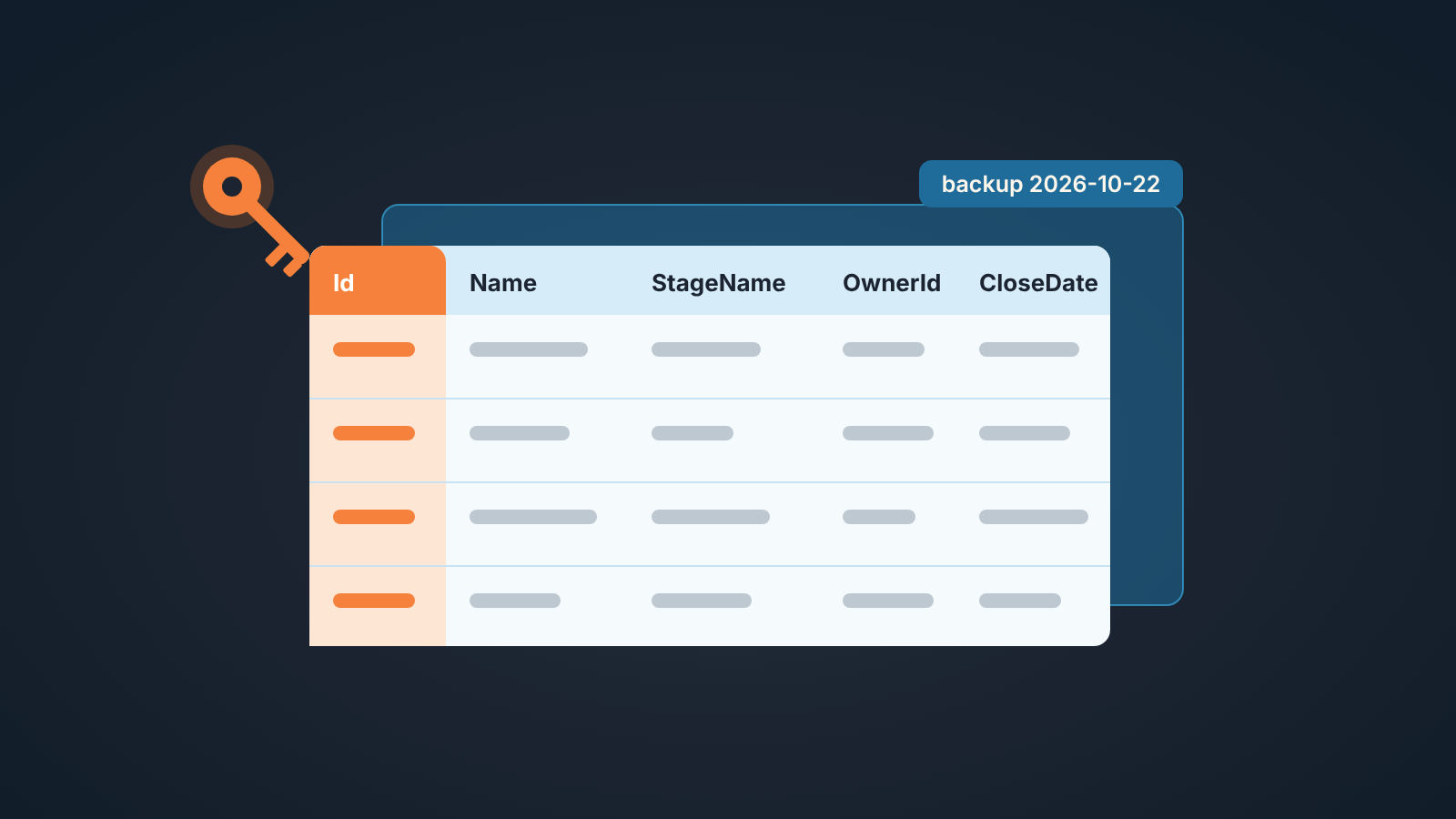
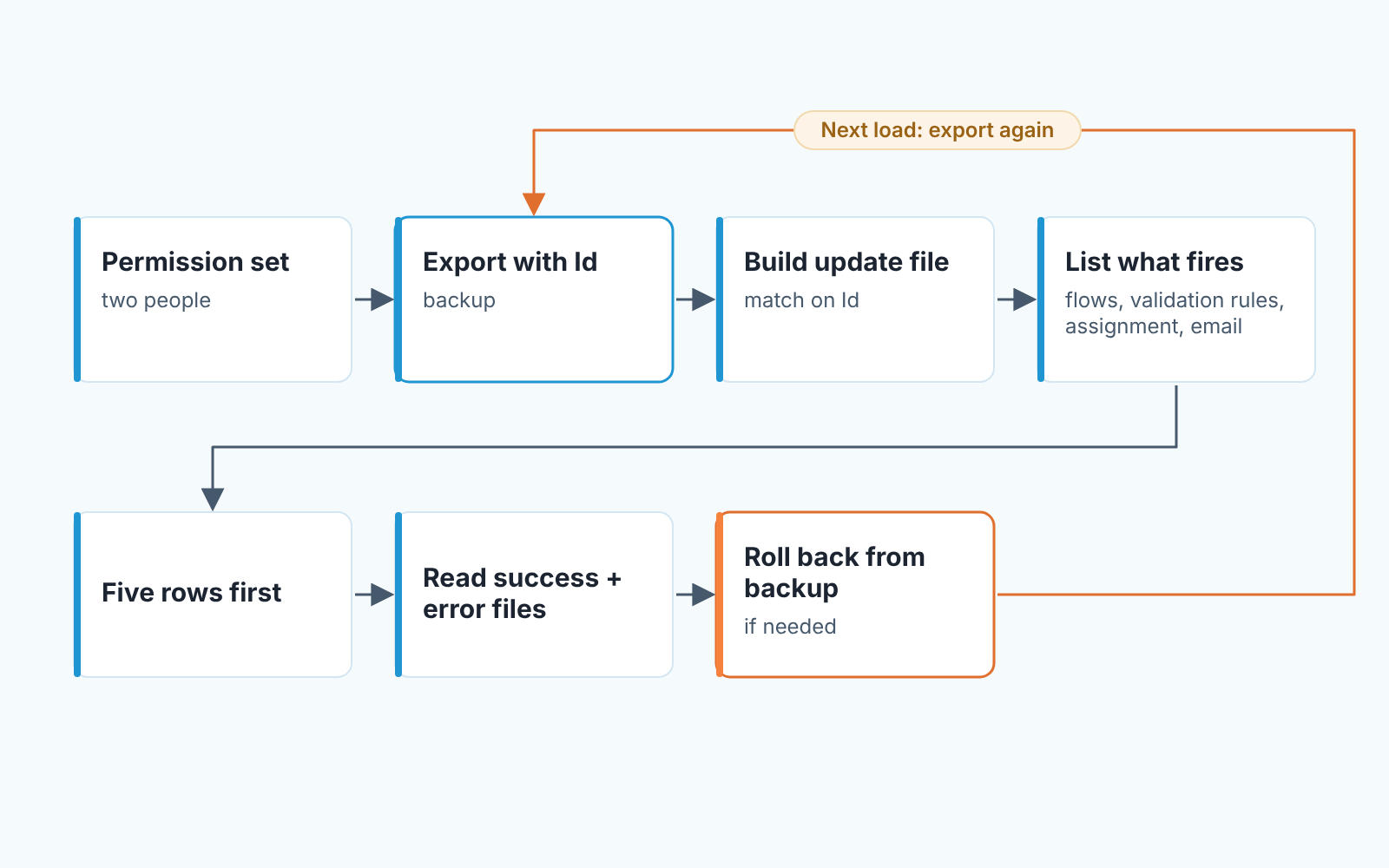
To update many Salesforce opportunities safely, export them with their record IDs first, test on a handful of rows, match on ID with Update (Upsert only when you have an external ID), and know what automation will fire on load. Data Loader is the tool Salesforce ships and supports for this; Workbench is a free browser tool that, by its own login page, is not an official Salesforce product. Below is the protocol to follow before any file touches live deals.
Why a bulk update is the riskiest ten minutes in a Salesforce week
A mass update of records makes one mistake on every row at once. A rep edits one deal at a time, so their mistakes arrive one at a time and someone notices. Map the wrong column once and every opportunity in the file gets the wrong close date, owner or stage, and Monday’s pipeline report is built on it.
The damage is also quiet. Nothing turns red, and the forecast still adds up to a number. You find out when a customer asks why their renewal moved to next quarter.
There is no undo button. Salesforce’s own guide to mass updates with Data Loader makes the backup file the undo: save an extra copy of the export, and if you made a mistake, use it to put the previous values back.
Data Loader vs Workbench vs the Data Import Wizard: which fits which job
Data Loader is Salesforce’s desktop application for bulk import and export: it reads a CSV, you map columns to fields, and it inserts, updates, upserts, deletes or exports records. Workbench is a browser tool at workbench.developerforce.com that admins and developers use to query and load data; its login page says it is “free to use, but is not an official salesforce.com product”, that it “has not been officially tested or documented”, and that “salesforce.com support is not available for Workbench”. As of October 2026 the site is still up. So the short answer to “data loader vs workbench”: one is supported by the vendor, the other isn’t.
You download Data Loader from its page on the developer site, and the Data Loader Guide lists it for Enterprise, Performance, Unlimited and Developer editions. The limits are mostly about where it runs. The project README says “Salesforce officially supports Data Loader for Windows and macOS” and “Batch mode is officially supported only on Windows” (forcedotcom/dataloader on GitHub); it needs a Java runtime, and Salesforce doesn’t support older versions. Mappings can be saved and reused, which matters for a monthly job.
When a tool says there’s no vendor support and Salesforce Help carries an article titled “Replacement Tools for Workbench”, we don’t build a sales team’s routine on it. For an admin’s one-off query, fine.
The Data Import Wizard is the in-app option under Setup. Trailhead’s data import unit lists its standard objects as accounts, contacts, leads, solutions, person accounts and campaign members, plus custom objects, up to 50,000 records at a time. Opportunities are not on that list, so for deals it’s Data Loader.
| The job | What we use | Why |
|---|---|---|
| A short list you can read line by line | Edit records directly, or the Data Import Wizard for objects it supports | No file to get wrong; you see each record as you change it |
| One pipeline’s worth of opportunities, once | Data Loader, Update, matched on Id | A file with a backup beside it; rejected rows land in an error file |
| The same update every month or quarter | Data Loader with a saved mapping | The mapping is the part people get wrong; save it and reuse it |
| A query to find out what is there | A report, or Workbench if an admin already uses it | Reading is safe; writing from Workbench is where we stop |
The short-list route is the same idea as bulk edit in Pipedrive.
Before you touch anything: export the deals with their IDs
The backup isn’t “a report I can run later”. Later, the values are gone.
What goes into the export:
- every opportunity the update will touch, selected by the same filter you’ll use for the update;
- the
Idcolumn, not the opportunity name, because the ID is the only thing that identifies one record and only one; - every field the update will change, plus the ones a manager would notice:
Name,StageName,Amount,CloseDate,OwnerId,NextStep; - a file name with the date and the purpose, in a folder someone other than you can find.
Data Loader’s Export or a report both work, as the mass-update guide says, as long as the record ID is in the file.
Update or upsert: matching on ID, not on name
Update changes the record whose ID is in your file; the mass-update guide notes that matching is done by record ID. Upsert, per the Data Loader Guide, matches on either the Salesforce ID or an External ID field, updates the record when it finds a match and creates a new one when it doesn’t. That’s the part that hurts: a typo in the matching column can give you a new opportunity instead of an error.
So the rule for a sales manager’s bulk update is Update, matched on Id. Upsert is for files from another system whose key is stored in Salesforce as an External ID field; most small sales teams have none.
Why not match on name? Two deals for one account often share a name, and reps rename deals. Match on ID and the worst case is a row that fails loudly.
If Upsert is on the table, read how duplicate rules and matching rules behave first. A load that creates records is a load that duplicate rules will judge.
What fires when you load, and when to pause it
Every row in the file is a save, and a save triggers what a manual save triggers. Before the load, ask the admin to list that for the Opportunity object, and read the list.
Validation rules come first. A rule that requires an Amount from Qualification onward will reject every row that moves a deal to Qualification without one, and that’s the correct outcome. Fix the file, not the rule. Which rules are worth having is in validation rules for opportunity required fields.
Flows are the ones that surprise people. A flow that creates a follow-up task on stage change creates one task per row. A flow that sends an email alert on owner change sends one per row, and assignment rules behave the same way. That’s not a reason to switch everything off, its a reason to know which side effects the rollback can’t remove. A sent email stays sent.
Our position on pausing: deactivate a flow only when the load would trigger something customer-facing, with the admin on the call, and turn it back on before anyone leaves. A flow left off “until Monday” loses a weekend of follow-up tasks.
Run five rows first, then the batch
Take five rows out of the update file and make them the ugly ones: a closed deal, one at the stage with the strictest validation rule, one owned by someone who left, the largest amount, one ordinary deal. Load those five, then open each record in Salesforce rather than trusting the loader’s summary.
If you have a sandbox with recent data, run the five there first. If not the five rows in production are your test, and five wrong records are a fixable Tuesday.
Field history shows what the load changed on those five, including fields you didn’t mean to touch; setup is in field history tracking for opportunity audits. If a field you didn’t map changed, stop. The full file will do the same to every row.
Read the success and error files
Data Loader writes two CSV logs for every operation, one whose name starts with “success” and one with “error”. Open both, not just the error file.
The error file is what didn’t happen. Fix the file for those rows and load only them again. Don’t reload the whole file “to be safe”: rows that already succeeded would be saved a second time and and every flow on them would fire again.
The success file is the list of records that changed, so keep it next to the backup for the rollback. If the two files don’t add up to the rows in your update file, find out why before you call the update done.
Rolling back from your export
The rollback is another Update, built from the backup. Keep the Id column and the columns you changed, drop everything else, load it. If only some rows went wrong, roll back only those IDs.
Two limits. A rollback restores field values, not side effects: tasks a flow created are still there, emails are still sent, and field history now shows two changes instead of one. And a backup exported with a different filter than the update will miss records.
Pipedrive has a time-limited undo for imports (reverting a Pipedrive import); in Salesforce the undo is only as good as the file you kept.
A rollback also can’t show which deals the update left in a bad state: a new owner with a next step that no longer makes sense, a stage moved with no activity behind it. We build SalesBond, a sales management layer on top of the CRM a team already uses; we started with Pipedrive, and it works with Pipedrive, HubSpot, Salesforce and Zoho CRM. Its Deal Health checks every deal against its rules and shows the specific violations, so after a load the manager sees the broken deals before the reps do. If you want that list, check your CRM with SalesBond. A list view filtered on an empty NextStep gets you part of the way without us.
Who’s allowed to run it, and why it takes two
Only named people should be able to run a bulk load, through a permission set rather than a profile. In a small team that’s the sales manager and one admin, or two admins. If the person running the load also asked for it, nobody has checked the mapping.
The two-person rule costs about ten minutes. One person builds teh update file and the backup. The other checks that the Id column is filled in, reads the mapping aloud, runs the five-row test and signs off before the full load. Put both names in the file name and you have an audit trail.
Teams skip this because it feels like bureaucracy for a spreadsheet. It’s also the only step where a second pair of eyes sees the file before Salesforce does.
Once the protocol exists, the monthly clean-up gets easier: the scary part of a monthly CRM data cleansing routine was never deciding what to fix. It was loading the fix without breaking something else. Next time someone asks for “a quick bulk update”, start with the export.


