
Pipedrive orders the deals in a pipeline column by the date of their next activity. Deals with an overdue activity and deals with an activity due today sit at the top, deals with no activity scheduled come next, and deals whose next activity is in the future sit at the bottom (Pipedrive: pipeline view, how to prioritize deals). To see the deals that matter most to the quarter rather than the ones that are due today, click “Sort by” below the pipeline and filter buttons and sort the pipeline by deal value, expected close date or owner. The default order is useful. It is just not the order a manager thinks it is.
The biggest deal is at the bottom
A made-up scene, but we have sat in it more than once. Monday morning, 9:10, the weekly review. Tomas runs four reps and opens the Proposal Sent column on the shared screen. Five cards. Top card: a small deal with a red arrow, because Lena was supposed to send a revised quote on Friday and did not. Second card: another small one, green arrow, a call booked for today. Third: a mid-size deal with a yellow warning triangle, no activity scheduled at all. Fourth, a small deal with a grey arrow. And at the very bottom, the largest deal in the stage, the one Tomas has been reporting to the owner for three weeks.
Why is it at the bottom? Because the rep did everything right. He had a call with the buyer on Thursday, logged it, and booked the follow-up for Wednesday. The deal has a future activity, so Pipedrive gave it a grey arrow and put it where future activities go. Here Tomas only has to glance down. In a busier stage he would have to scroll, and he will not, so the review spends its first six minutes on a revised quote for a deal that would not move the quarter if it closed tomorrow.
Nothing is broken here. The column is doing exactly what it was built to do. The problem is that the manager is reading it as a ranking.
How Pipedrive orders deals in the pipeline view: next activity date and four indicators
The pipeline view sorts the cards in each stage by next activity date, and every card carries an indicator that shows its state and decides its place in the column (Pipedrive: pipeline view, how to prioritize deals). From the top down:
- Red arrow: an overdue activity. Priority very high.
- Green arrow: an activity due today. Priority high.
- Yellow warning: no activities added. Priority medium.
- Grey arrow: a future activity. Priority low.
Pipedrive’s own wording is that “deals that require immediate attention, like overdue or activities due today, are shown at the top,” and that deals without activities come next, with deals that have future activities lower down. Two things follow from this that the help page does not spell out.
The first is that a deal with no next step ranks above a deal with a next step. That is deliberate and, for a rep, correct: an empty next-activity field is a gap to close before the day starts. What counts as a real next activity, and what reps put there instead, is its own topic; we wrote it up in what a next activity in Pipedrive actually is and will not repeat it here.
The second is that the order is built on activities, not on the deal. The help page describes the default sort entirely in terms of activity status and lists no value factor, no close date and no stage age. The largest deal in the stage with a call booked for Wednesday and the smallest one with a call booked for Wednesday land in the same band. Size does not lift the big one.
Why that is a rep’s to-do list, not a ranking of deals
Read the four indicators again and notice what they have in common. Every one of them describes what the rep has or has not done. Overdue means the rep missed a date. Today means the rep has a task. No activity means the rep forgot to book one. Future means the rep is on top of it. The column is sorted by the state of the rep’s calendar, with the deal as the unit of display.
For a rep at 8:30 on Monday that is the right list. Start at the top, clear the red, make the green calls, fix the yellow gaps and the rest can wait until their day comes. Pipedrive says as much: the default sort “works well for day-to-day follow-ups and task management” (Pipedrive: pipeline view, how to prioritize deals).
For a manager running a weekly review, the same list misleads in a specific way. It rewards activity hygiene and hides everything else. The rep who books a small follow-up on every deal pushes all of their deals to the the bottom of each column, including the ones that are quietly stuck. The rep who never books anything has their whole book sitting in the yellow band near the top, which looks like a crisis and is sometimes only a habit. A manager scanning top to bottom ends up talking to the second rep about the wrong deals and not talking to the first rep at all.
We think the honest way to put it to the team is this: the column order is yours, not mine. I will not read it as a priority list, and I will not ask why a deal is “so far down.” I will sort it my own way on Monday, and you can keep yours the rest of the week.
Re-sort for the weekly review: value, expected close date, owner
The sort control lives below the pipeline and filter buttons in the pipeline view. Open the “Sort by” dropdown and choose a different field, and the pipeline updates instantly (Pipedrive: pipeline view, how to prioritize deals). “Change order” next to the dropdown flips the direction (Pipedrive: deal card customization and sorting). That second page also lists what you can sort by: activity-based (the default), deal title, deal value, linked person name, linked organization name, expected close date, deal creation time, done activities count, activities to do, product count and owner name.
Three of those earn a place in the weekly review. We use them in a fixed order, because switching the sort five times in a meeting is its own way of wasting ten minutes.
Deal value first. You want the largest deal at the top of every column; if the smallest comes up first, “Change order” turns it around. Now the Monday question becomes “what is happening on the top three cards in each stage” instead of “who is overdue.” The big Proposal Sent deal from the scene above is the first card Tomas sees, grey arrow and all. Most of the review happens in this sort.
Expected close date second, for the stages near the end of the pipeline. Here you want the earliest date first, and if the column comes up the other way round, flip it with “Change order.” Read in date order, the cards show what each rep has promised the forecast and when. A date that has already passed is the deal to open before anything else. The sort shows where the date sits now, not how many times it has moved, and that pattern is worth its own article: why reps push close dates in Pipedrive and what to do about it.
Owner third, and only when the review is a one-on-one rather than a team meeting. Sorting by owner name puts each rep’s cards next to each other inside every column, so you can walk one rep’s pipeline stage by stage without a filter. For the team meeting it is the wrong sort, because it turns a view of the pipeline into a view of the roster.
One more habit. Sorting doesn’t edit the deal: the cards change order, the deals stay as they were. So we don’t ask reps to adopt the manager’s sort. Our advice is to switch back to the default when the review ends and leave it for the people who work from it.
A two-pass check: sorted by value, then the yellow ones
Sorting by value fixes one problem and creates another. Once the column is ordered by money the indicators stop telling you anything about position. The red and yellow cards are scattered through the stage wherever their value lands, and the eye that used to catch them at the top now has to find them one by one. So the review needs two passes, not one.
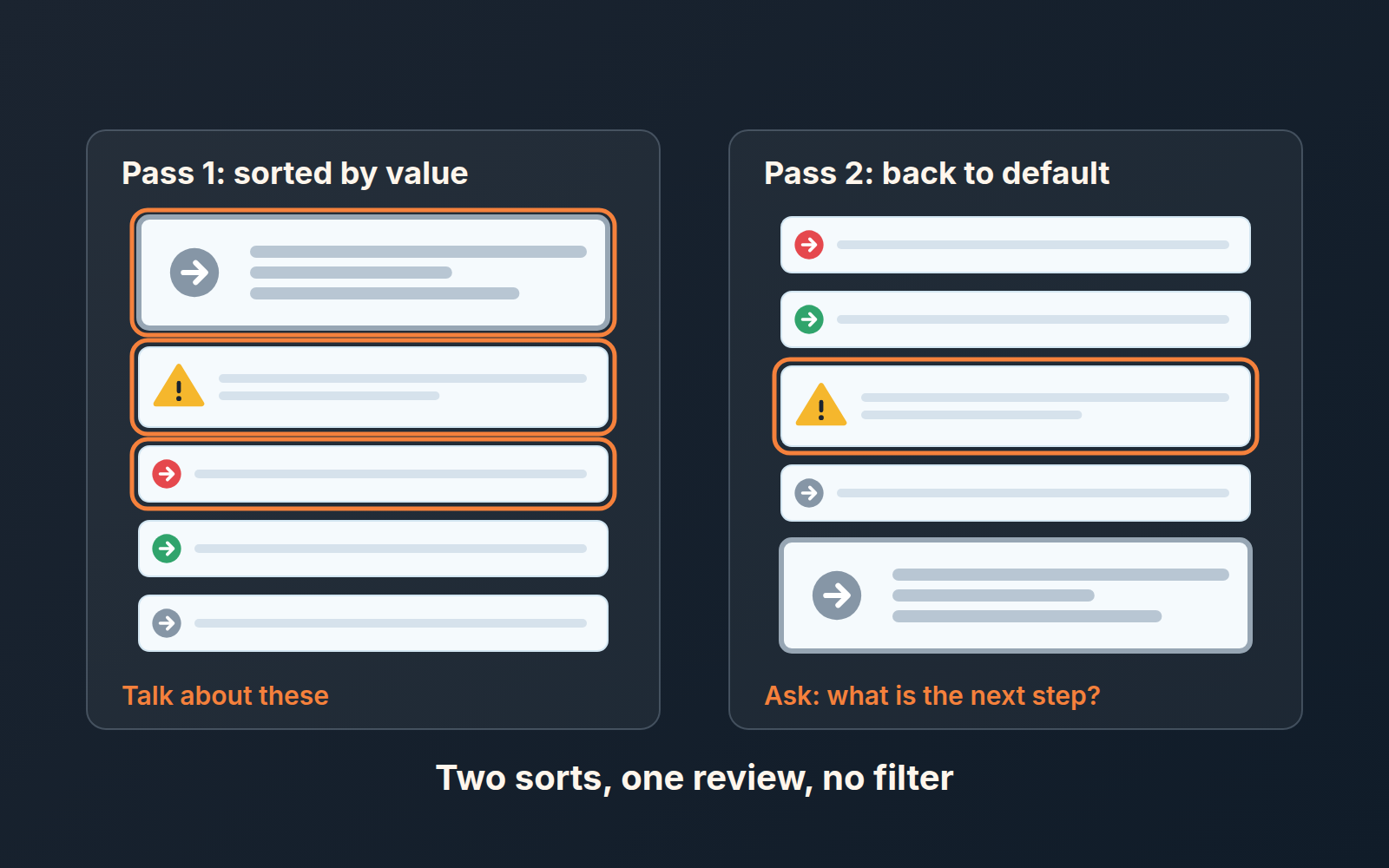
Pass one, sorted by value. Walk each stage from the top card down as far as the stage deserves: three cards in the early stages, every card in the last two. For each one, the question is the deal’s question, not the rep’s: what did the buyer do last, and what has to happen for this to move. The grey arrow on a big deal is not an answer. “Call booked for Wednesday” is a rep action; the review wants to know what the buyer committed to.
Pass two, switch the sort back to the default and read only the yellow band in each column: the deals with no activity added. They are back near the top of each stage, under the overdue and due-today cards, so the pass takes a minute. The red cards above them are a reminder problem and a rep conversation, and we covered that sweep in how to set up Pipedrive activity reminders so reps keep reading them. The yellow ones are different. Nothing is late on them, no reminder is waiting, and in a value sort they hide in plain sight between two deals that look fine. Each yellow card gets one question: what is the next step, and when? If the rep can answer, they book it during the meeting. If they cannot, that is the deal to talk about, however small the card.
Two passes. The big grey deal gets its airtime in the first, the quiet yellow deal gets caught in the second, and a single top-to-bottom read of the default view would have missed both. The passes fit inside the format we described in the 15-minute weekly pipeline review. If the meeting also looks at what closed last week, that is a different switch, and we wrote it up separately: the closed deals toggle in the weekly review.
A disclosure, since this is the problem we work on: we build SalesBond, a sales management layer on top of the CRM a team already uses, and we started with Pipedrive. Deal Health checks every deal in the connected CRM against the enabled rules, assigns a health score, shows the specific violations and explains what to do, and it does that regardless of where the card sits in the column. For a manager that means the big deal with a tidy future activity and the small deal with nothing booked both show up on the same list with a reason attached, before Monday rather than during it. Check your CRM with SalesBond if you want that list without running the two passes by hand. The passes still work without it. They just depend on someone remembering to make them.