
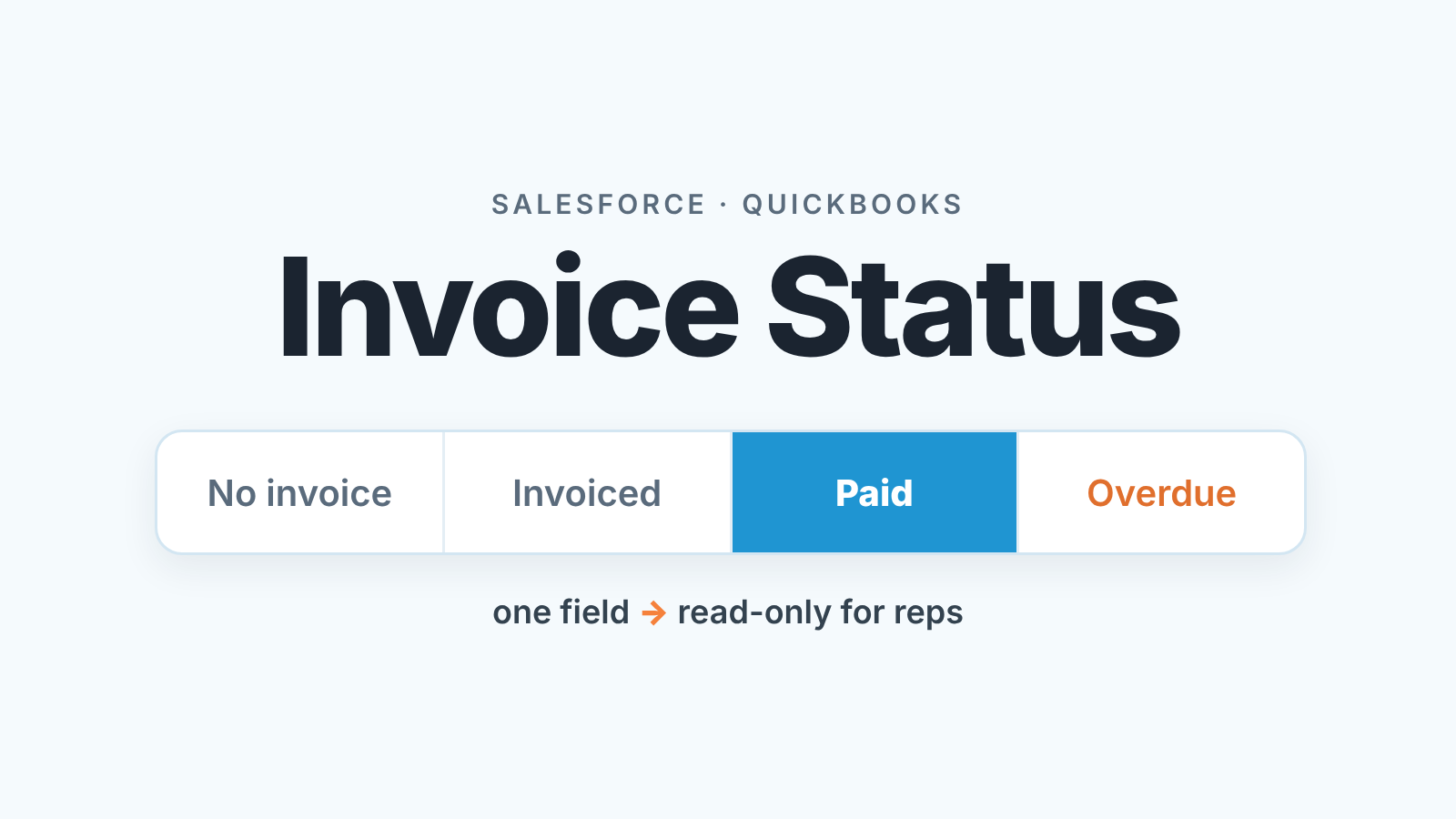
A Salesforce QuickBooks integration is not a switch you turn on: Salesforce does not read QuickBooks by itself. You connect them through MuleSoft, which Salesforce recommends (Salesforce: QuickBooks integration), a partner app from AppExchange, or a no-code connector. Whichever you pick, the sales manager’s part is small: one invoice-status field on the opportunity, one rule about who writes it, and a weekly look at closed-won deals against QuickBooks.
Won is not paid: why the opportunity needs an invoice status
Closed Won is the Salesforce opportunity stage that marks a deal as won. It says nothing about whether finance sent an invoice or whether the customer paid it.
For a team of three to ten reps this gap is not theoretical. The pipeline report says the quarter is fine. The bank account says otherwise. The manager finds out at month end, from the bookkeeper, and spends an afternoon asking reps “did they pay?”
We think the fix belongs on the opportunity, not in a separate report, because the opportunity is the record the rep already opens. A report from accounting gets read once a month. A field next to Amount and Close Date gets seen every time someone looks at the deal.
Salesforce QuickBooks integration: the three routes
There is no built-in switch. Salesforce’s own page names MuleSoft as the recommended solution and says MuleSoft provides a QuickBooks connector for MuleSoft Composer, a click-based tool for building integrations (the Composer link on that page now opens “MuleSoft for Flow: Integration”). It lists customer information, sales orders, expenses and invoicing as shared data, but not the direction or how often.
The second route is a partner app from AgentExchange, the Salesforce marketplace that was called AppExchange until recently. Three listings come up again and again:
Breadwinner’s listing calls it a “native, two-way” sync of invoices and customers, and its own page describes the product as connecting QuickBooks Online with Salesforce. DBSync and HIC Global Solutions’ QuickBooks Made Easy both list QuickBooks Online and Desktop. Those are the vendors’ words, not our tests. The Online-or-Desktop line is the first filter.
The third route is a no-code automation service that watches QuickBooks and writes to Salesforce fields.
We won’t recommend a connector. The useful question for any of them is narrower than “does it sync”: does it write the invoice status back to the opportunity, how soon after QuickBooks changes, and can it be limited to that one field. Most of these products can also go the other way and create a QuickBooks invoice from a won opportunity (Breadwinner’s page says so). We leave that out: billing is finance’s decision, and a deal marked won by mistake should not become an invoice.
One field on the opportunity: invoice status
Create a custom picklist field on the Opportunity object and call it Invoice Status. Four values are enough:
- No invoice
- Invoiced
- Paid
- Overdue
Resist adding more. “Partially paid”, “Disputed” and “Voided” are real states, and every one of them already lives in QuickBooks. The field exists so a manager can scan a list view and see which won deals have turned into money. A long list turns it into a second ledger that that will drift from the first.
Put the field on the Opportunity page layout next to Amount, Close Date and Stage, so reps see it without scrolling. Then add it as a column to the list view your managers use for closed-won deals. If you already run a weekly opportunity audit in Salesforce, it’s one more column on the same screen, not a new meeting.
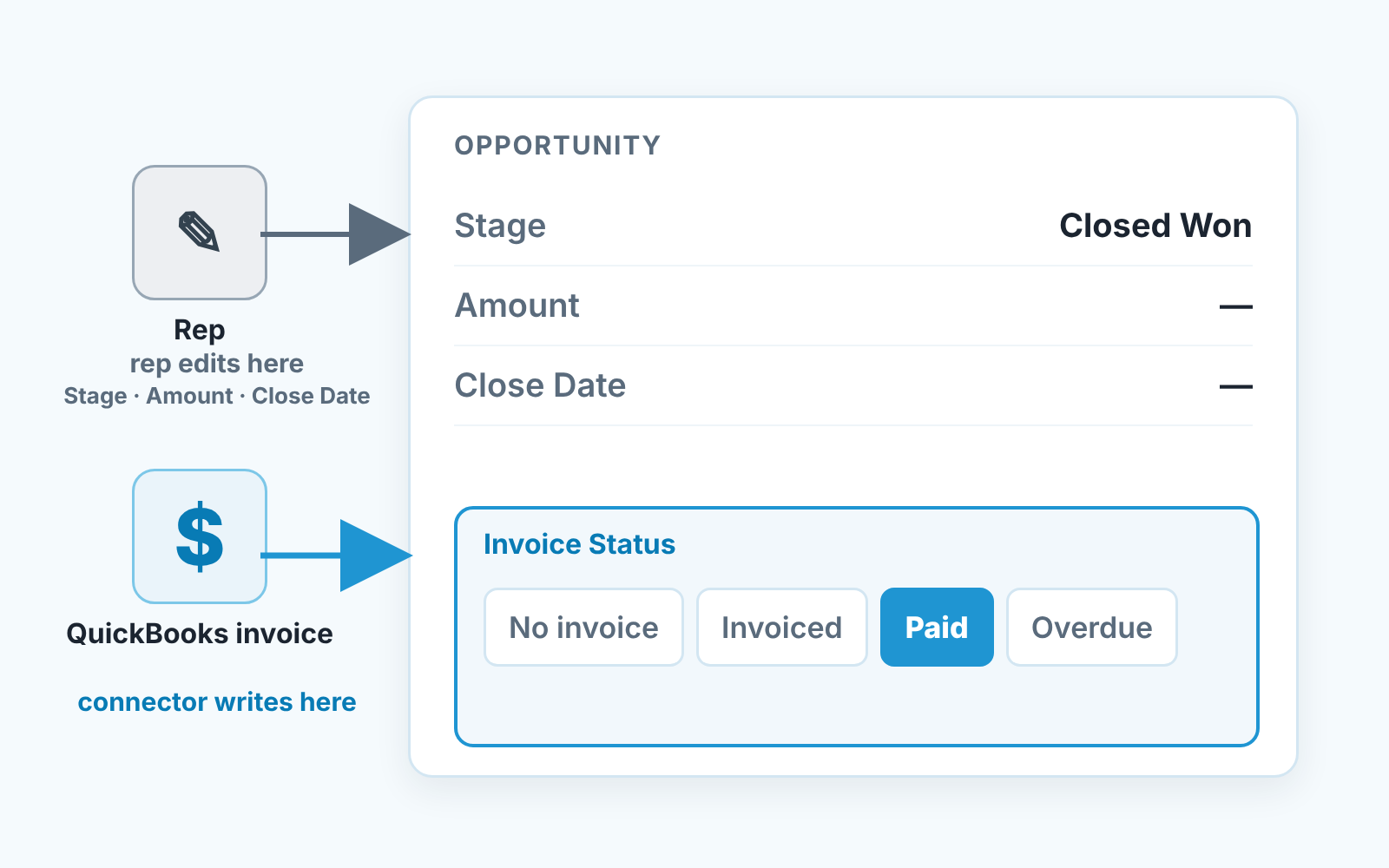
The connector writes it. Nobody else does
That rule sounds obvious and gets broken within a week unless Salesforce enforces it. A rep who knows the customer paid sets the field to Paid out of helpfulness, and now it reflects a phone call rather than the ledger. A rep tired of seeing Overdue sets it back to Invoiced. Neither is malicious. Both make the field useless, because the manager can no longer tell whether Paid came from QuickBooks or from optimism.
Lock it with field-level security, the Salesforce setting that controls whether a user can see a field and whether they can edit it (Trailhead: field-level security). The integration user, meaning the Salesforce user account the connector signs in as, gets edit access. Sales gets read-only. The one person allowed to override the field when the connector misses something sits in finance, not in sales. We would rather have a field that is occasionally late than one that is sometimes a wish.
With a no-code tool, give the automation its own user instead of someone’s login, so a change made by the integration never looks like a change made by Maria.
For reps, teh instruction fits into the next stand-up: you own Stage, Amount, Close Date and the next step. Invoice Status is read-only for you. If it looks wrong, tell finance; do not fix it.
The weekly check: closed-won opportunities against invoices
Once a week, open a list view filtered to Stage equals Closed Won and Close Date in the current quarter, with Invoice Status as a column. Read it by status.
No invoice on a deal closed more than a week ago means the handoff to finance did not happen. Find out why now, not at month end.
Invoiced is only a problem past the payment terms you agreed with that customer. A deal on net 60 is not late at day 30, and a field that says Invoiced can’t tell you that, which is why we argued for payment terms on the deal itself in HubSpot; the logic is the same in Salesforce. Past terms either the connector has not updated or the customer is late. Open that customer in QuickBooks and you will know which.
Overdue needs one decision, made once as a team rule and not per invoice: who calls, the rep or finance.
Paid closes the question unless the Amount on the opportunity does not match the invoice total. Then either the deal was recorded wrong or the customer was billed wrong, usually because of missing products or a discount nobody wrote down (how to check Amount against opportunity products). Fix both before the quarter closes.
None of this replaces the bookkeeper’s aged receivables report. The point is that the person who owns the customer relationship sees the money on the record they already use, in the week it goes wrong.
What stays in QuickBooks
Everything else. Line items, partial payments, credit memos, the billing address, tax, reminder emails. QuickBooks is the system of record for money, and finance lives there. Salesforce is the system of record for the deal, and sales lives there. If an ERP rather than QuickBooks takes the order, the same border is drawn in ERP vs CRM for a small sales team.
Any connector tempts you to sync everything it can. We would not: every extra object is another place where two systems disagree. One field, one direction, from the ledger to the opportunity. That is the whole integration a small sales team needs, whichever connector carries it. We made the same case for Pipedrive teams and QuickBooks, where a native app does the plumbing; in Salesforce the plumbing is your choice, the rule is not.
A disclosure, since we are at the “who looks at this every week” point: we build SalesBond, a sales management layer on top of the CRM a team already uses; we started with Pipedrive, and it works with Salesforce today. That weekly look is the kind a tool can do for you. What the field means, and who writes it, is still your call. Check your CRM with SalesBond.


