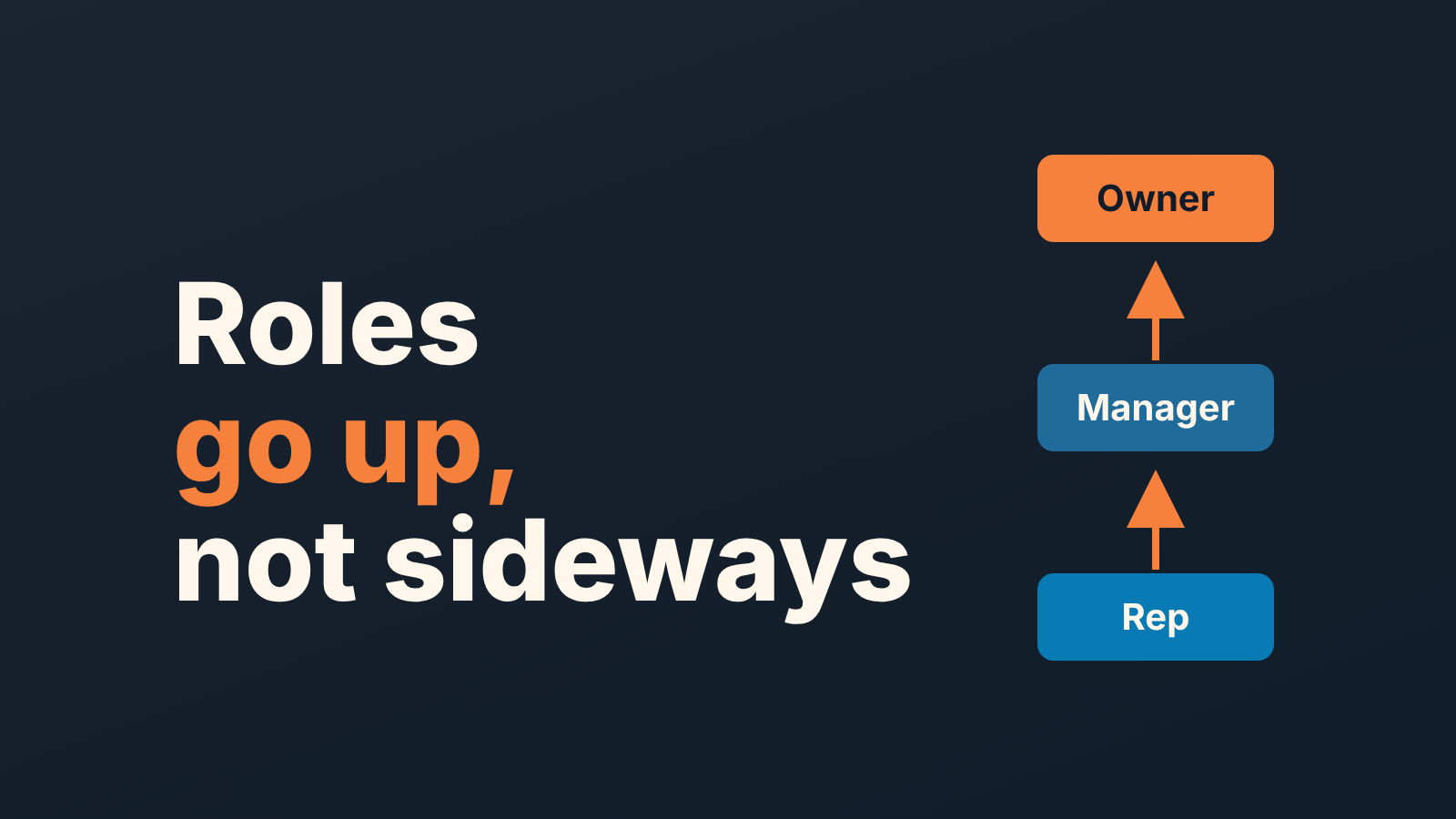
Roles in Salesforce decide whose records you see: the role hierarchy lets people higher up see, edit and report on records owned by the people below them. It does not open records across branches, and it does not replace profiles or permission sets. For a sales team of three to ten, one manager role above one rep role is usually enough, and you prove it works by logging in as the manager and opening one opportunity report.
What the role hierarchy does, and what it leaves alone
Trailhead puts it in one sentence: users at any given role level can view, edit and report on all data owned by or shared with users below them in the role hierarchy (Trailhead: Create a Role Hierarchy). Three parts of that sentence decide what a sales manager actually gets.
“Owned by or shared with.” Both travel upward. If a rep was handed a colleague’s key account through a sharing rule, the manager above her sees that account too, with no rule of his own.
“Below them.” Sideways gets nothing. Two reps in the same role don’t see each other’s opportunities because of the role; that is the org-wide default (OWD) for Opportunity talking. Nor do two managers over two branches. Access across branches is a sharing-rule job, which we covered in Salesforce sharing rules for a small sales team.
“View, edit and report.” The hierarchy is about records. It says nothing about whether the manager may delete an opportunity or export a report. Those verbs live in the profile and in permission sets, and the layout we recommend is in Salesforce permission sets for a small sales team.
The same unit says the hierarchy works together with the org-wide default sharing settings. So if the Opportunity default already lets everyone read every deal, the hierarchy adds nothing to what the manager can see today. It starts earning its keep the day the default goes to Private.
Salesforce roles vs profiles, permission sets and sharing rules
Roles answer whose, profiles and permission sets answer what, sharing rules answer which extra. That shorthand settles most “I can’t see it” tickets before anyone opens Setup.
The org-wide default sits underneath all of them. It sets what a person sees on a record she does not own before roles and rules add anything, and for Opportunity on a small team we would pick Private. The profile says what a user may do with the object at all, create, read, edit or delete; one standard sales profile for everyone is plenty. A permission set adds rights on top of that profile for a particular person. A sharing rule opens extra records to people who neither own them nor sit above the owner, and a small team usually needs one at most, for shared key accounts.
So when a manager says “I can’t see Maria’s deals,” listen to the verb. Can’t see them: roles or OWD. Sees them but can’t change the amount: profile or permission set. A rep from another team can’t see a joint deal: sharing rule.
A five-rep layout: owner, manager, ops
The shape we set up most often: a founder who still closes a few deals, one sales manager, five reps and one ops person who keeps the CRM clean.
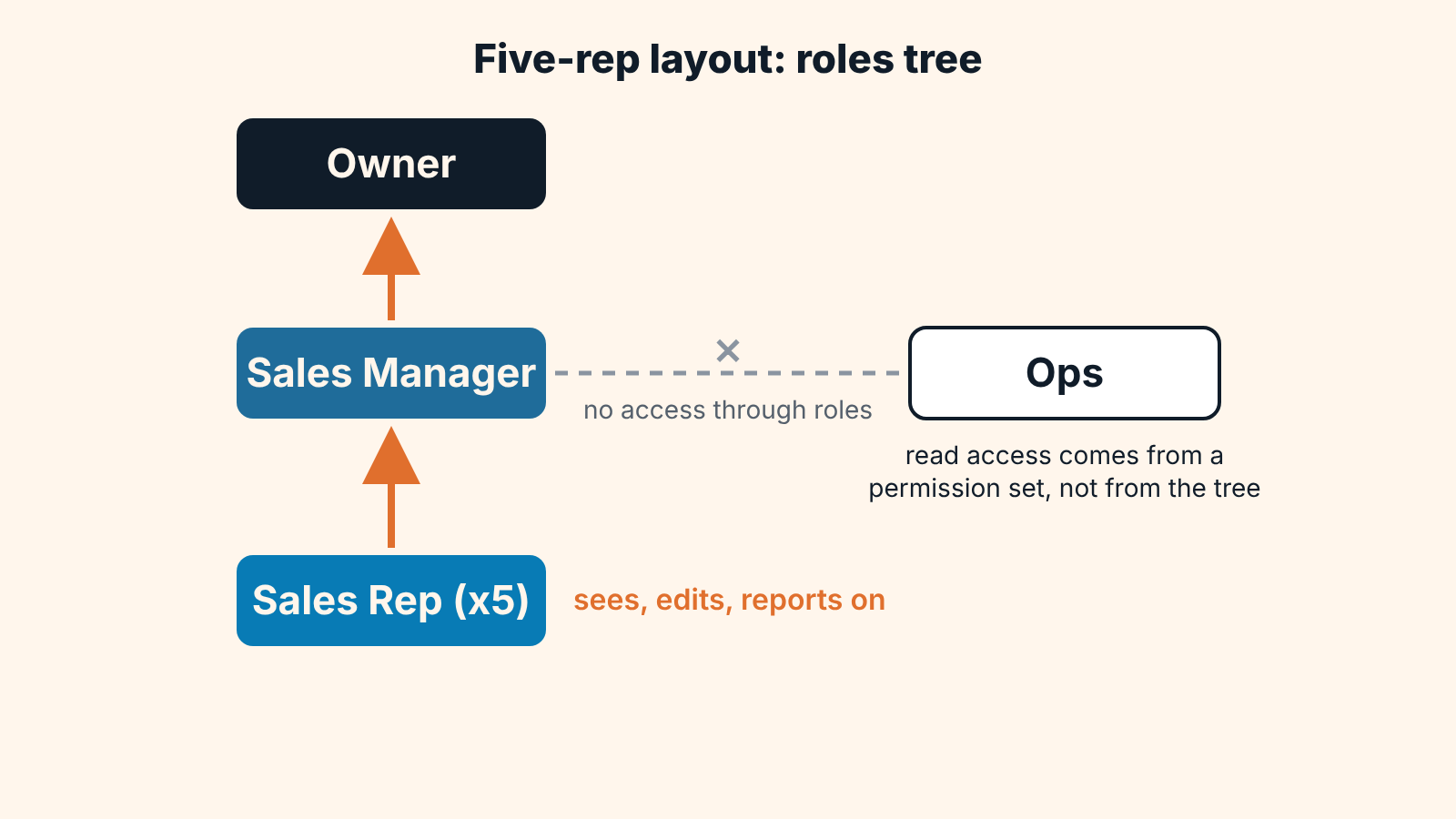
Three roles do the work: Owner at the top, Sales Manager reporting to Owner, Sales Rep reporting to Sales Manager. All five reps share the one Sales Rep role, the four-year veteran and last month’s hire alike. Trailhead’s own advice is to start from the org chart and fold different job titles into one role wherever they need the same record access. A role is a level of access. Seniority shows up in the comp plan, not in the tree.
Ops is the awkward one. Ops owns no deals and needs to read all of them. Above the manager, Ops becomes a fake boss; beside the manager, it gets nothing, because sideways gets nothing. We still give Ops its own role next to Sales Manager and handle its read access outside the tree, in its permission set. The tree stays honest about who manages whom.
To view the role hierarchy, go to Setup, type Roles in the Quick Find box and open Roles. If an “Understanding Roles” splash page appears, Set Up Roles at the bottom takes you to the tool. It opens in tree view by default; if you only get a list, the view is picked in the dropdown on the far right of the Role Hierarchy title bar (same Trailhead unit).
Building it from there takes a few clicks. Click Add Role directly under the role the new one should report to, and the “This role reports to” field fills itself in. Then open the role, click Assign Users to Role and pick people from All Unassigned in the Available Users list.
The “Grant Access Using Hierarchies” trap
Grant Access Using Hierarchies is the Organization-Wide Defaults setting that lets the role hierarchy open a custom object’s records; on standard objects like Opportunity it is always on. Trailhead names custom objects as the only exception, and when the option is off, only the record owner and users granted access through sharing features can reach that object’s records (Trailhead: Create a Role Hierarchy). It can be cleared on any custom object whose default is not Controlled by Parent (Trailhead: Control Access to Records).
The reassuring name catches small teams from two sides.
Side one: an admin wants a few sensitive opportunities out of the manager’s view and looks for this box on Opportunity. It isn’t there. Keeping those deals from him means their owner stops sitting below him in the tree.
Side two is the one that bites. The team starts logging something in a custom object: partner referrals, demo requests, a deal-desk form that came with an installed package. The package, or an admin a year ago, left Grant Access Using Hierarchies unticked. The manager sees every opportunity, opens the referral list and finds only the two records he created himself. Everyone suspects the role tree. The tree is fine. Read that custom object’s line in Organization-Wide Defaults instead.
A check: log in as a manager and open one report
Configuration is a claim. The report is the proof.
- The manager logs in with his own credentials and opens the opportunity report the team uses on Mondays (the weekly report we build for Salesforce managers, if there is none yet), scoped to all opportunities rather than only his own.
- Note the number of open opportunities. Each rep then reads off her own open count from a list view set up for deal hygiene. Five small numbers, one big one, and the sum has to match.
- Manager’s number lower than the sum? Someone is outside his branch: a new hire with no role, or a rep dropped into Ops by mistake. Open Roles, check who sits under Sales Manager, fix it, run the report again.
- Higher, with deals from the whole company? Then the hierarchy isn’t what’s doing the work; the org-wide default is, and it’s wider than Private.
- Last the manager opens one rep’s opportunity and changes the Next Step field. The hierarchy grants edit on records below him, so the save should go through. If it fails, look at the profile or permission set, not the tree.
Ten minutes with the manager at the keyboard. Keep the numbers and the date; they are your baseline for the next hire. What a rep sees from her side is a different test, and it lives in the sharing rules guide.
When to stop adding roles
Our position: for a team of three to ten, three roles plus Ops is the ceiling, and most teams should stop at three.
Over-building looks like this. A one-person role that mirrors a title. A role made to hide deals from a peer, which is an OWD or sharing question in a role costume. A second manager role when there is one manager. Each extra role is one more place a new hire can be dropped by mistake, and the failure is quiet: nothing breaks, the the Monday report just gets a little shorter and nobody notices for a month.
Add a role when a real second line of reporting shows up, a second team with its own manager who shouldn’t read the first team’s pipeline. Not before.
Once the manager sees every deal, the next problem is reading them, and that’s where we have a stake. We build SalesBond, a sales management layer on top of the CRM a team already uses; we started with Pipedrive. Today that includes Salesforce. SalesBond reads the opportunities the hierarchy exposes, finds risks and explains what needs attention, and it can only do that for deals the manager is allowed to see. So get the tree right first, then check your CRM with SalesBond.