
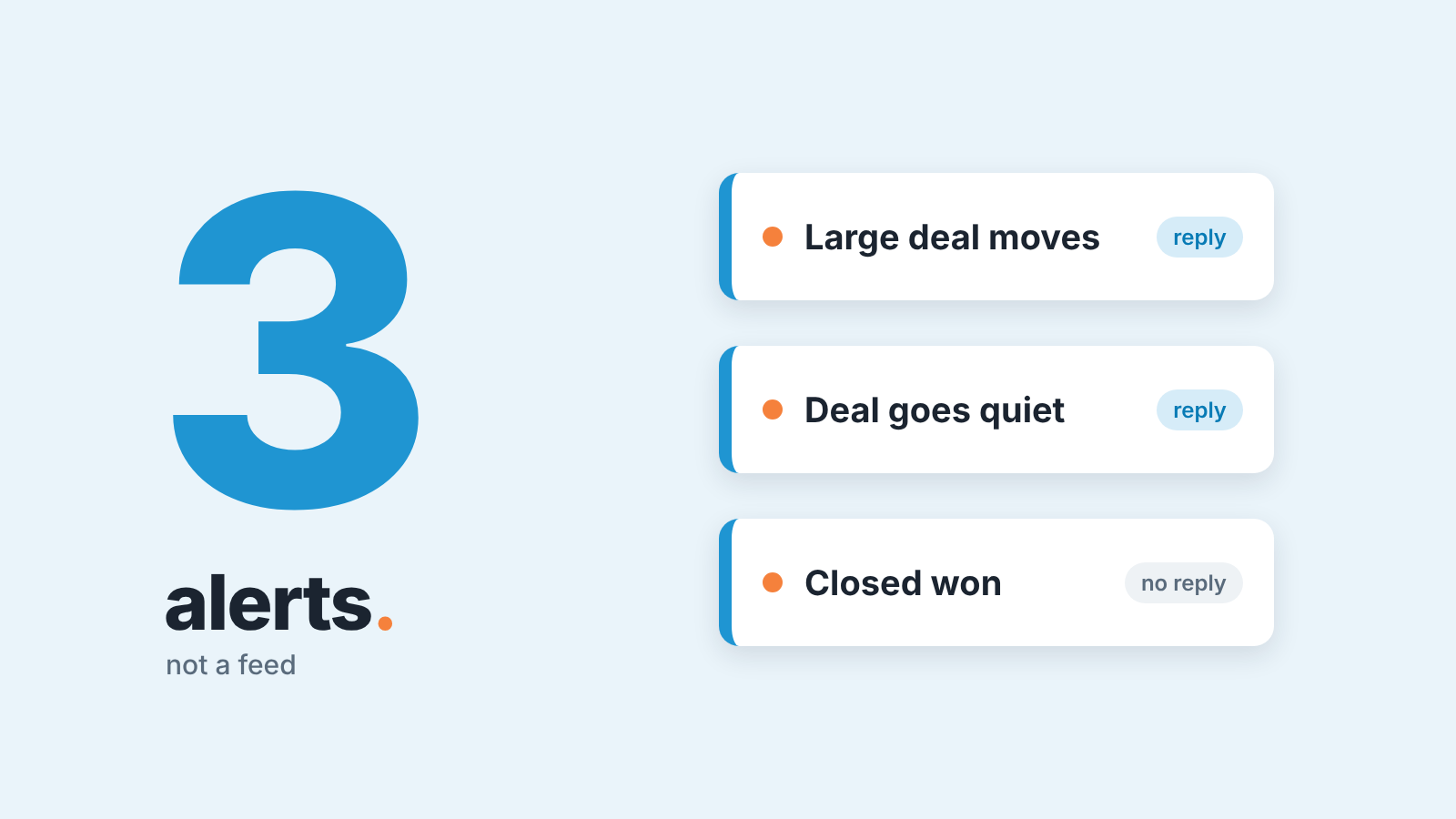
Set up the Zoho CRM Slack integration to send three deal events and nothing else: a stage change on a large deal, a deal that has gone quiet, and closed-won. Give each alert one owner who replies in the thread. Once a week, count how many alerts led to an action logged in Zoho CRM the same working day.
The posts come from a workflow rule with the instant action Notify > via Slack (Zoho CRM help: Slack integration), and the integration is available in all paid and trial editions of Zoho CRM (Slack Marketplace: Zoho CRM).
Alerts are only useful if someone acts on them
A Slack alert from Zoho CRM is worth sending only if it changes what a rep does today.
Our test: an alert is a message with a named reader and an expected reply. If you can’t say what reply you expect, it’s a feed, and Zoho CRM already has feeds that nobody has to mute. A channel that carries every stage move and every missed call gets read on Monday and muted by Thursday. From then on the manager can’t tell a quiet week from a muted channel.
What Zoho CRM can send to Slack (per Zoho and Slack docs)
Only a user with the administrator profile can turn the integration on:
- In Zoho CRM, go to Setup > Marketplace > All and search for Slack.
- Click Activate, then Add to Slack.
- Enter your team’s Slack domain and continue.
- Sign in to Slack and authorize access.
After that, Zoho’s help page lists five things the integration does (Zoho CRM help: Slack integration):
- share a record with a user or channel, from the record’s more-options icon > Share via Slack;
- share a report from Chart Options > Share via Slack (only reports with charts can be shared);
- post a workflow notification: Instant Actions > Notify > via Slack, with your own message, field values inserted by typing #, and the recipient picked as Users or Channels;
- send calendar reminders, which each user switches on in Calendar > Options > Preferences by clearing “Turn off reminder via Slack”;
- deliver Signals notifications, chosen under Setup > Experience Center > Signals.
Zoho’s help page for the integration doesn’t mention @mentioning a Slack user from a notification, and it doesn’t offer “the record owner” as a recipient. You pick named users or channels from a drop-down. So the alerts below work without mentions, and the one that has to reach a specific rep is built per rep.
Three deal alerts worth keeping
A stage change on a large deal
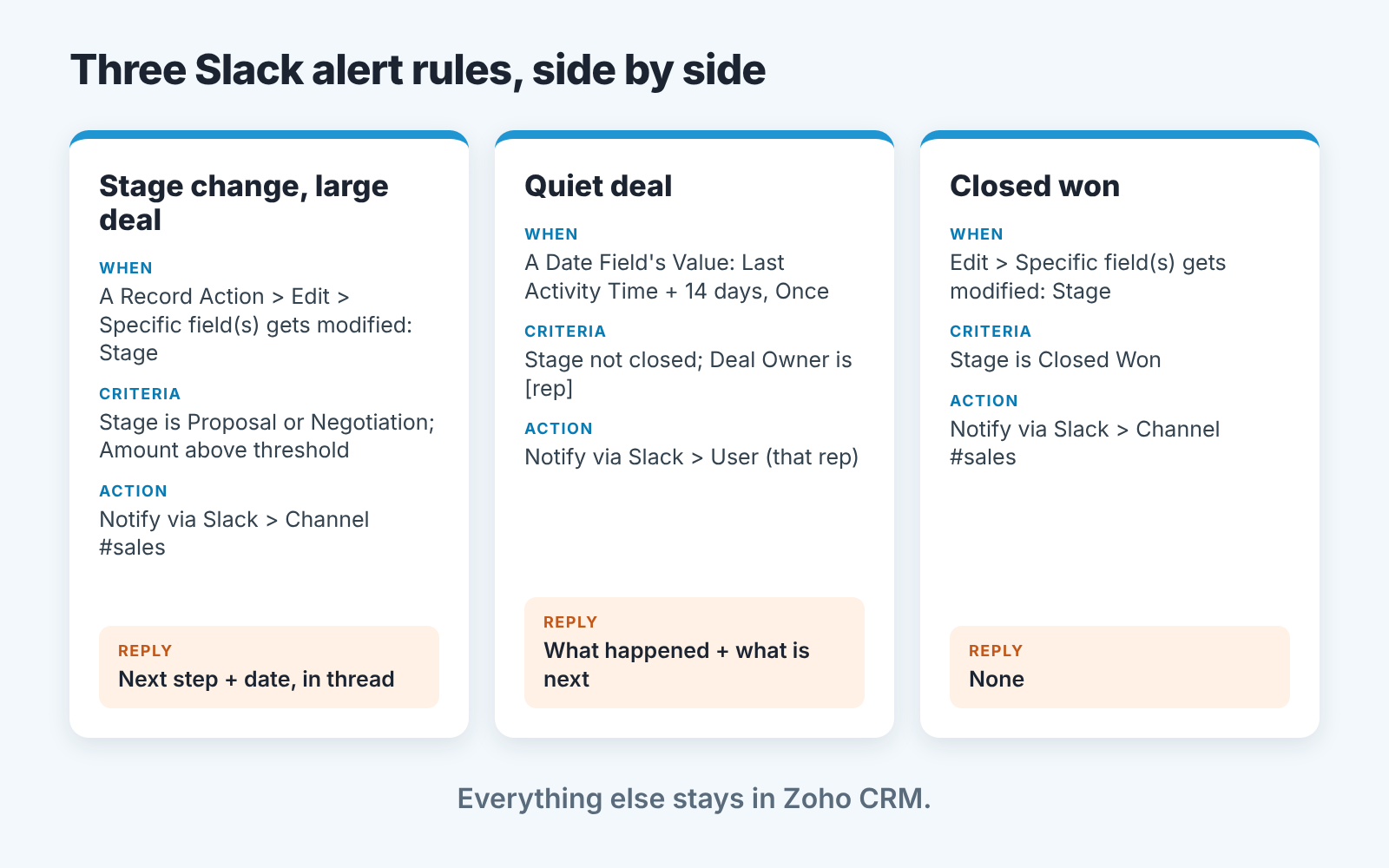
A workflow rule on the Deals module. When: A Record Action > Edit > “Specific field(s) gets modified”, with Stage as the field (Zoho CRM help: Configuring workflow rules). Criteria: Stage is one of your late stages and Amount is above the line the team agreed on. Action: Notify via Slack to the team channel, something like “#Deal Name moved to #Stage. #Amount, closing #Closing Date, owner #Deal Owner. Next step?”
We expect one line back in the thread: the next step and its date, before the end of the working day. The Amount condition is the whole point. Early-stage moves and small deals stay in the CRM.
A deal that has gone quiet
Zoho CRM has no “overdue next step” field on a deal, so we use Last Activity Time, the same trigger as the Zoho CRM workflow rule that creates a follow-up task for quiet deals. When: A Date Field’s Value, Last Activity Time plus your threshold in days, Recur Once. Criteria: Stage is not a closed stage. If you already run the follow-up rule, add Notify via Slack to it as a second instant action.
Keep this one out of the team channel. A public list of quiet deals is a public list of whose deals are quiet.
Because the recipient has to be a named user, our advice is one copy of the rule per rep, with “Deal Owner is” as the second condition. Five reps means five rules with two conditions each, well inside the 5 conditions per rule that Standard and Professional allow (Enterprise and Ultimate allow 10, same workflow page). The reply we want: what happened, and what’s next.
Closed-won
When: Edit > “Specific field(s) gets modified”, Stage. Criteria: Stage is Closed Won. Action: Notify via Slack to the team channel with Deal Name, Amount and owner. No reply expected. People want to see this post, and it’s the reason the channel with the stage moves doesn’t get muted.
What to leave out: the noisy ones
The rest is useful to one person and noise to a channel. New deal created is not news; a deal reaching Negotiation is. Every stage move in a seven-stage pipeline is five posts too many. Signals, such as a missed call, belong to the rep who missed it. Calendar reminders are a per-user preference and should stay that way. A report shared to the channel every morning is the the fastest route to a muted channel we know, and we said the same about HubSpot’s Slack alerts and Pipedrive’s.
No expected reply, no channel post.
The weekly check: alerts vs. actions in Zoho CRM
Monday, ten minutes, Slack and Zoho CRM side by side:
- Scroll the channel back seven days and count the stage-change alerts.
- Open each thread. Is there a reply with a next step and a date?
- Open the deal in Zoho CRM and look for a task, call or meeting logged the same working day as the alert. That’s the action. A thread reply with nothing in the CRM behind it is a promise.
- Write down two numbers, alerts sent and alerts acted on the same day, one row per week in a plain sheet.
- Look at the quiet-deal rules. Zero notifications in a team with late-stage deals means a broken rule or a renamed stage, not a perfect team.
Then read the two numbers together. If alerts get acted on but the pipeline on the sales manager’s Zoho CRM dashboard still slips, the alerts are on the wrong deals and the Amount threshold needs moving. If alerts are not acted on that is a conversation for the 1:1, not a new rule. And if the quiet-deal alert fires on the same deals every week, the problem is follow-up rhythm, which is what cadences in Zoho CRM are for.
Ownership rule for the alert channel
One person owns the integration: the administrator who installed it. There’s a line in the help page that’s easy to miss. When a Slack team is deleted under Setup > Marketplace, instant actions added in workflow rules are deleted from the rule (Zoho CRM help: Slack integration). An admin tidying up installed apps can switch off all three alerts at once, and nothing in the channel will say so. Put the owner’s name in each rule name, “Stage change > $X to #sales (owner: Dana)”, so teh next admin knows who to ask.
The channel agreement fits in the channel topic: This channel carries late-stage moves and wins from Zoho CRM. If a deal of yours is posted, reply in the thread with the next step and a date before the end of the working day.
Can the channel replace the pipeline review? No. We build SalesBond, a sales management layer on top of the CRM a team already uses; we started with Pipedrive. It works with Zoho CRM, analyses deal and customer data, finds risks and explains what needs attention, so the manager works from one list instead of scrolling a channel. The three alerts still belong in Slack, because the rep needs the nudge the same day. Check your CRM with SalesBond.


