

A web form can feed Zoho CRM in two ways: a Zoho CRM web form (Setup > Channels > Webforms), or a Zoho Forms form connected to it through the integration. Either way, decide three things before the form goes live: which record it creates (Lead or Contact), who becomes the owner (an assignment rule, not the person who built the form), and which field carries the source. Then look every Friday for web leads with no owner, no source or no first touch. The tool matters less than those three decisions, and both tools let you make them.
Zoho Forms vs a Zoho CRM web form: two routes, two owners
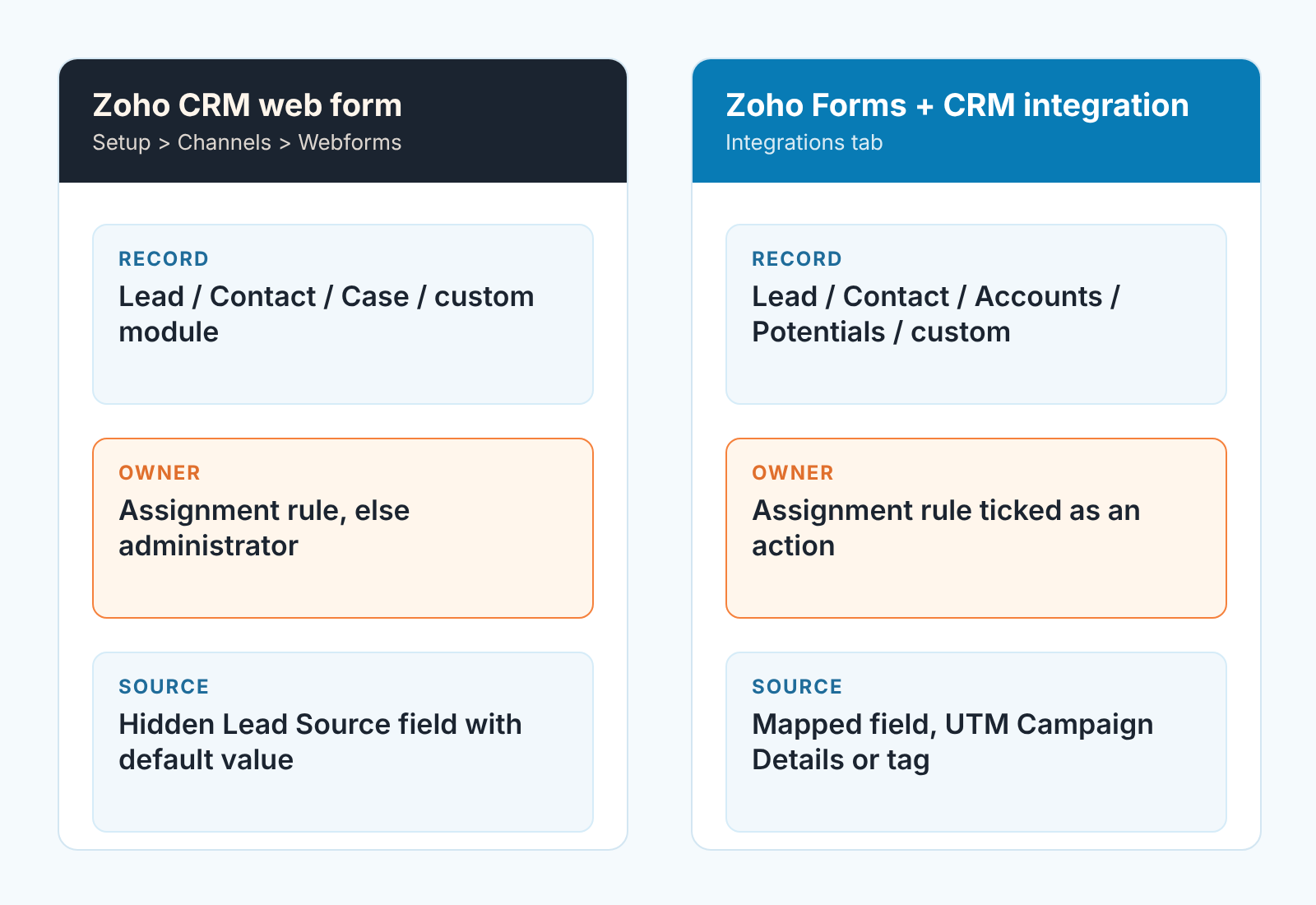
The web form inside Zoho CRM lives under Setup > Channels > Webforms. It works for Leads, Contacts, Cases and custom modules, and the code you paste into the site comes in three formats: HTML source, embed code or iFrame (Zoho CRM: FAQs on webforms). Zoho Forms is a separate app. Its forms push entries into CRM modules through the Zoho CRM integration on the form’s Integrations tab, where you pick the module and layout, map the mandatory CRM fields and choose which CRM actions fire on each entry (Zoho Forms: adding a new record to a Zoho CRM module).
Why does the choice matter for ownership? Because the two routes default differently. For a CRM web form, Zoho’s FAQ says it plainly: “By default, all incoming records are assigned to the administrator.” The way out is an assignment rule, which can send every record to one named user or rotate them round-robin (FAQs on webforms). In Zoho Forms, assignment is an action you tick during setup: the integration lists the rules already configured in CRM for that module, and you pick one to run on each entry (adding a new record). Leave that action off and no rule ever touches those leads.
Our position: if the only job is “contact form on the website, straight into Leads”, the CRM web form is the shorter route and one less app to keep permissions on. Reach for Zoho Forms when you need what its integration adds: prefilling the form from CRM data, updating an existing record, or adding a Deal to a related list alongside the Contact (Zoho Forms: CRM integration overview). What you should not do is run both for the same purpose with different owner and source settings. That’s how a manager ends up with two kinds of web lead that look identical in the list view and behave differently.
What lands where: Lead, Contact or something else
Start with the module, because everything downstream depends on it. A CRM web form is created for one module, chosen in the New Form popup, and it comes with that module’s mandatory fields already in place: for Leads and Contacts that is Last Name, Email and Phone, and Last Name cannot be removed (FAQs on webforms). Lookup, Auto Number and Formula fields don’t appear in the form builder at all. So a form can’t link the lead to an Account; that is a job for the rep or a workflow after the record exists (same FAQ).
Zoho Forms reaches further: Leads, Contacts, Accounts, Potentials (the help page’s name for Deals), Campaigns, Cases, Solutions, Products, Price Books, Vendors, Events, Tasks, Calls, plus every custom module (adding a new record). It can also add the entry to a related list while creating the record. That is how a single “request a quote” form creates the Contact and a Deal in one submission (CRM integration overview).
For a sales team the practical rule is simple. Unknown person asking for something: Leads. Someone you already sell to, filling in a form you sent them: Contacts, and probably an Upsert, so you update instead of duplicating. Zoho Forms’ Upsert Record option checks the fields in the order you set (say, Email first, then Company), updates the first match and creates a new record if nothing matches. Only CRM fields set to “do not allow duplicate values” show up in that option (adding a new record). Mix those two audiences in one form and you get the “why is my customer in Leads again” question.
Check one thing before launch. In Zoho Forms, if a mapped field is mandatory in CRM but optional in the form, the push fails whenever someone leaves it empty. Zoho’s best-practice list says to make the form field mandatory too, and to set up the failure alert, which emails you on the first failure in every 24 hours (Zoho Forms: best practices for the CRM integration). The alert is a paid-plan option (adding a new record). A form that fails silently is a lead that never existed.
The owner: assignment rule or whoever built the integration
The owner should come from an assignment rule, in both tools, every time. For CRM web forms the rule goes in the form details step (“Set record assignment rule”), and without one the record goes to the administrator (FAQs on webforms). In Zoho Forms the rule has to exist first, under Setup > Automation > Assignment Rules in CRM, and only then can you select it as an action in the integration (adding a new record). There is one more detail that bites later. When the form changes hands, Zoho’s best-practice page asks you to make sure the new form owner has permissions on the integrated module (best practices), so the person who built the form is part of the plumbing. They shouldn’t be the owner of teh leads.
How to write the rule, round-robin, thresholds and the fallback for leads the rule skips is a separate article: Zoho CRM assignment rules for a small team. Here, the only question is whether the form points at a rule at all.
The source field: a hidden Lead Source field in a web form
Lead Source is the field reps fill in from memory, which means it is the field nobody trusts. Set it from the form, not from the rep. In a CRM web form, drag the Lead Source field into the editor, open its settings, tick “Mark as hidden field” and give it a default value per form: Website for the site form, Blog for the one on the blog, and so on. Visitors never see the field, and the value is submitted with the rest (FAQs on webforms, Q9). Zoho suggests the same hidden-field approach for telling apart several forms on different pages (Zoho CRM: FAQs on leads management).
In Zoho Forms the source is a mapping decision. The field-mapping table lists UTM Campaign Details among the form fields you can map to a CRM Single Line or Pick List field, so a campaign value can land in Lead Source or in a custom text field of your own. The same page has two more options. Capture GCLID passes the Google Ads click ID with the record once its tracking code is on your pages, and Tag Records stamps every pushed record with a fixed tag or with one taken from an answer in the form (adding a new record). Zoho’s own example is a question about the reason for approaching you, where the answer “Free demo” becomes the tag (best practices).
We prefer a picklist value over free text for the source, because a picklist is what you filter on. A custom view grouped by Lead Source is how Zoho itself suggests slicing leads by origin (FAQs on leads management). No view can group “website (contact page, new)” typed eleven different ways.
Running more than one CRM? The same logic elsewhere: Pipedrive lead source from web forms and Salesforce Web-to-Lead and the lead queue.
Spam, duplicates and the lead nobody saw
Both tools can hold a submission for approval instead of writing it straight into the module. In a CRM web form it’s the Request for Approval option on the Form Details page; until someone with the Approve Records permission approves them, the records wait under Leads Tools > Approve Leads and do not show in the Leads tab (FAQs on leads management). In Zoho Forms it is the Approval action, which sends entries to the module’s approval list so you can approve the real ones and discard the spam (adding a new record).
Approval is a filter, and a filter needs someone who empties it. If you switch it on, name that person and put the queue in their Friday routine. Otherwise it becomes the usual answer to “where did the web leads go”: when Zoho’s webform FAQ asks why web leads are not visible under the Leads tab, manual approval is the answer it gives (FAQs on webforms).
Duplicates are a field setting, not a form setting. Open the Leads module under Setup > Customization > Modules and Fields, and on the Email field choose “Do not allow duplicate values” (FAQs on leads management). That same setting is what makes Email show up in the Zoho Forms Upsert option, so the two decisions back each other up.
The third failure is quieter. A CRM web form captures nothing if the domain in its settings does not match the page it is hosted on. It also stops working if someone strips the system hidden fields out of the embed code, if the form is deactivated, or if two web forms share the same page (FAQs on webforms; FAQs on leads management). None of that produces a lead with an empty owner. It produces no lead, which is why the Friday check below starts with a count and not with a list.
Junk-lead handling in another CRM, for comparison: Pipedrive spam and junk leads from web forms.
The Friday check: web leads with no owner, no source or no first touch
You don’t need a dashboard for this. One list view on Leads, filtered to this week, answers four questions in a few minutes.
- How many leads came from the web this week? If the count is zero and the site has traffic, the form is broken, not the market. Start with the domain setting, the embed code and whether the form is active.
- Which of them have the administrator, or the person who built the form, as owner? That is an assignment rule that was never attached. Reassign them now and fix the form before Monday.
- Which have an empty Lead Source? With a hidden field or a mapped value the answer should be none. A blank source means the lead came in through a path you have not set up.
- Which have no first touch: no task, no call, no email since they arrived? Those are the ones to raise on the Monday call, by name.
If you switched approval on, there is a fifth: how many entries are waiting in Approve Leads, and who was supposed to clear them. Once the four answers are clean, the next layer is which of these leads deserve a call first, and that’s where lead scoring rules in Zoho CRM come in.
A disclosure, since this is the part a tool can do for you: we build SalesBond, a sales management layer on top of the CRM a team already uses; we started with Pipedrive. It reads Zoho CRM and shows a manager the new leads with no owner and no next step, which is the the Friday list above without building the filter. Build the filter by hand at least once anyway. The first time you run it, you’ll find out what your forms have been doing all along. Check your CRM with SalesBond.


