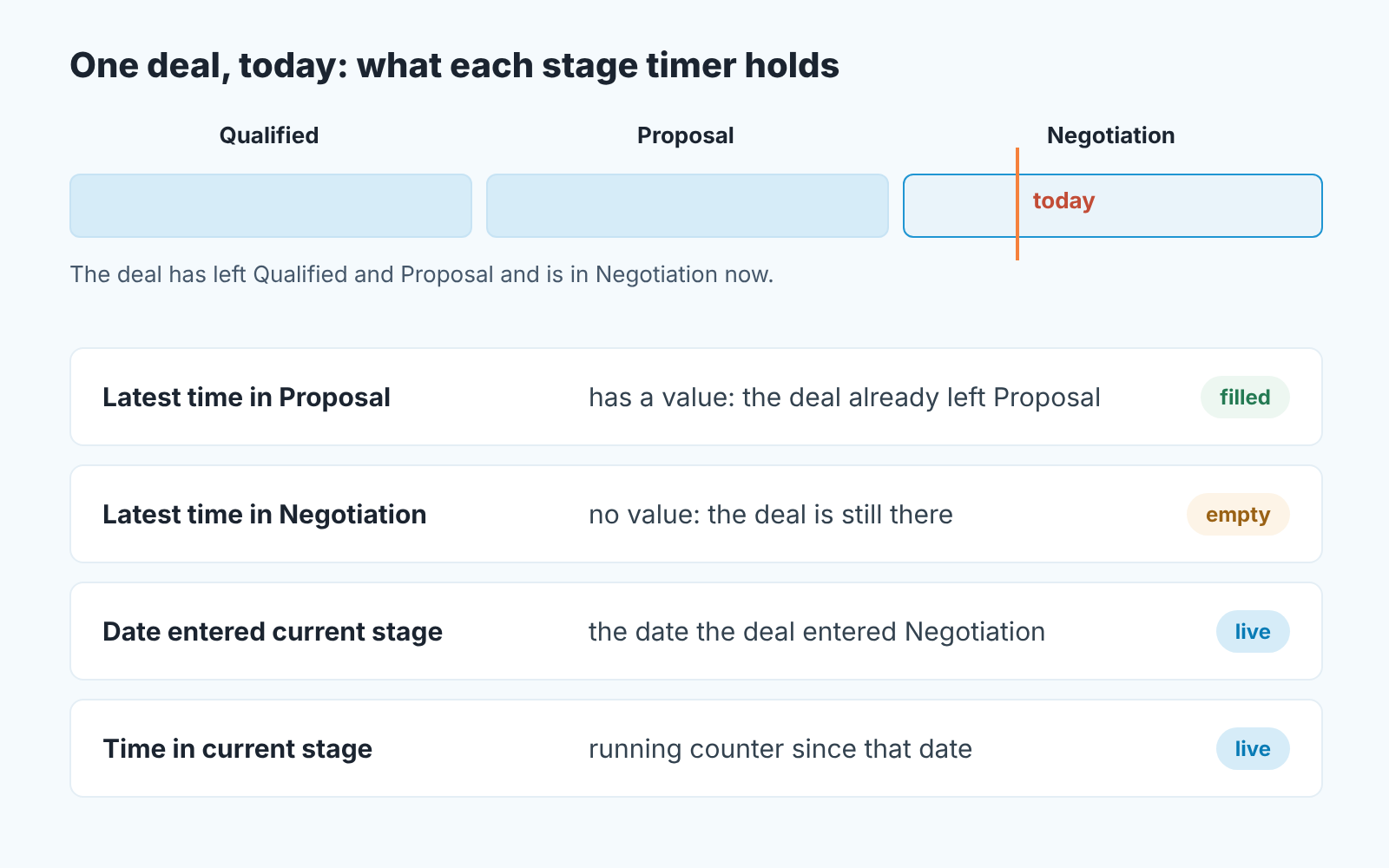
For open deals in HubSpot, use Time in current stage and Date entered current stage. The other two stage timers, Latest time in [stage] and Cumulative time in [stage], are empty for a deal that is sitting in that stage right now, or they show a previous visit to the stage and will not move until the deal leaves it (HubSpot: use stage calculated properties). One more thing before any of them show up: stage calculated properties are turned off by default for new pipelines and new stages, and switching them on needs Super Admin or Edit property settings permissions on a Professional or Enterprise subscription (same page).
The rest is about getting from the right property to a Monday list of deals that have sat in one stage too long.
Why time in deal stage looks empty on open deals
The question has been open on the HubSpot community since 2017: someone builds a report on time in a stage, the open deals come back blank, and the thread concludes that the value only appears for deals that have left the stage (HubSpot Community: time in current deal stage). The same thing was asked again in 2021 and in 2024 (create time in deal stage report, deal cumulative time in stage). Nobody in those threads is wrong. They picked a property that is computed from an exit date, and an open deal has no exit date yet.
So a report built on Latest time in Proposal is a report about deals that already left Proposal. Fine for a post-mortem on cycle length. Useless for “which deals are stuck in Proposal today”, which is the question a sales manager asks every week. For the post-mortem side, measured from won deals, see sales cycle length in HubSpot.
The four stage timers and what each one is for
HubSpot creates a set of stage calculated properties (the stage timers) for every stage in a pipeline, plus two that follow the deal wherever it is (HubSpot: use stage calculated properties). They are read-only, they update as the deal moves, and once they are on they fill in retroactively from existing data.
Date entered [stage] and Date exited [stage] are the raw material: a timestamp per stage for when the deal came in and when it went out. The two timers below are arithmetic on these.
Latest time in [stage] is the length of the most recent visit, from the last entry to the exit. It answers “how long did won deals spend in Negotiation last quarter” and says nothing about a deal that is in Negotiation now.
Cumulative time in [stage] adds up every visit. A deal that went to Proposal, fell back to Qualified and came to Proposal again has two visits, and this property is their sum. While the deal is in the stage, the value is either empty or the old total.
Date entered current stage is one property, not one per stage: the date the deal entered whatever stage it is in today. Time in current stage is the time since then. These two are live for every open deal, so they are the pair to build on.
Our rule: if the deal is still in the stage, use the “current stage” pair. If it has left, use Latest or Cumulative. The help page is clear that Latest and Cumulative do not update until the deal leaves the stage, so don’t spend an afternoon hunting for a setting that makes them tick.
For closed deals the choice between those two is about what you are measuring. HubSpot keeps updating the properties when a deal is closed and reopened (same page), so a deal lost in March and reopened in September carries both runs. Use Cumulative when you want total exposure to a stage, and Latest when you want only the final run at it.
Turn the properties on (they’re off for new pipelines)
Missing from the filter picker altogether? Then nobody has switched them on. HubSpot turns stage calculated properties off by default for new pipelines and for new stages added to existing ones, and suggests that operations managers turn them off on stages nobody uses to keep the account tidy (HubSpot: use stage calculated properties).
The switch lives under Settings → Data Management → Objects → Deals → Pipelines: open the pipeline, find the stage calculated properties column in the stage table, toggle a single stage on or pick Enable all stage calculated properties from the three-dot menu, then click Save. You need Edit property settings or Super Admin permissions. Deal stage properties come with Sales Hub (and the other hubs) at Professional or Enterprise; service and lead stage properties need Service Hub Professional or Enterprise, and custom objects need Enterprise (same page).
Values are populated retroactively from existing data, so you don’t wait a quarter for a report. A deal that entered Proposal three weeks ago shows those three weeks as soon as the properties are on.
Turn them on for every stage of the main sales pipeline, not only the late ones. The early-stage numbers feed the limits in the next section.
A stalled-deals report: entered-current-stage date plus a limit per stage
The report a manager actually wants is a list, not a chart: open deals, grouped by stage, that have been in their current stage longer than that stage’s limit. HubSpot gives the one-limit version as its own example, a saved view of deals that have spent more than two weeks in a given stage (HubSpot: use stage calculated properties). Start there.
Build it on the Deals index page as a saved view, the same way we built the view for HubSpot deals with no next activity: filter on your pipeline, Deal stage is any of your open stages, and Time in current stage greater than fourteen days. Sort by Time in current stage, longest first. Add Deal owner, Amount and Close date as columns.
A single limit is wrong for most pipelines, though. Two weeks in Qualified is normal for a lot of teams; two weeks in Contract sent is a deal that is quietly dying. What we’d do is keep one saved view per late stage, each with its own Deal stage filter and its own Time in current stage threshold. Then count the deals past the limit in each and put that number in your weekly report, next to the pipeline total.
Where do the limits come from? Not from a benchmark. From your own closed-won deals, which is the one place Latest time in [stage] is a good property. Filter closed-won deals from the last couple of quarters, look at Latest time in Proposal, Latest time in Negotiation and so on, and pick a limit a little above where the typical won deal sat. A deal past that point has already taken longer than the deals that won, and a rep can argue with that limit on evidence.
HubSpot does a version of this on its own. Its default deal properties include Average Deal Owner Duration In Current Stage, the average time the owner’s closed-won deals spent in that stage, and Is Stalled After Timestamp, the moment Time in stage ran 20% past that average (HubSpot’s default deal properties). They make a decent first draft of the limits, and its worth putting the timestamp next to your own threshold for a month to see where the two disagree.
Stage names don’t matter here, because the limits come from your won deals, whatever the stages are called (deal stage probabilities and the forecast covers the defaults). Pipedrive teams get a lighter version of the same signal on the deal card: days in stage on the Pipedrive progress bar.
Three notes on keeping the report honest.
Date entered current stage is the date the deal entered the stage it is in now. So a rep who drags a deal from Negotiation back to Proposal and forward again gets a new entry date and a fresh timer. Pipeline rules can block backward moves if that becomes a habit.
If you automate any of this, the trigger has to be Date entered current stage or Time in current stage. HubSpot says plainly that records won’t enroll in a workflow based on Cumulative or Latest time in [stage] while they are in that stage (same page). A reopened deal back in Proposal has a frozen Cumulative value from last time and a live Time in current stage from this time, and only the second one tells you whether it is stalling again. Whether a reopened deal is stalled or simply dead is its own argument, and we wrote it up in stalled deals vs dead deals.
This report is about stage age, not silence. A deal can sit in Proposal for forty days with a call logged every week. The silent ones are better caught by a workflow that tasks the owner when a deal goes quiet. Run both, they catch different deals.
What to ask the rep when a deal is past the limit
The report is a list of conversations. They stay short if you ask three things in this order, because half the time each answer makes the next question unnecessary.
Is the stage still true? A lot of “stuck” deals moved in the real world and not in the CRM. The proposal went out and was rejected, and the rep is waiting for a reason before admitting it. If the honest stage is Closed lost, move it there and the timer problem is solved. Same if the honest stage is further ahead.
What did the buyer do last? Not the rep, the buyer. A deal where we sent three follow-ups and the buyer opened none is a different deal from one where the buyer asked for a security questionnaire last Thursday. Time in current stage is the same for both. The difference is in the activity timeline and the rep should be able to point at it.
What has to happen for it to move, and when? If the rep can name a buyer action and a date, you have a next step: put it in the deal and agree to look again on that date. If not, the deal probably belongs in a parked stage or in Closed lost, and the forecast gets more honest either way.
A disclosure. We build SalesBond, a sales management layer on top of the CRM a team already uses; we started with Pipedrive, and it works with HubSpot, Salesforce and Zoho CRM. Its Deal Health product checks every open deal against more than 20 rules and shows the manager the deals that need attention together with the reason, which is the same state, reason and action the three questions above are after. The saved view in this article gets you the list without it. The hard part was never the list. If you want the reason attached, check your CRM with SalesBond.