
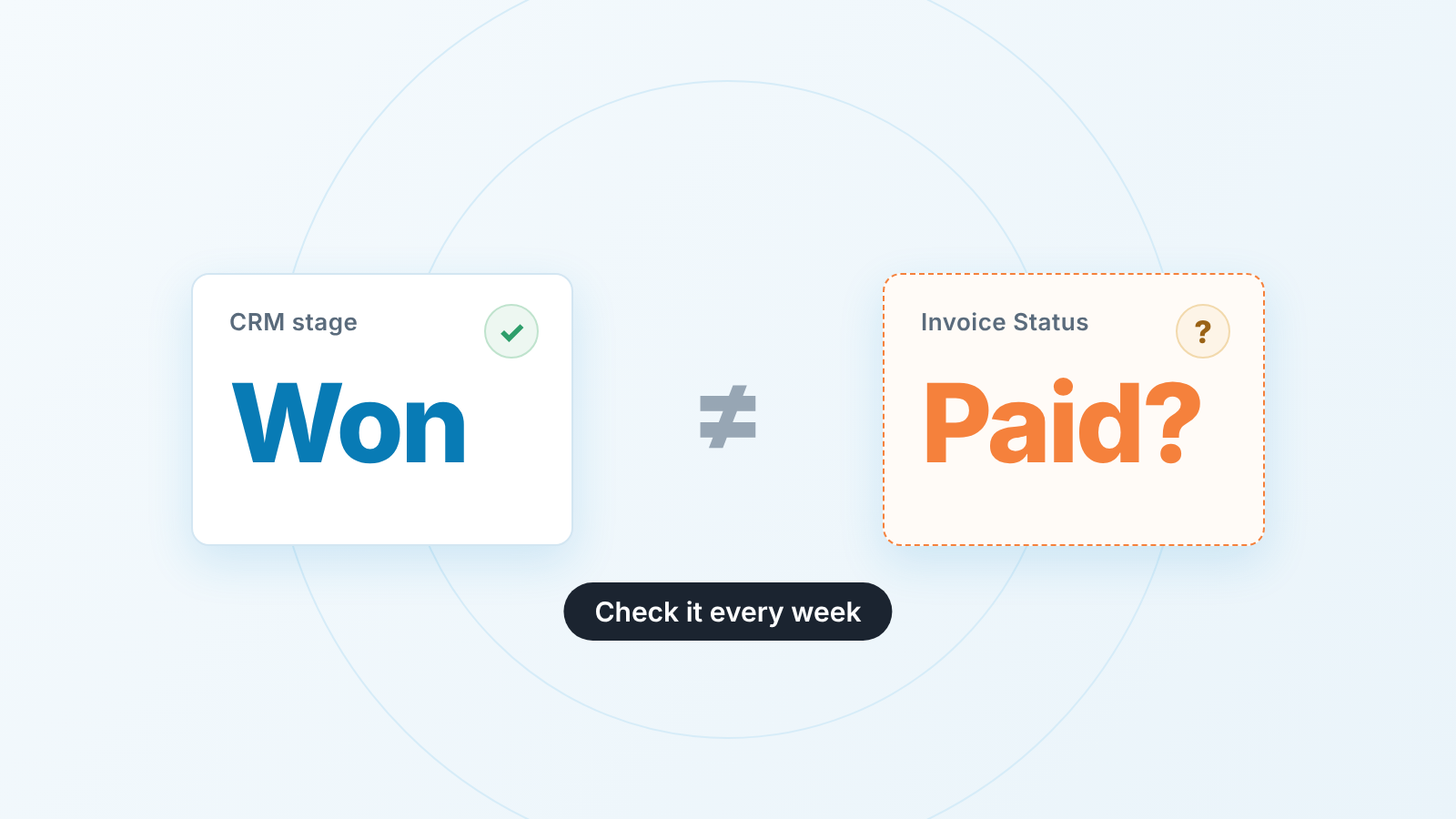
To see paid, not just won, add one invoice-status field to the Zoho CRM deal and keep it in sync with QuickBooks through Zoho’s QuickBooks integration, Zoho Flow or Zapier. Then once a week compare Closed Won deals against invoices: a won deal with no invoice after a week is the sales manager’s item to chase.
This is for a sales team of three to ten people that runs its pipeline in Zoho CRM and its invoices in QuickBooks. It is not a guide to connecting the two. It is about what the connection should put on the deal, and what the manager does with it on Monday.
Why “Closed Won” is not the end for a sales manager
Closed Won in Zoho CRM means a rep moved the Stage field. That is all it means. Zoho’s own QuickBooks integration page describes the split plainly: once the deal is won, the invoice is raised in the accounting software, and to check whether it was paid you go there.
Every sales number counts at Closed Won. Win rate, quota attainment, the pipeline report the owner reads. Finance counts at paid. Between the two sits a quiet list of deals that were celebrated and never billed.
We think the sales manager owns that gap up to the moment an invoice exists, and finance owns it from there. A missing invoice is almost always a sales problem in disguise. A late payment is a collections problem. Mix the two and a won deal stays unbilled while everyone assumes someone else is on it.
The same split, for Pipedrive teams: which system owns the customer record and the invoice status.
What to show on the deal: one invoice-status field
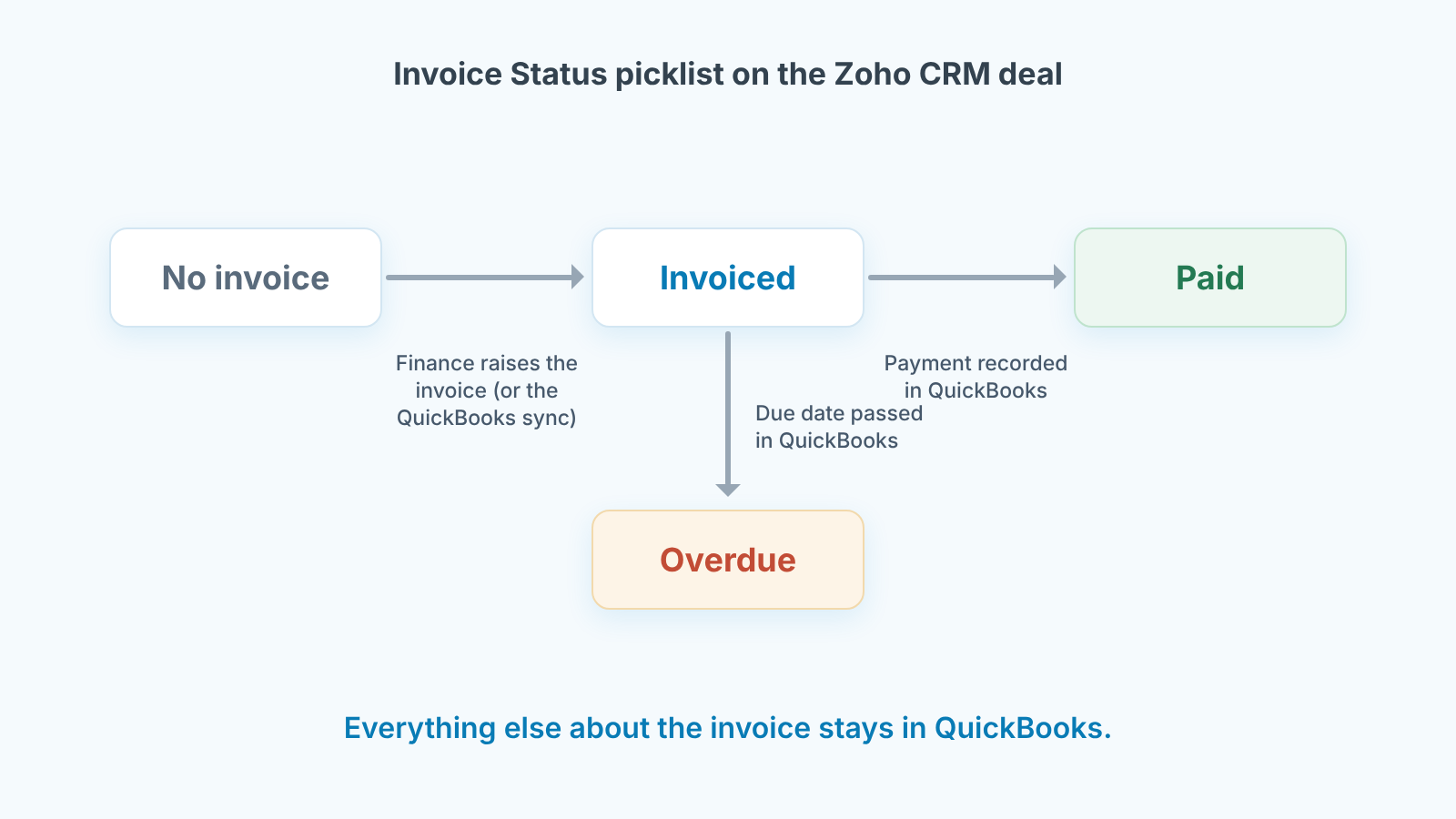
One picklist on the Deals module. Call it Invoice Status and give it four values: No invoice, Invoiced, Paid, Overdue. Default to No invoice, so a freshly won deal is honest from the first second.
An admin adds it under Setup > Customization > Modules and Fields: open the Deals layout and drag in a Pick List field (Zoho CRM help: creating custom fields). Then put it where the the manager will actually look: on the deal’s detail view next to Amount and Closing Date, and as a column in the list view you use for won deals.
Four values is a position, not a limit of the software. Partially paid, voided, credited, disputed: these states exist, and they live in QuickBooks. The manager needs one answer from the deal, “has this been billed and has the money arrived”, and four words give it.
Who moves the field matters more than how. The sync moves it if you have one. Otherwise the person who raises the invoice moves it. Never the rep who won the deal, because the rep has every reason to see Paid early and no way to know it.
Zoho CRM QuickBooks integration: three ways to connect
There are three ways to connect Zoho CRM and QuickBooks: Zoho’s own QuickBooks integration, Zoho Flow and Zapier. None of them advertises a deal-level invoice status, so that field and the rule that sets it are yours to add.
Zoho’s integration is enabled from Zoho Marketplace. Its page lists sync for the Contacts, Accounts, Vendors and Products modules, quotes and invoices created from inside the CRM, an automation that can create a QuickBooks invoice when a deal is closed, and QuickBooks records you can view inside Zoho CRM. Deals is not on that sync list, and the page doesn’t say which record the QuickBooks data appears on. So the last step is a workflow, or a person, setting Invoice Status from what the integration shows. Marketplace also carries a paid third-party QuickBooks Extension for Zoho CRM (by Zeeyes AI) that syncs invoices and payments with custom field mapping. Which edition the team is on decides what you can automate; we costed them in what Zoho CRM costs a five-person sales team.
Zoho Flow sets the field directly. QuickBooks triggers such as Invoice created and Payment received start a flow, and the Zoho CRM action Update module entry writes the new status on the matching deal. The hard part is not the flow. It’s matching the QuickBooks customer to the right deal, which is why the Account name has to be the same in both systems before you build anything.
Zapier does the same from outside the Zoho family: the QuickBooks trigger New Paid Invoice runs a Zap and Zoho CRM’s Update Module Entry sets Invoice Status to Paid. Pick whichever of the three you already pay for, and spend the saved afternoon on the field and the weekly check.
The weekly reconciliation: won deals versus invoices
Once a week, same day, before the pipeline review. The sales manager does it, not finance.
- In Zoho CRM, open a custom list view on Deals filtered to Stage is Closed Won and Closing Date since the previous check. Columns: Deal Name, Account Name, Amount, Closing Date, Invoice Status, Deal Owner. Sort by Closing Date.
- In QuickBooks, open the invoices for the same period.
- Walk down the CRM list. Each deal lands in one of three places: the invoice exists and the status matches, so nothing to do; the invoice exists and the status is wrong, so fix the picklist now and find out why the sync or the person missed it; there is no invoice, which is the next section.
- Walk the other way. Any invoice with no Closed Won deal behind it is a sale that happened outside the CRM, usually an upsell or a renewal nobody logged. It goes back to the rep to create and close the deal, today.
If your pipeline runs on Blueprint, resist making Invoice Status mandatory on the transition into Closed Won. The invoice does not exist yet at that moment. A transition can require any field you add to it (Zoho CRM help: Blueprint glossary), so require what finance needs to raise the invoice, a billing contact for example. We covered which fields belong at which gate in Blueprint stage gates in Zoho CRM.
What to do with a won deal that has no invoice after 7 days
State: Closed Won, Invoice Status still No invoice, a week after the Closing Date. The reason in our experience, is one of three. The rep never collected the billing contact or the purchase order number the customer insists on. The scope or the amount is still moving, so finance is waiting for a final version. Or the deal was won and nobody told the person who raises invoices.
The manager asks the rep one question, “what is finance waiting for from you?”, and writes the answer on the deal. Then one of two things happens. The rep supplies the missing piece and the invoice goes out this week. Or it turns out the customer has not actually agreed to the terms, and the deal moves back out of Closed Won.
Moving it back feels like taking the win away. It is the opposite. A deal that cannot be invoiced was not won, and leaving it in Closed Won makes the win rate and the forecast lie to the owner. Terms agreed, paperwork missing: it stays won and the manager chases the paperwork. Terms not agreed: it was still a negotiation.
Keep the rest in QuickBooks
Almost everything about the invoice stays in QuickBooks, and the deal gets only the Invoice Status. The amount, the due date, partial payments, payment method, tax, credit notes, reminders sent: none of it goes on the deal.
The reason is drift. Two copies of a due date will disagree soon enough and the CRM copy will be the stale one, because nobody in sales updates a due date. Then a rep quotes it to a customer and finance spends an hour untangling it. If a payment-terms figure genuinely belongs on the deal for forecasting, treat it the way we described for HubSpot teams in payment terms as a deal field: one field, one owner, one definition.
A disclosure to close with. We build SalesBond, a sales management layer on top of the CRM a team already uses; we started with Pipedrive. Today that includes Zoho CRM, and a won deal still unbilled a week later is the kind of thing it exists to surface before Monday. The field and the weekly walk above work without it. Check your CRM with SalesBond if you would rather not build the list yourself.


