
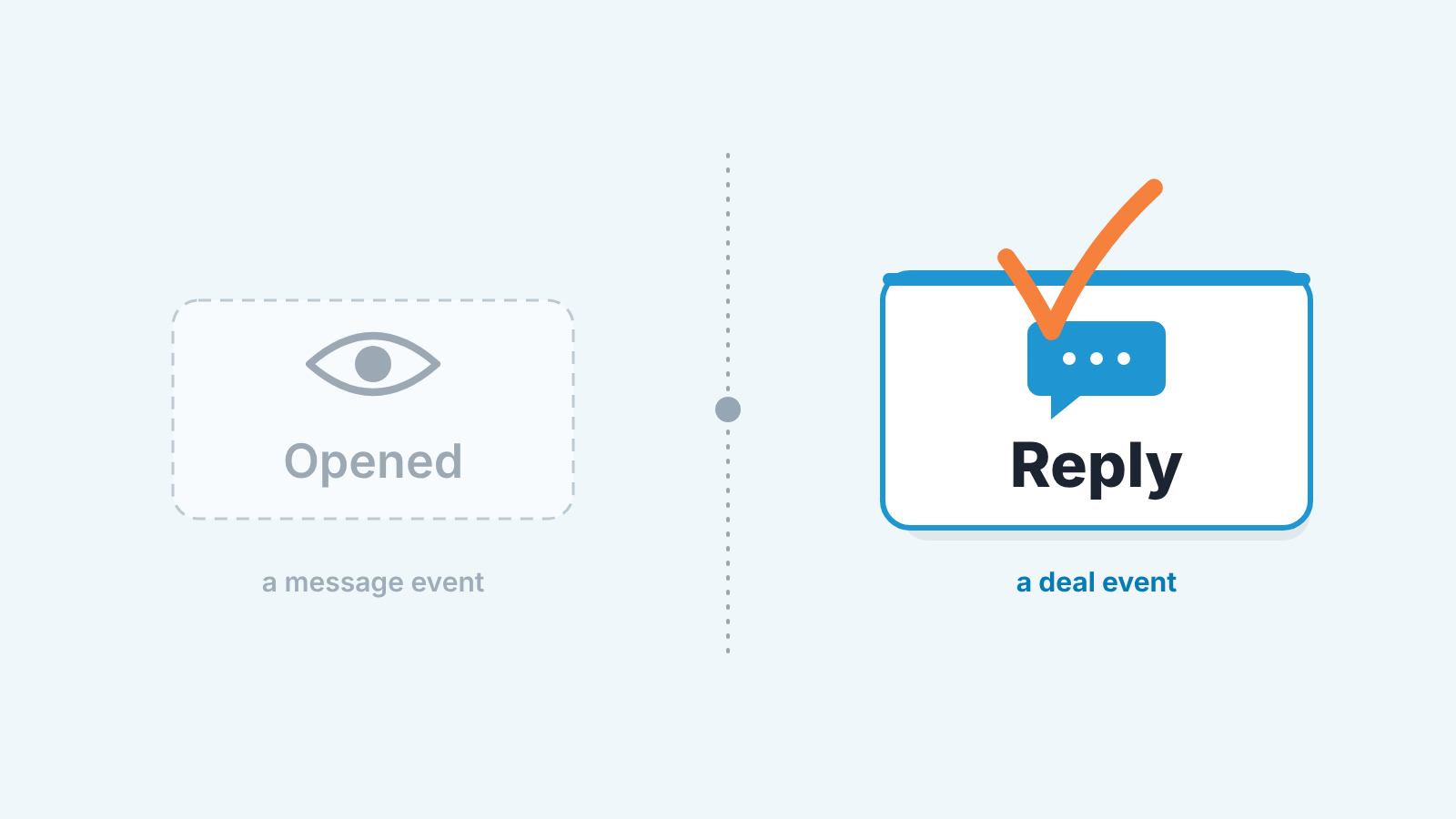
HubSpot email tracking tells you that a tracked email was opened, and, with a Sales Hub seat, that a link in it was clicked. It does not tell you that the buyer answered. An open is an event about the message; a reply is an event about the deal. We move a deal on a logged reply or a booked meeting, and we read an open without an answer as a prompt for exactly one follow-up, not as interest.
This is the HubSpot version of an argument we made for Pipedrive teams. Different CRM, different screens, same reading habit to unlearn.
How HubSpot email tracking works, and what it cannot see
When a rep sends a tracked email, HubSpot embeds an invisible one-pixel image in it. The open is recorded when the recipient views the email and that image loads. Clicks are tracked through links in the email body, and only for users with an assigned Sales Hub seat (HubSpot: understand email open and click tracking). The same applies whether the rep sends from Gmail, from Outlook with the HubSpot Sales add-in, or from the record.
Reps still mix up the two checkboxes in Gmail. Track watches the email after it leaves: you see when it was opened in the HubSpot activity feed, and with notifications on you get a real-time alert. Log saves the email to the contact and the associated records, where it shows up on the timeline (HubSpot: track and log emails with the Sales Chrome extension).
So the open lives in the activity feed, and the conversation lives on the timeline. Read deals from the feed and you see activity. Read the timeline and you see whether the customer is still talking.
The pixel also has blind spots. If the recipient’s mail client doesn’t download images, or a corporate filter strips them, there is no open at all. And it can over-count: HubSpot’s own help page says a preview pane in Outlook or Apple Mail can register an open when someone just scrolls past the email, and a forwarded email shows up as the original recipient opening it again.
Why “they opened it” is not a status update
Take a typical Monday review. A proposal went out Thursday, the feed shows two opens, and the rep says “they’re looking at it”. The deal stays in the proposal stage with a close date this month. Three weeks later it is still there, with five opens and no reply.
None of those five opens was false. But the proposal went to the buyer and her finance colleague, and when a tracked email goes to several addresses they all get the same pixel, so HubSpot may not be able to say which of them opened it. Nobody knows if the the decision maker read a word. An open counts a message being viewed. It doesn’t count a decision, a budget check or a competitor being dropped.
A reply does. When the customer writes back and the thread is logged, the inbound email sits on the timeline with a date and text you can read. One detail trips people up here. If the pixel never loaded and the customer then replies, HubSpot infers the open and gives it the same timestamp as the reply. So an “open” stamped at the exact minute of a reply is the reply itself, not a separate moment of interest.
We treat two events as the buyer’s move: a logged reply and a booked meeting. Everything else is our own activity. An open can change what the rep says in the next message. It doesn’t change the stage, the close date or the forecast.
Three things to read on the deal record
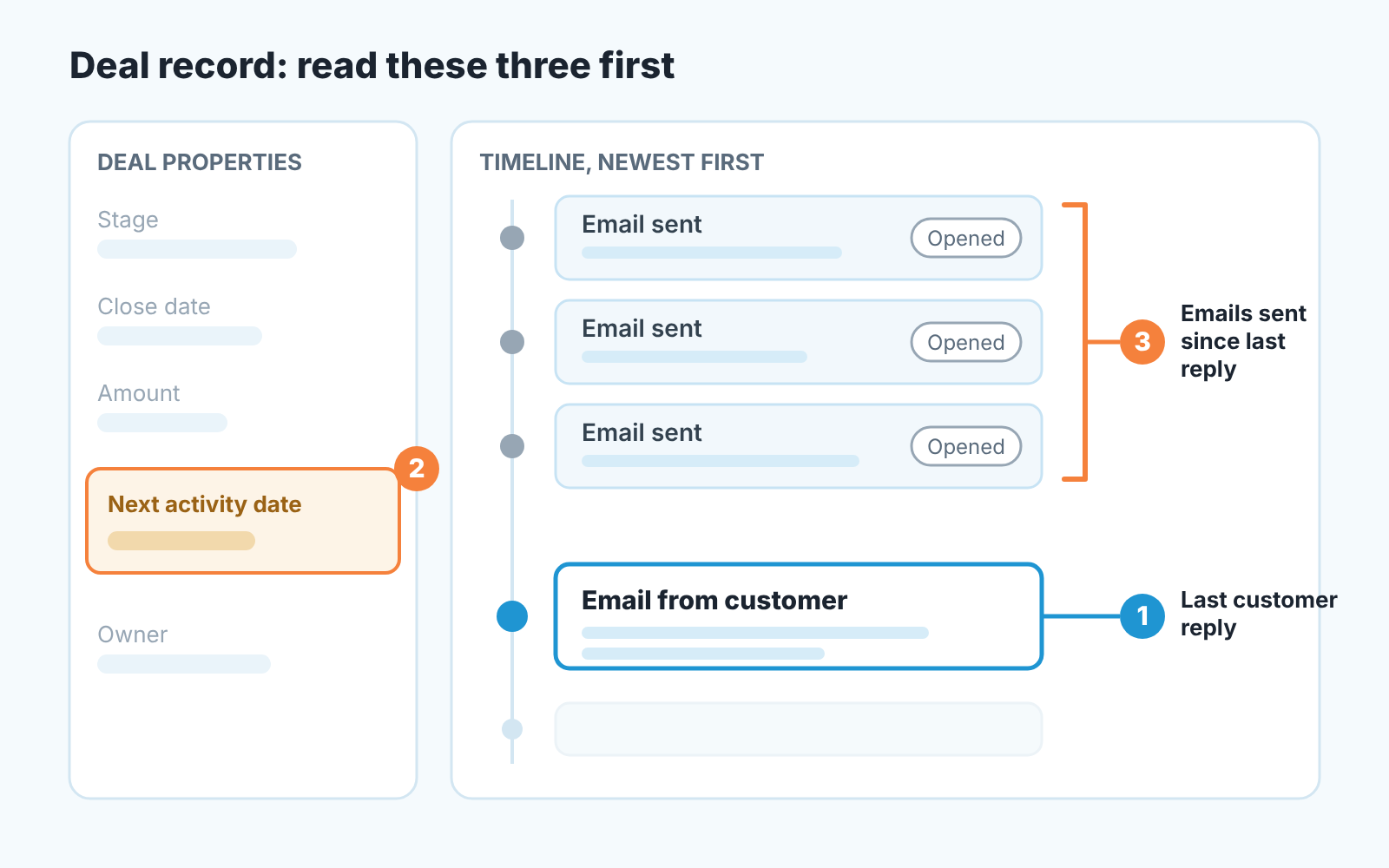
Open the deal and ignore the open count for a minute.
The last reply from the customer. Find the most recent inbound email on the timeline. If everything newer is outbound, the date of that inbound email is the real “last contact”, whatever the feed says.
The next activity date. HubSpot fills this property itself when someone logs a future call, sales email or meeting, or schedules a meeting (HubSpot: default deal properties). Empty means nobody has committed to touching the deal. We wrote up a saved view for deals without a next activity for exactly this.
Emails sent since that last reply. One unanswered email after a proposal is normal. Three in a row, each opened, with no reply between them, is a buyer who has decided not to answer yet. The opens make the sequence look alive. The count says otherwise.
The Monday check for deals that open but do not answer
Once a week, before the pipeline meeting, on the deals that look busiest in the feed.
- Open the deal view you use for the review and sort by close date, nearest first.
- For each deal, read the three things above and write the date of the last customer reply next to the deal name. Not the last open.
- Mark every deal where the last two outbound emails came after that reply. That’s the “opens but silent” list.
- If a marked deal has no next activity date, the rep sets one before the meeting, not during it.
- In the meeting, ask one question per silent deal: “When did they last write back, and what did they say?” If the answer is an open count, ask again.
The list is usually shorter than the feed suggests. Most deals either have a reply or are honestly dead, and the handful in between is where teh week’s follow-up work goes.
One follow-up rule for a silent deal
The buyer opened the last email and hasn’t replied. The rep doesn’t know why, and an open won’t tell them. So the rule is one follow-up, in a different channel, with a question that needs an answer.
Different channel means a call, not a fourth email. Log it with the outcome and the next step, the way we described in logging HubSpot calls with an outcome and a next step. And make the question specific: “Is the timeline we discussed still realistic?” gets answered, “Just checking in” doesn’t.
The rule has two endings. The buyer answers and the deal moves on a reply like any other. Or the buyer stays quiet past the next activity date, and the deal moves back a stage with a note saying why. Not forward, not frozen. A stale-deal workflow can create the task that forces the decision but the decision is the manager’s.
What the rule forbids is the thing opens tempt reps into: another email the moment the badge appears. A new open after a silent week is not a new signal. It’s the same silence with a timestamp.
HubSpot email tracking not working? Three checks before you blame the rep
Usually it isn’t broken: the recipient wasn’t eligible for tracking, the email went to several people, or the pixel couldn’t load. All three come from HubSpot’s own help pages linked above.
Are data privacy settings turned on in the account? Then opens aren’t tracked for recipients who aren’t contacts yet, or for contacts without a legal basis for processing, and the Track box in Gmail shows up greyed out for them. Did the email go to several addresses, including CC? Then the open may come through as “Someone”, and HubSpot can’t attribute it to the buyer. Does the recipient read in plain text or block images? Then there’s no open to record, and clicks can’t be tracked in plain-text emails either.
None of those is a rep problem, and all of them are reasons to rest the review on the logged reply and the next activity date, which don’t depend on a pixel firing. If the rep’s emails are missing from the record entirely, that’s a logging question, and how the extension logs emails into HubSpot is the place to start.
A disclosure, since this is where tooling comes in: we build SalesBond, a sales management layer on top of the CRM a team already uses; we started with Pipedrive, and today that includes HubSpot. It analyses deal data, finds risks and explains which deals need the manager’s attention and why. Check your CRM with SalesBond.


