
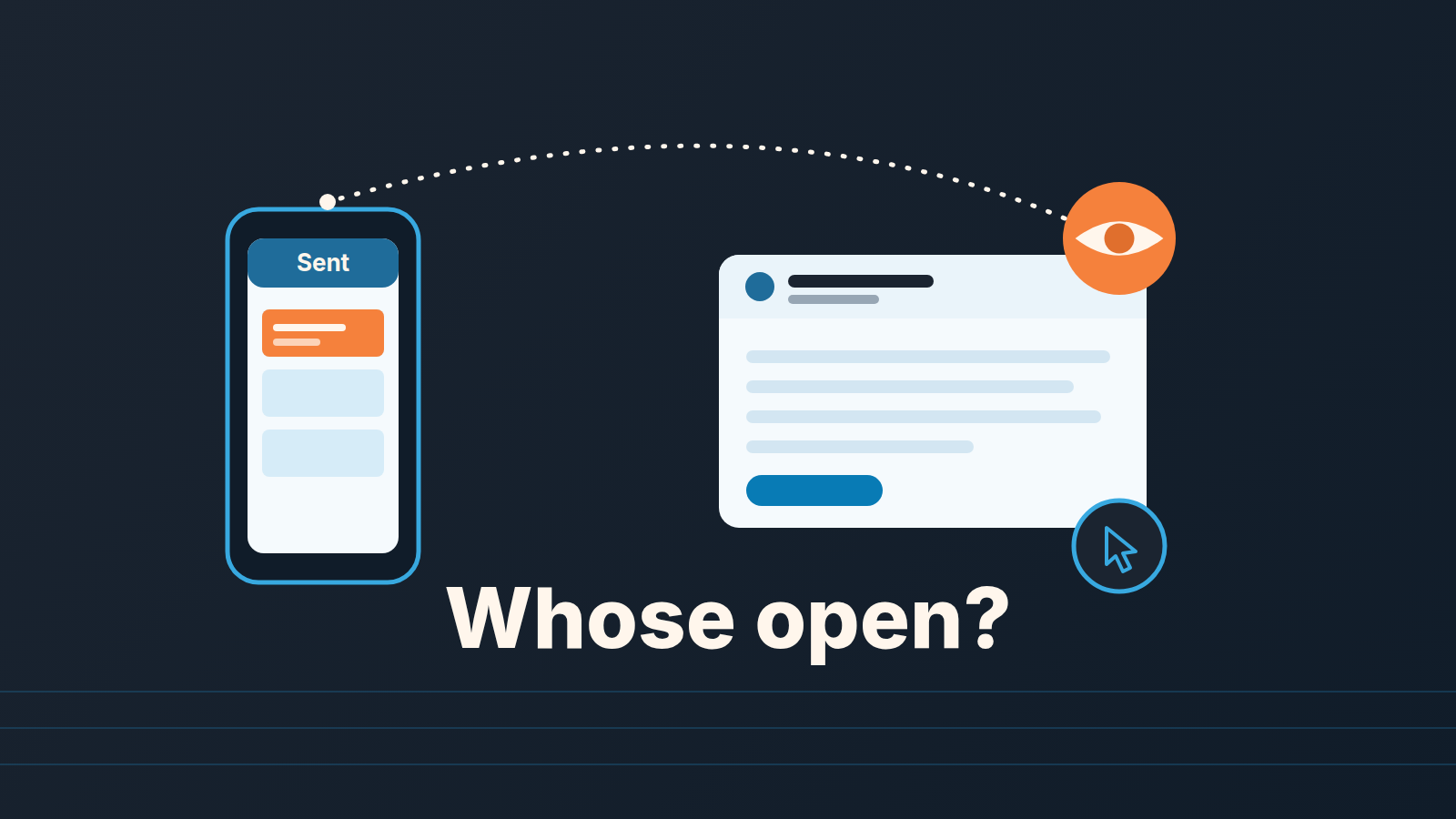
Pipedrive email tracking records an open when a hidden pixel in the message loads, and a click when the recipient follows a tracked link. The click does not depend on images, so it is the firmer of the two. An open can fail to register when the recipient’s mail client blocks images, and it can fire when nobody on the buyer’s side has read anything, because you looked at your own copy in your Sent folder (Pipedrive: email tracking). Treat both events as a reason to ask a question, not as proof of interest.
This piece is about the gap between what the icon shows and what a rep does with it. The setup takes two minutes. The habit of calling the moment the eye turns solid takes longer to unlearn.
The icon turned solid
A composite scene, not a client of ours.
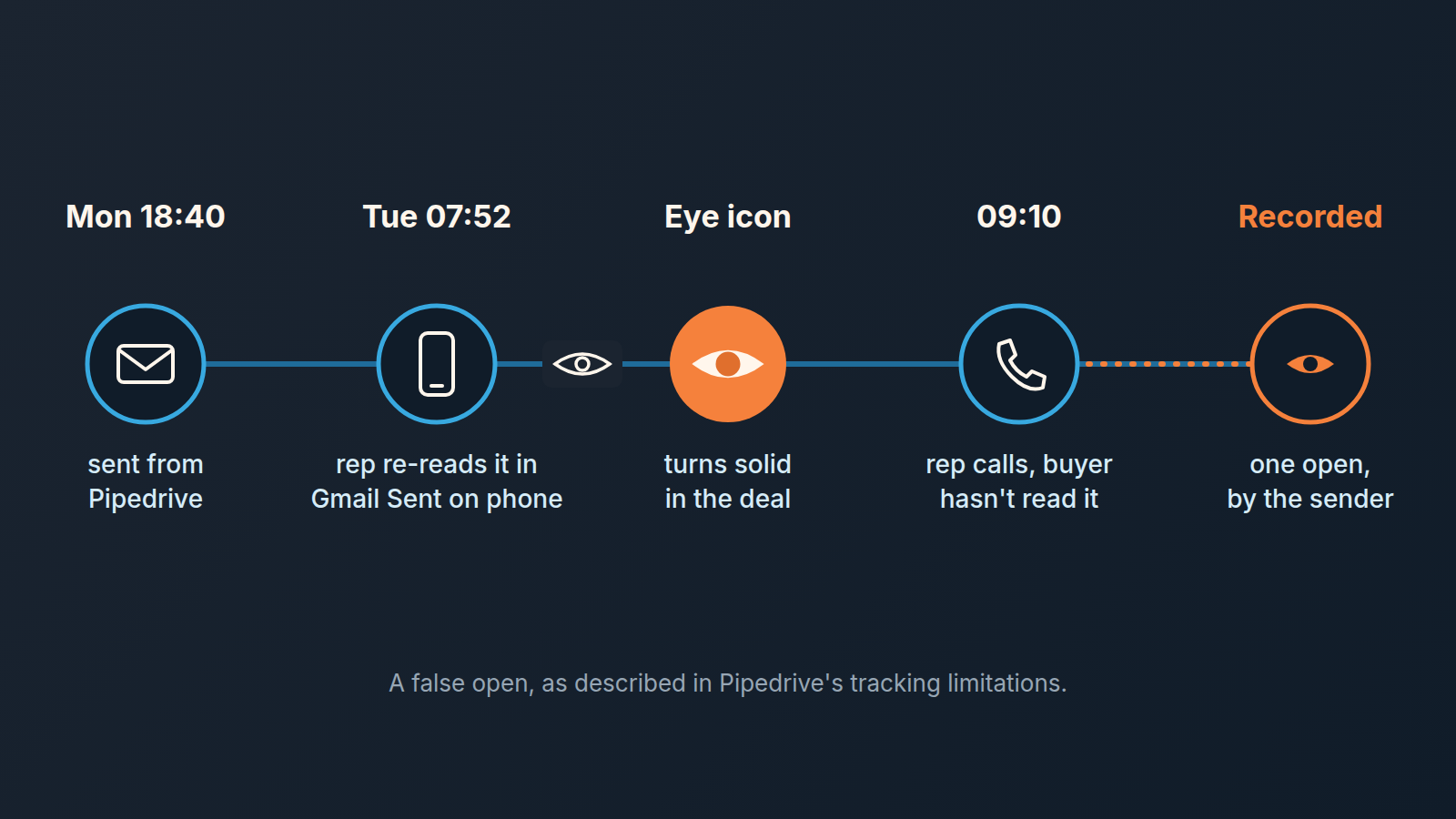
Wiktor sends a proposal from Pipedrive at 18:40 on a Monday. Open and link tracking are on by default on his account, so the email goes out with the pixel and tracked links. Tuesday morning on the train he wants to check the wording of one paragraph. He opens Gmail on his phone, goes to Sent, and reads his own message again.
At the 9 o’clock standup his manager Simone has the deal open on the big screen. Next to Monday’s email the eye icon is solid. She hovers: opened at 07:52. “They read it before work. Call them now, while it’s warm.”
Wiktor calls at 9:10. The buyer picks up, polite and slightly puzzled: she hasn’t got to his email yet, she’ll look at it this week. Nothing gets booked. On a deal where Wiktor had been doing fine, he now looks a little too eager.
The open was his.
Pipedrive’s help article says so plainly: the tracking pixel can trigger a false open if you view the email in your own Sent folder in an external email client, and the way to avoid it is to check tracked emails only inside Pipedrive. Nobody on the team had read that sentence, because nobody had needed to. The icon looked like data.
Turn on email tracking: default versus one email
Email tracking needs email sync, which is available on Growth and higher plans, and it works only for emails sent from Pipedrive. A message you send straight from Gmail or Outlook goes out without a pixel, even if the thread later syncs into the deal. On HubSpot, tracking from Gmail runs through the HubSpot Sales Chrome extension.
The default lives under the account menu, top right: Personal preferences > Email sync > Account, then scroll to the advanced settings. Three switches matter:
- Track when recipients open emails: records an open when the pixel loads.
- Track when recipients click links in emails: records a click on any link in the message.
- Get alerts in Pipedrive for email tracking activities: sends you a notification each time an open or click is recorded.
Once open and link tracking are enabled, the composer shows two extra icons, an eye for opens and a cursor for links. Click either to switch tracking on or off for that one email. The composer change does not touch your default. And tracking has to be on before you press send; you can’t add it to a message that has already gone out.
We would set the defaults the same way for everyone on the team, and make that a team decision, not a per-rep preference. If one rep tracks and another doesn’t, the manager reading the deal sees “no opens” on the second rep’s emails and reads it as silence. Same mistake as the false open, just in the other direction.
Where the signal shows up and who sees it
Three places, and they are not equally useful.
The Notifications panel (the lightbulb icon, top right) gets a line for every open and click if alerts are switched on. This is the noisy one. On a day with a few proposals out it turns into a stream of pings that teaches reps to to glance and move on.
The Sales Inbox can be filtered to tracked emails only: click Filters, pick “Tracked emails”. Inside a conversation the eye and cursor icons sit next to each tracked message, turn solid once an event is recorded, and show the exact time on hover. This is where you look when you want to know what happened to one specific message.
The detail view of the linked deal, lead, project, person or organization shows the same tracking statistics. Who can see them: the user who owns the email, and users who have visibility over all the linked items, such as the deal, the person and the organization. If the email’s visibility is set to shared, teammates with access to those items see the tracking activity too. That is why Simone could see Wiktor’s open at all. How shared and private threads behave in general is it’s own topic, and we covered it in why a deal looks silent when the rep’s emails are private.
So the manager is usually reading the deal view, not the inbox. The deal view shows a solid icon and a time. It doesn’t show what the rep knows, like “I re-read that one on my phone this morning”.
Five ways “opened” is wrong
Pipedrive lists the conditions where tracking is inaccurate in one short section of the help article. Here they are as what the icon shows, what may have happened, and what to do.
No open recorded. The recipient’s mail client may block images, so the pixel never loaded and they could have read every word. Two common cases come from Pipedrive’s note on email tracking reports with Gmail and Apple: recipients using Apple Mail with Mail Privacy Protection turned on (iOS 15, macOS Monterey and later) can’t be tracked by the pixel, and a Gmail recipient who has switched off automatic image download won’t count as an open. Pipedrive says link tracking is not affected by these policies. So look at the cursor icon first, then follow up as if the email were unread.
Opened. You, or someone on your side, may have viewed the message in the Sent folder of an external email client. Ask the rep before anyone acts on it.
Opened, on an email to several people. Someone among the recipients opened it, or clicked. Pipedrive can’t say who. Don’t conclude the decision maker read it.
Nothing, though you know it was forwarded. Tracking covers only the original recipients, so opens and clicks by the person it was forwarded to are not recorded. Ask your contact who else is looking at it and write to them directly.
No events at all. The body was blank, the message was forwarded many times, or the recipient’s client blocks tracking pixels and link tracking together. Treat the icons as unavailable for this thread and pick up the phone.
Read those five again with the click in mind. Image blocking doesn’t touch the click at all, and neither do the Apple and Gmail policies. The “who” problem with several recipients and the blind spot after forwarding apply to clicks just as much as to opens. So the click is firmer, not perfect, and that difference is why we put a rule around it.
A rule for acting on it
Here is the rule we would hand a small team, in three lines.
A click is a signal. An open is a maybe. A click means someone followed a link you put in the email. An open means a pixel loaded somewhere. When the two disagree, weigh the click higher. The same applies to the info email a prospect asked for, as in what an opened info email does and does not prove.
One event does not start the clock. Pipedrive logs the exact time of the open or click, and that time is tempting. Resist calling inside the hour “because they just opened it”. The follow-up rhythm you booked when the proposal went out is the clock, and an open doesn’t move it forward. If you have no rhythm, start with the day 2, 7, 14 cadence and let tracking shape the wording, not the timing. The exception is a brand new inbound lead, where speed matters for other reasons and speed to lead has its own rules.
One recipient per tracked email. If you need three people on the thread, accept that the icon will tell you “someone opened it” and nothing more. Want to know whether the decision maker read the proposal? Send it to the decision maker.
What the rule changes is the sentence a rep says when the icon turns solid. Not “they read it, I’m calling”, but “something fired, so when I call on day 2 as planned I’ll ask whether it arrived in a readable form”. Put like that, a false open costs nothing and a real one still gets used.
And one line for the manager: when the icon is solid and the email went out yesterday evening, ask the rep “did you look at this on your phone?” before you say “call them now”. It takes four seconds. It would have saved Wiktor his Tuesday.
Instead of chasing opens, log the subject line and whether it got a reply, as we describe for sales email subject lines by stage.
A disclosure, since this is where tooling comes in: we build SalesBond, a sales management layer on top of the CRM a team already uses; we started with Pipedrive. It does not read tracking pixels. Its Deal Health checks every deal against more than 20 rules, gives each deal a health score, and shows the specific violations with a recommended action for each, so the standup starts from what is actually wrong with a deal rather than from an icon. Check your CRM with SalesBond.
One more thing the icons will never tell you: whether the email left at all. A failed send looks exactly like an unopened one from the tracking side, so when a thread is quiet, check the Outbox first.
GDPR note: read your own policy
If your company is based in the EU or deals extensively with EU customers, Pipedrive’s help article reminds you that you must comply with EU law. Its summary: when you use Pipedrive to process data about contacts and leads, Pipedrive is the data processor under its Data Processing Addendum, and you are the data controller, responsible for deciding whether consent is needed for your use case and for collecting it where it is. The article also notes that European data protection authorities have issued an opinion that email tracking requires recipients to opt in, and it points to the French CNIL and the Italian Garante as regulators that have published guidance in the same direction.
We are not lawyers and this is not legal advice. The practical reading is that the default switches in section two are not only a convenience setting. Pipedrive’s own suggestion is to use the default and per-email controls to decide when tracking is active, and to consult a legal professional if needed. Whatever your company decides, decide it once, write it down next to the team rule above and make the per-email icons in the composer the way reps follow it.


