

Pipedrive CRM is a sales CRM built around a visual deal pipeline: deals sit as cards in stage columns, and each one carries its contacts and the next scheduled activity. For a sales manager it gives the pipeline, the activity schedule behind every deal, and Insights reports plus a forecast view on top. There is no free plan, only a 14-day trial.
The vendor calls the product “Sales CRM & Pipeline Management Software” (Pipedrive, checked 2026-11-06). Whether it fits your team depends on which plan-level features and permissions you need, and the 14 days are there to find out; we won’t give a verdict on whether Pipedrive is “good”, because that depends on how you sell.
Quick answer: what Pipedrive CRM is
The vendor’s own framing for Pipedrive is activity-based selling: “you can’t control results, but you can control the actions that close deals” (Pipedrive features). The method expects a next activity (a call, meeting, task or email scheduled on the deal) on every open deal, and the whole product makes more sense once you accept that rule.
Around that core the product has grown: email sync, automations, Insights reports, a Marketplace the vendor says has over 500 integrations, Smart Docs for documents, and add-ons sold separately: LeadBooster for lead generation, Web Visitors for tracking which companies visit your site, and Campaigns for email marketing (same page). The newest piece is Nova, a meeting intelligence feature that pulls a pre-call brief, records and transcribes calls and drafts CRM updates for you to approve; the features page says it is included in all plans at no additional cost. We looked at those suggested updates in our Nova review.
For your first two weeks, ignore most of this and work with the pipeline, the activities and two reports; the add-ons are worth a look once those three are kept up to date.
Deals, contacts, activities: how Pipedrive is put together
Three objects carry the work. A deal is the thing you’re trying to close; it has a value, an owner, a stage and an expected close date. A contact is the person or the organization on the other side, and one contact can sit on many deals. An activity is a dated action tied to a deal: the call on Tuesday, the demo on Thursday. The pipeline itself is an ordered set of stages, and a deal’s stage is what the the kanban board shows.
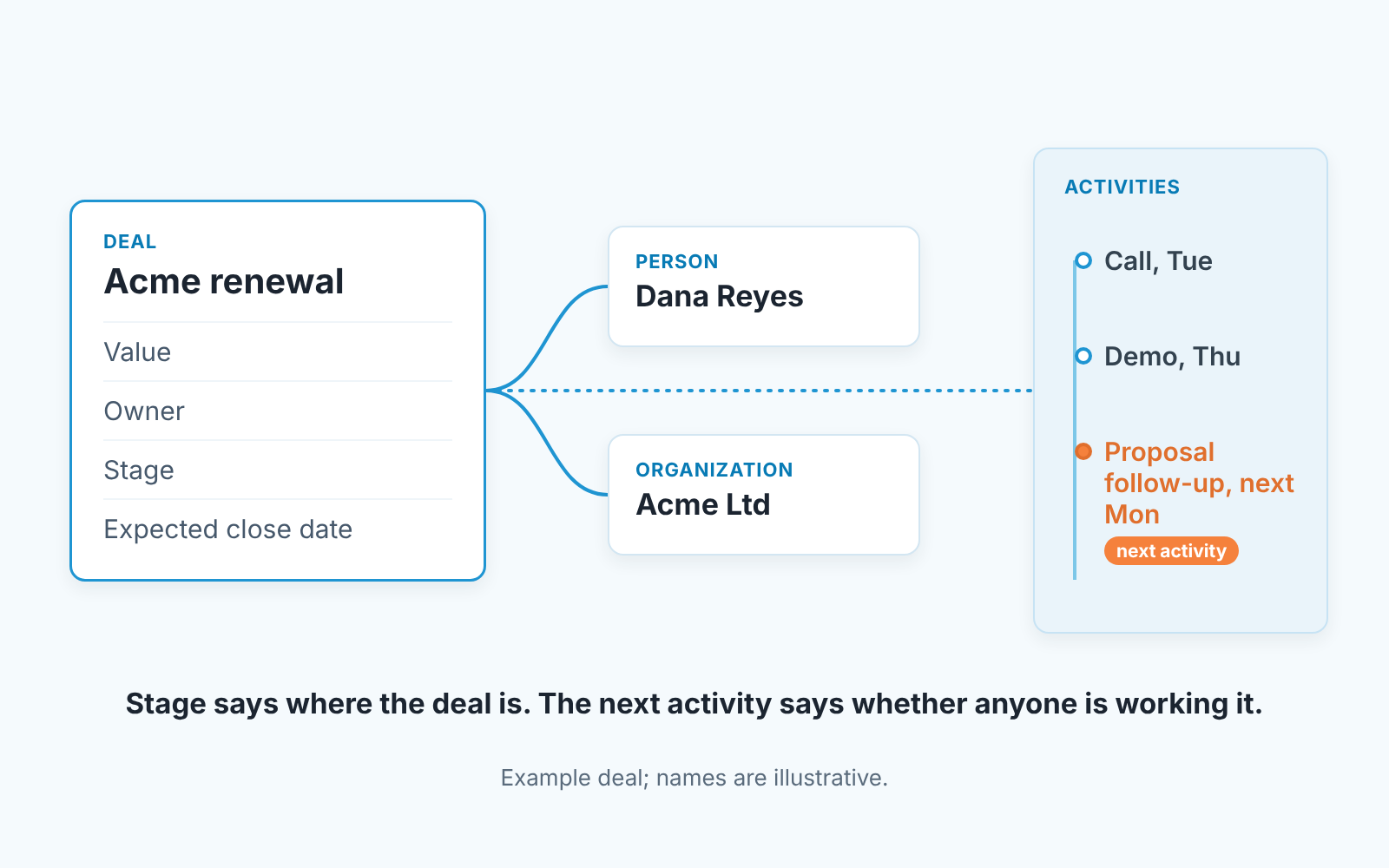
Here is the point most reviews skip. The stage tells you where a deal is. The activity tells you whether anyone is working it. A pipeline where every deal sits in Proposal with no activity scheduled looks healthy in the board view and is dead in reality. We think the activity, not the stage, is the unit a manager should read first, because a stage is an opinion of the rep and a missing next activity is a fact.
So when you look at Pipedrive for the first time don’t count cards. Filter the pipeline to deals with no next activity and count those.
Plans and the trial: what the vendor’s pages say
Two things are stated plainly on Pipedrive’s own pages. The trial is 14 days, with full access and no credit card (Pipedrive). And there is no free plan: the features page FAQ says Pipedrive “offers a 14-day free trial of its plans, and while there isn’t a free version”, the vendor has “done away with arbitrary feature limitations” (Pipedrive features). The second half of that sentence is the vendor’s claim, so treat it as marketing and test it against your own list of must-haves.
Prices are not in this guide. They change, and the current numbers and the full feature matrix live on the pricing page. Read them there, note the date, and budget from that.
Plan names are a small trap of their own. On 2026-11-06 Pipedrive’s help articles used two sets: the visibility article talks about Lite, Growth, Premium and Ultimate, while the Teams and forecast articles say “Professional and higher”. So match each feature to its row on the pricing page, not to a plan name you read in a help article or a review. These are the rows that decide whether the plan you can afford does a manager’s job:
- Teams. The Teams article lists the feature on Professional and higher plans: three teams on Professional, fifteen on Power, unlimited on Enterprise (Pipedrive: Teams). If you want a pipeline, forecast or report filtered by a team rather than by one owner at a time, this row matters.
- The forecast view. Its help article carries the same note, Professional and higher (Pipedrive: the forecast view). Check it before you plan a Monday forecast around it.
- Limits on open deals and custom fields. We wrote about what happens when a team hits the deal limit in the deals waitlist and Pipedrive’s usage limit.
- Visibility groups and permission sets. Lite and Growth get one default visibility group and no custom permission sets; Premium and Ultimate allow several visibility groups with sub-groups, and custom permission sets go from two on Premium to unlimited on Ultimate (Pipedrive: visibility and permissions overview).
- Add-ons. LeadBooster, Web Visitors and Campaigns are add-ons (features page), so the plan price is not the whole bill if marketing wants to send campaigns from the CRM.
The trial shows you one specific plan. Note which plan the trial account is on, and check every feature you fall in love with against that row before day 14.
What a manager sees: pipeline, Insights, forecast, Teams
Open the Deals tab and you get the pipeline board with a filter at the top. Filter by owner and you have the Monday one-to-one view; filter to deals with no next activity and you have the inspection view. The list view of the same tab is where you sort by expected close date or by value, and where you export when Insights can’t answer a question.
Insights is the reporting area: customizable reports and dashboards over deals, activities and the fields on them, and the features page mentions generating reports from a typed prompt or from a set of 15+ ready prompts (Pipedrive features). One rule to know early: Insights follows the same visibility rules as the records. A rep sees only the records they have access to; charts and totals stay visible, but restricted records are hidden (Pipedrive: visibility and permissions overview). We covered the reports that pay off in custom field averages in Pipedrive Insights.
The forecast view sits inside the Deals tab too, on plans that include it. It lays deals out in date-based columns by expected close date, and shows a weighted value only if you have set custom probabilities on deals or stages (Pipedrive: the forecast view). Without probabilities, the forecast is a sum of what reps typed in the close date field. That is still useful, but it’s a different number from what finance calls a forecast, so name it accordingly in your Monday deck.
Teams is how you stop filtering by one owner at a time. A team filter shows the items owned by the team’s members in the pipeline, list and forecast views and at the top of an Insights report (Pipedrive: Teams). Access control is split in two: visibility groups define what a user can see, permission sets define what they can do (visibility and permissions overview). What Teams do and don’t do is in Pipedrive Teams: team filters for pipeline, forecast and Insights.
None of these screens answers the question a manager actually has on Monday: which of these deals are being worked, which are stuck, and how much money is sitting in the stuck ones. You can build it from filters, and the two-week plan below does that. This is also the part we build for. We build SalesBond, a sales management layer on top of the CRM a team already uses; we started with Pipedrive. The free CRM audit reads the last 30 days of the connected CRM and sends a large PDF report: money at risk, a CRM score, the pipeline bottleneck, managers and deal health, repeat customers, top-10 clients and what to fix. Seven days later a second PDF shows what changed. If you’re in the trial, check your CRM with SalesBond at the end of week one and keep that report as your “before” picture.
Will we outgrow it? Questions to ask, not a verdict
A recent Reddit thread asks whether the author will “outgrow it fast”. Nobody can answer that for a team they haven’t met, so here is how we would answer it for ours.
Start with process; headcount comes second. How many stages does a deal really pass through, and does any stage require a document, an approval or a field that must be filled before the deal may move? If the answer is “two approvals and a quote”, you’ll want to test in the trial whether the plan you intend to buy can enforce that, and whether your reps will tolerate it. A pipeline CRM is at its best when the process is simple enough to fit on a board.
Then reporting. Write down the three questions you ask every Monday and try to answer each one in Insights without exporting. If one of them needs a spreadsheet, that’s a sign, though not a verdict: plenty of teams live with one export a week.
Then structure. Do you manage one team or several, and do you need numbers rolled up by region or by pod? Team rollups depend on the plan (Pipedrive: Teams), so a growing team’s question is less “will Pipedrive scale” and more “which plan am I actually on next year”.
Then neighbours. Does marketing or support need to live in the same record as sales? Pipedrive’s own pages position email marketing as the Campaigns add-on and project management as a separate product (features page). If three departments need one system of record, compare before you commit; our checklists for Pipedrive vs HubSpot, Salesforce vs Pipedrive and Zoho CRM vs Pipedrive are written for exactly that comparison, feature by feature, with no ranking. If you’re weighing Pipedrive alternatives, those three are where we’d start.
Our view is that most teams that say they outgrew a pipeline CRM outgrew their own stage definitions, and rewriting the stages costs less than a migration, so try that before you compare vendors.
The first two weeks
The trial is long enough to find out whether Pipedrive fits, if you spend it on the pipeline rather than on the add-ons. Here is the order we would use.
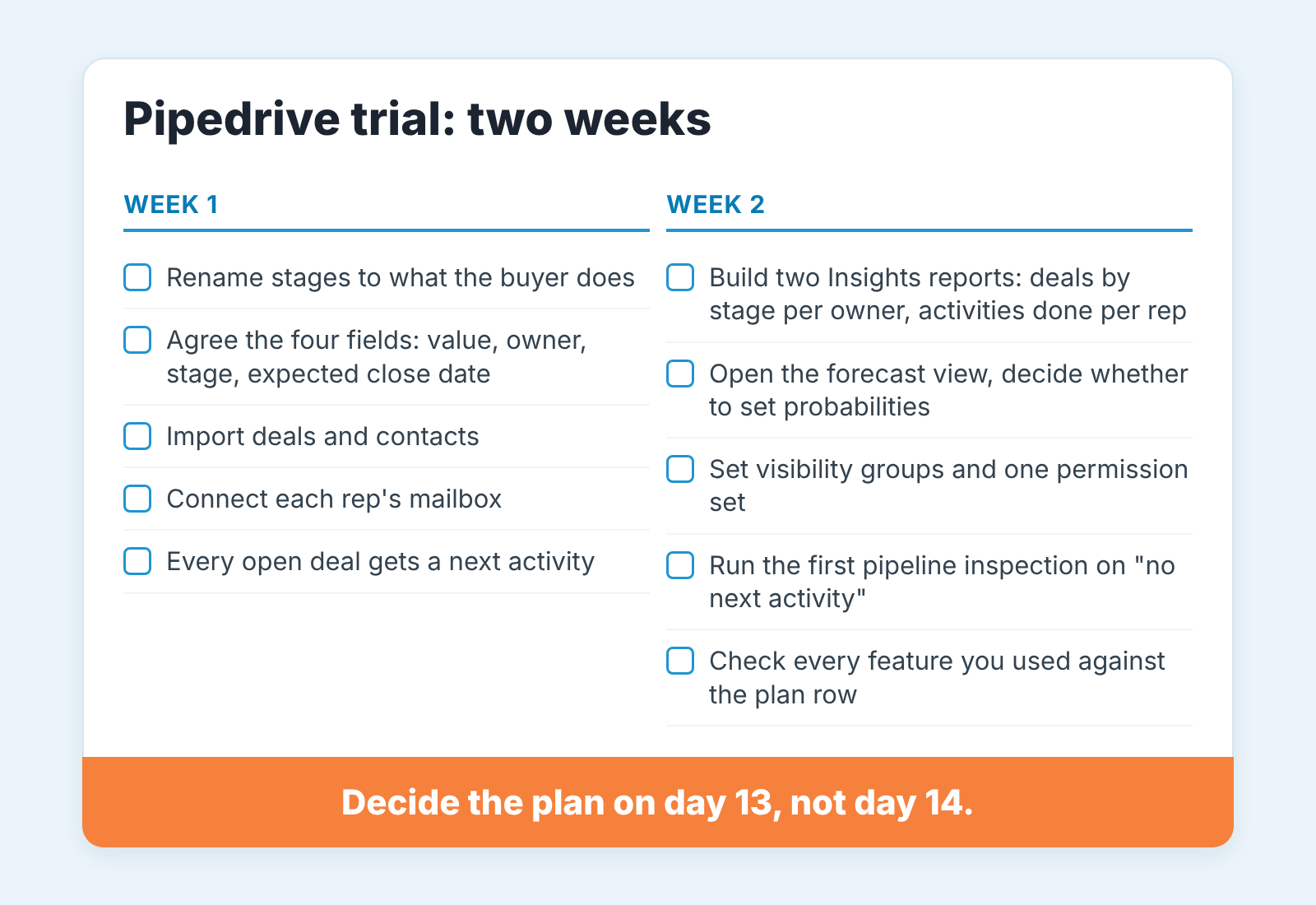
Week one is about making the board honest. Rename the stages so each one names something the buyer did, not something the rep did: “Demo held” rather than “Demo”. Agree the four fields every deal must carry: value, owner, stage and expected close date. Pipedrive’s forecast is built on the last one, so a blank close date is a deal that doesn’t exist in the forecast. Import the deals and contacts, connect each rep’s mailbox with email sync, and then do the one thing that makes the method work: every open deal gets a next activity by Friday. No exceptions and no “I’ll call them at some point”.
Week two is about reading. Build two Insights reports and no more: deals by stage, broken down by owner, and activities completed per rep. Open the forecast view, look at the columns, and decide as a team whether you’ll set custom probabilities or live with the unweighted sum. Set the visibility groups and a permission set, because this is the week someone will ask why a rep can see another rep’s deals. Then run the first pipeline inspection on the “no next activity” filter and write down waht you find; that number on day ten is your baseline. We wrote the difference between that inspection and the weekly review in pipeline inspection vs pipeline review.
Day 13, not day 14: list the features you touched, find each one on the pricing page, and pick the plan . The day-14 decision made in a hurry is how a team ends up paying for a tier it uses one feature of.
Where to go next: our Pipedrive articles
This article is the hub; the detail is in the pieces linked above, and this is how they fit together. If the question is “how do I see my team’s pipeline, not one rep at a time”, read the Teams and team filters article. If it is “which custom fields are worth a report”, read custom field averages in Insights. If deals have started landing in a waitlist, read the open deal limit and the deals waitlist. If you want the weekly cadence, read pipeline inspection vs pipeline review. And if you’re still choosing, the three checklists against HubSpot, Salesforce and Zoho CRM compare what a manager checks each week in each system.
FAQ
What does Pipedrive mean? Pipedrive is the name of a sales CRM made by the company of the same name, which describes itself as a web-based sales CRM built around pipeline management and activity-based selling (Pipedrive features). The “pipe” in the name is the sales pipeline the product is organised around; the vendor’s pages don’t explain the name further, and neither will we.
Is there a free Pipedrive? No. Pipedrive’s features page says there “isn’t a free version”; what you get is a 14-day free trial of its plans, with full access and no credit card (Pipedrive features; Pipedrive, both checked 2026-11-06). Plan prices are on the pricing page.
What is a CRM pipeline? A pipeline is the ordered list of stages a deal passes through from first contact to won or lost, and a CRM pipeline is that list turned into a board where every open deal is a card in one stage. In Pipedrive each deal also carries a value, an owner, an expected close date and a next activity, and the forecast view and Insights reports are built from those fields.
How do I send a mass email in Pipedrive? Bulk email campaigns are positioned on Pipedrive’s features page as the Campaigns add-on, with templates, a drag-and-drop builder and segmentation (Pipedrive features). Whether your plan includes it, and how many contacts you may send to, is on the pricing page and in Pipedrive’s help pages.
Does SalesBond work with Pipedrive? Yes. Pipedrive was our first integration. SalesBond works with Pipedrive, HubSpot, Salesforce, Zoho CRM, Microsoft Dynamics 365, Freshsales, Close, monday CRM, Copper, Zendesk Sell, Nutshell, Insightly, Attio, Bitrix24 and Kommo (amoCRM). The free CRM audit is the usual starting point: start with SalesBond.