For sales managers who want ChatGPT (or any AI assistant) to prepare the weekly pipeline review: export your open deals from Pipedrive with eight deal-level columns and no person or organization fields, ask the model five narrow questions, and check every answer in the deal card before the meeting. The model sees only the rows you pasted.
The five questions: which deals have gone quiet, which have no next step, which keep moving their close date, which look the wrong size for this pipeline, and what to ask each rep. Below is how we run it in fifteen minutes on a Friday morning, and where it has gone wrong for us.
The Friday pipeline review nobody prepares for
Most pipeline reviews start the same way. The manager opens the pipeline view, scrolls, and asks “so what’s happening with the Hartmann deal?” The rep answers from memory, the manager nods, the next deal comes up. Forty minutes later the team has talked about eight deals out of, say, sixty, and nobody has looked at the rest.
The meeting isn’t the problem. Nobody read the pipeline before it, because reading sixty rows takes longer than anyone has on a Friday. That is the part an AI assistant is good at: reading a table and sorting it into “needs a question” and “fine for now”. Knowing why a deal stalled is another matter.
If the review format itself needs fixing, see the fifteen-minute weekly pipeline review. This article is about the fifteen minutes before it.
What to export from Pipedrive (and what to leave at home)
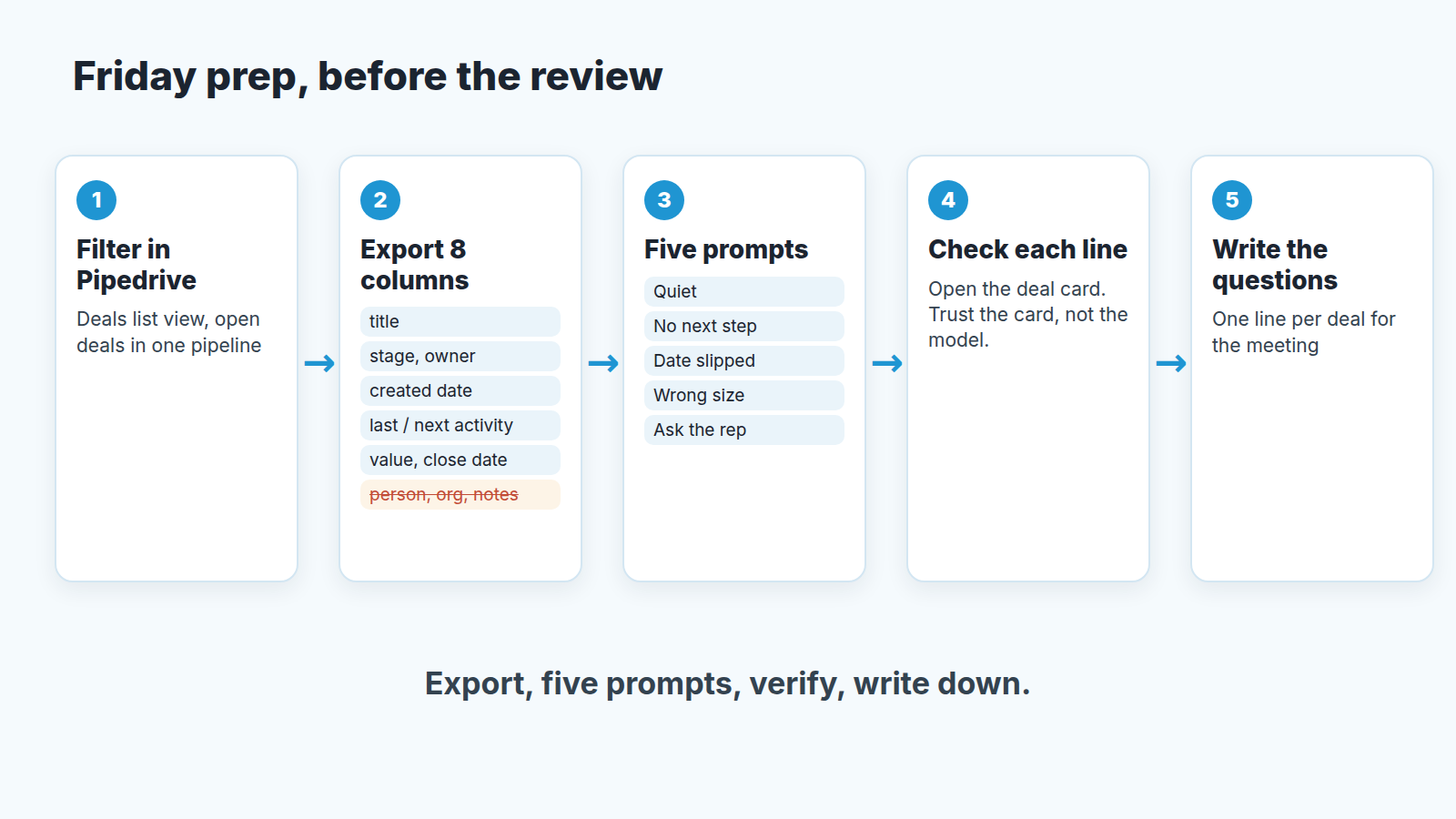
Start in the deals list view, not the pipeline view. Apply a filter for the deals you actually review; we use open deals in one pipeline, plus owner if a manager runs separate reviews per rep. Click the gear icon to choose the columns, then “…” > Export filter results. You get an XLSX or CSV file (Pipedrive: exporting data). Two limits from that page: only global admins and regular users with export permissions can export, and even then you only get the data visible to you under your visibility group or item visibility.
The column choice is where the exercise is won or lost. A deal list export can include deal, person and organization fields in one file, and the temptation is to take everything. Don’t. We keep eight:
- deal title
- stage
- owner
- the date the deal was created
- last activity date
- next activity date
- value
- expected close date
No contact person, email, phone or notes. Partly that’s privacy: a review doesn’t need a buyer’s mobile number, and once it is in a chat window you no longer control where it lives. Partly it’s quality, because a model given forty columns will comment on all forty. Deal titles often carry the customer’s name; we keep them, because without the title you can’t find the deal to check the answer.
One more cut: delete rows you won’t discuss anyway, such as deals created this week. The model treats every row as equally important, so a smaller table gets a sharper answer.
Five ChatGPT prompts that earn their place
The usual “analyze my pipeline and give recommendations” prompt gave us a confident essay on pipeline velocity. Useless on a Friday. What works is one narrow question per prompt, answered as a list of deal titles with the evidence next to each. Paste the table once, then ask these in sequence in the same conversation.
Set the stage first, one line before the table:
This is an export of open deals from our CRM as of today, [date]. Columns: [paste the header row of your file]. Answer only from these rows. If a cell is empty, say "empty", do not guess. Return deal titles, never summaries of the whole pipeline.
1. Who has gone quiet.
List every deal where the last activity date is more than 14 days before today, or is empty. For each: title, owner, stage, days since last activity. Sort by days, largest first.
Fourteen days suits a sales cycle of a few months; use whatever your own cycle makes reasonable.
2. Where there is no next step.
List every deal where the next activity date is empty. Group by owner. For each owner, also give the total value of their deals with no next activity.
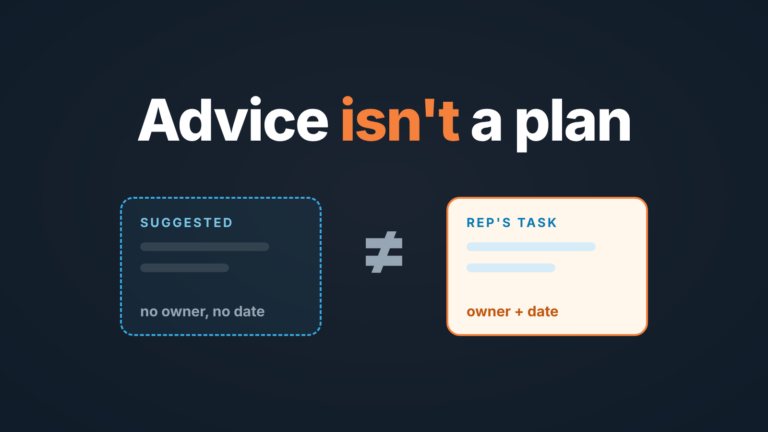
This is the question we care about most, and the reason the next activity date is in the export at all. A deal with no scheduled activity is not being worked; it is being hoped for. If your team’s habits around this field are shaky, the next activity field in Pipedrive explains how to make it the backbone of the review.
3. Where the close date has moved.
One export can’t show movement. You need last week’s file too, so keep it. Then:
Here is the same export from last week. Compare by deal title. List every deal whose expected close date is later in this week's file than in last week's. Show both dates and the owner. Flag any deal that also appeared in last week's "quiet" list.
Pushed dates are the quiet way a pipeline lies to it’s forecast. The long version is in why close dates get pushed in Pipedrive.
4. What looks the wrong size.
Calculate the median value of the deals in the table. List any deal whose value is more than three times the median, with its stage and expected close date. Separately, list deals in the last two stages with value below half the median.
We aren’t asking the model whether the deal is real. We’re asking it to find the rows a manager’s eye slides past: the oversized deal sitting in Proposal for two months, or the tiny one a rep moved along to pad the count.
5. What to ask each rep.
For each owner, write three questions I could ask them in a review meeting, based only on the deals you flagged in questions 1 to 4. Each question must name the deal and the field that triggered it. Do not suggest actions, only questions.
That last sentence matters. Questions are what the meeting is for, and the rep brings the context the model doesn’t have.
Check the answer against the deal, not the model
Every flagged deal gets opened in Pipedrive before it goes into the meeting notes. Not re-asked in the chat. Opened.
It takes a minute or so per deal, which is why the prompts are narrow and the export is small. You open the deal, look at the activity timeline, and often enough you find something the export couldn’t show. The last activity was weeks ago because the buyer is on leave until Monday, and the rep wrote that in a note. The close date moved because procurement asked for a revised quote, and the email is sitting right there in the thread.
None of that is in the eight columns. The flag was still correct, in the sense that the row looked exactly like a stalled deal; it just wasn’t one. Carry it in unchecked and the review turns into a defence of the data instead of a conversation about the buyer.
There is a quieter benefit, too. When the manager has visibly opened the deal, the question changes from “the AI says this is stalled” to “I see the last note is from the 18th, what happened after that?” The second one is just a manager doing thier job.
Where AI is wrong about pipelines
Three failure modes show up every week.
It counts on an incomplete table and reports it as the whole truth. If the filter missed a pipeline, or a rep’s deals are invisible to the person exporting, the “total value with no next step” is simply wrong, and the model has no way to know. It will give you a number to two decimals either way.
It invents reasons. Ask why a deal stalled and you get a plausible paragraph about budget cycles or stakeholder changes, written from nothing. The export holds dates and amounts. It doesn’t hold a single reason for anything, so a prompt that asks “why” has left the territory where the answer can be trusted.
It doesn’t know the conversations, and it doesn’t know what your team already decided. The rep had a call on Tuesday and didn’t log it. The buyer said “not before Q1” in a meeting that lives in someone’s head. A deal flagged for the third week running gets flagged with the same energy as the first time, even if the team agreed to leave it open for a reason nobody wrote down. You know that; the table doesn’t. That is why the verification step is a person, not another prompt.
A model trained on your own deal history is a different tool, covered in AI deal scoring for small sales teams.
Turning output into questions for the meeting
The final artifact is a note, not a report. Ours is a plain list, one line per deal, written in the rep’s language rather than the model’s: deal title, the one fact that triggered it, the question. “Hartmann: no next activity, close date 12 Oct. When is the next call?” That’s the whole entry. The rep answers it in ten seconds, or it becomes the deal you spend five minutes on.
Three or four questions per rep is plenty. If the prompts produce fifteen, pick the ones with the most value or the oldest dates and let the the rest wait a week. A review that walks through every flag is an inspection, and most teams need a review, not an inspection. For sharper questions than “what’s the next step”, we use deal review questions built around the buyer’s next action.
A disclosure, since this is where people ask whether the Friday export can be skipped. We build SalesBond, a sales management layer on top of the CRM a team already uses; we started with Pipedrive. Its Deal Health checks every deal in the connected CRM against the enabled rules and shows the specific violations with an explanation, so the export and the five prompts become a backup rather than the routine. The verification step stays. If that’s the problem you’re solving, check your CRM with SalesBond. If you want the fifteen-minute version with tools you already pay for, everything above is it.
FAQ
Pipedrive has its own AI. Why paste an export into a chat at all?
Pipedrive’s Sales Assistant, an assistant inside Pipedrive powered by OpenAI, is currently in beta and available only to a select group of users; an account settings admin has to accept the AI Beta terms before anyone in the company can use it (Pipedrive: Sales Assistant). Pipedrive’s own plan table lists Sales Assistant (beta) and AI-assisted report creation on Lite, Growth, Premium and Ultimate, while AI email creation, AI-powered notifications, AI email summarization (beta) and AI email suggested replies (beta) are on Premium and Ultimate. Some of these are in beta and available only to selected users (Pipedrive: Pipedrive AI). The export route has one advantage either way: you decide exactly which columns the model sees. If the Sales Assistant answers the five questions in your account, skip the export.
Is it safe to paste CRM data into ChatGPT or a similar tool?
In our view it’s safe enough for eight deal-level columns with no person fields, and that view is exactly why the column list is short. Contact details, notes and email threads stay out. If your company has a policy on external AI tools, the policy wins over this article.
Reading is the safe half; if you connect the assistant straight to Pipedrive, decide what to let Claude or ChatGPT change in your CRM before anything else.
What if reps don’t fill in the next activity date?
Then prompt 2 returns most of the pipeline, and that is the finding. Take the list to one meeting and make a scheduled next activity a condition for a deal to sit in a stage; some things shouldn’t be automated.