
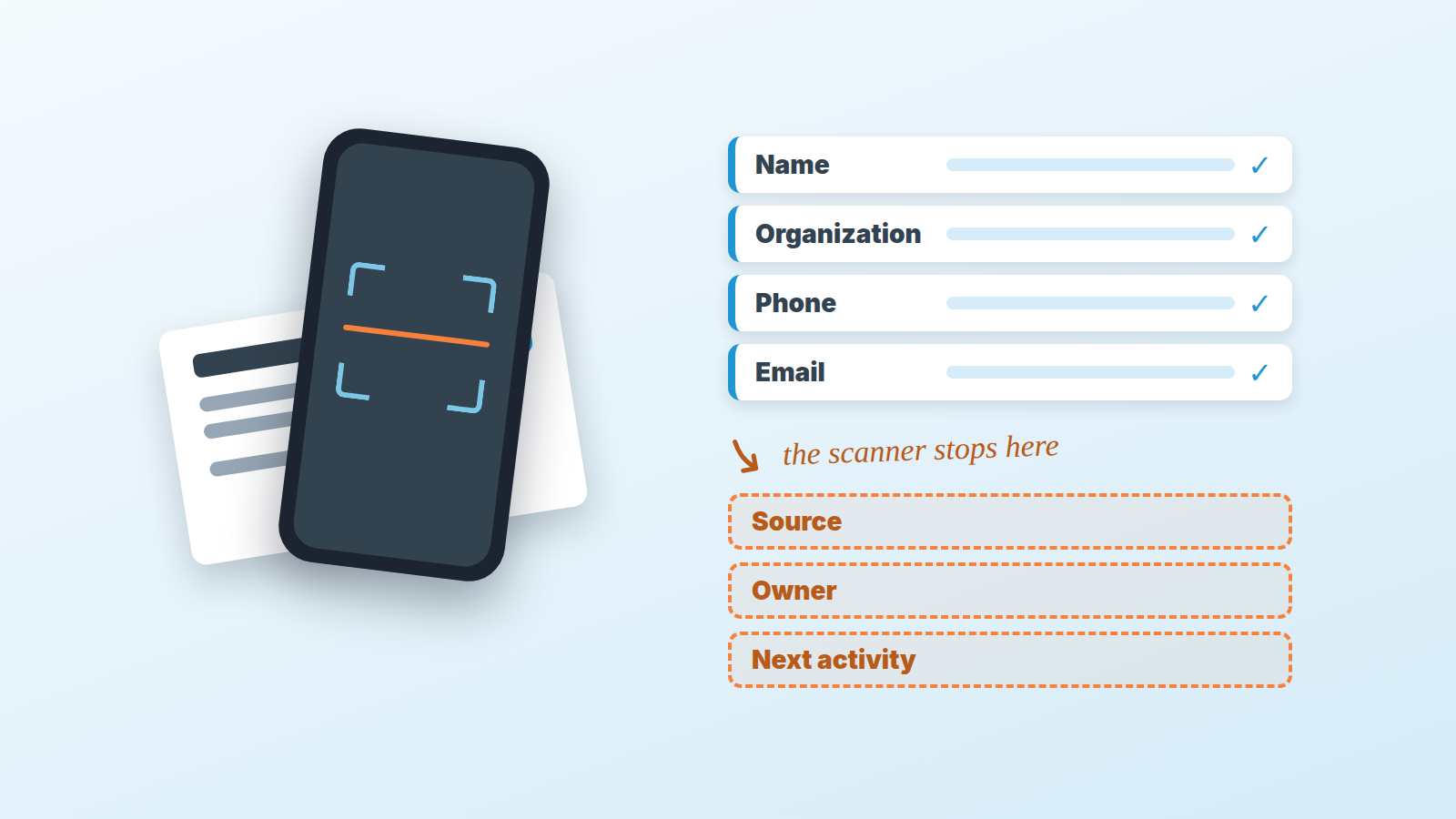
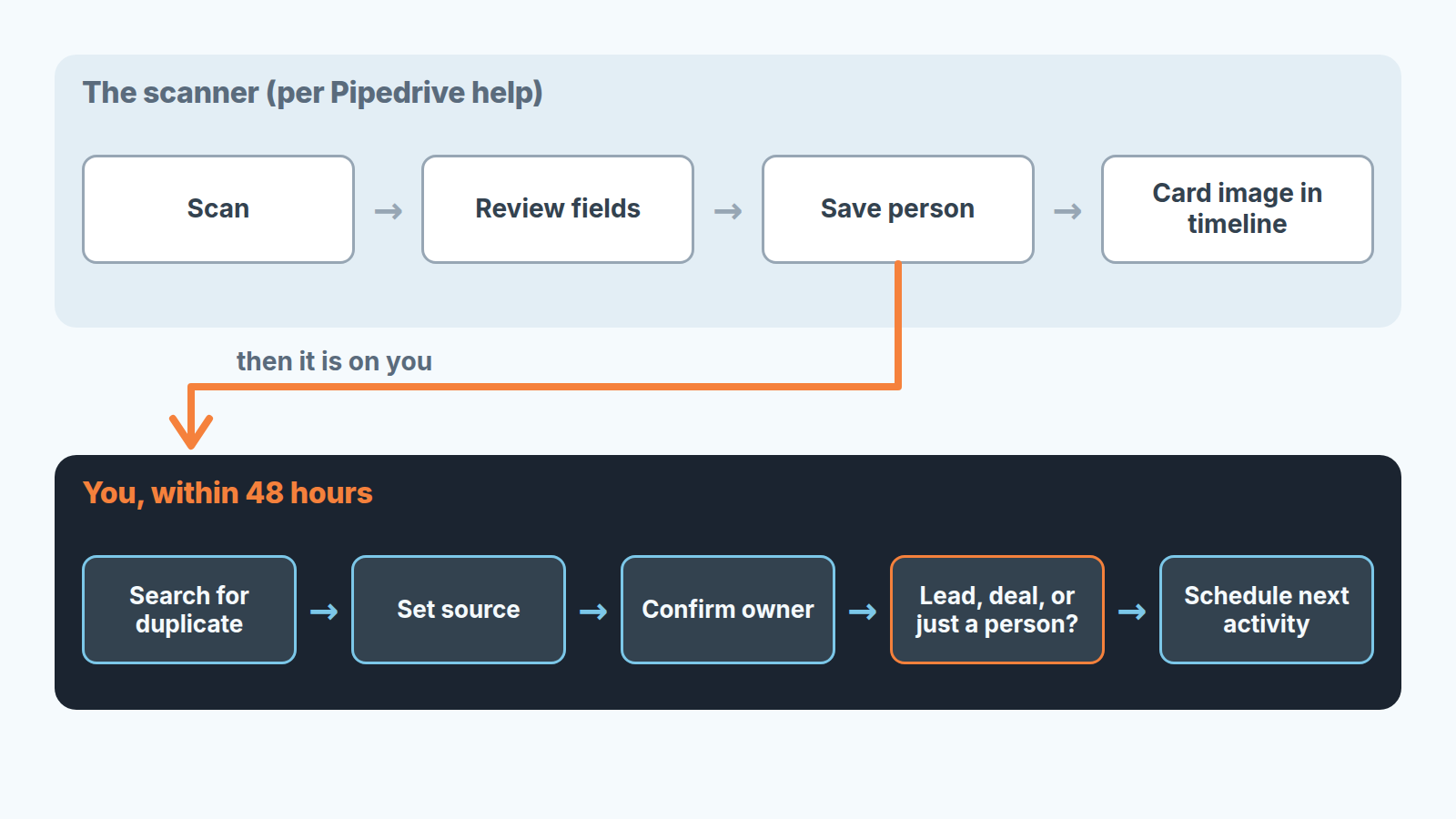
In the Pipedrive mobile app, tap the main “+” button, choose Contact scanner, photograph the card, check what the scanner read, and tap Save (Pipedrive: business card scanner on mobile). The part that decides whether the contact is worth anything is still yours: look for a duplicate, set the source, decide whether it is a lead or a deal, and schedule the next step while you still remember the conversation. We give ourselves 48 hours. After that the card is a name in a database and the conversation that came with it is gone.
The same logic applies to a plain phone call, only the window is shorter: the same habit after an ordinary call takes two minutes, not 48 hours.
Twenty-five cards, one train ride home
The scene is invented, the numbers too. Two days at a regional trade show, 25 cards in a jacket pocket, a three-hour train home.
Rep A scans all 25 on the train, taps Save 25 times, and feels done. A week later the CRM holds 25 new people. None has a deal or a lead. None has an activity. Nobody can tell from the record where these people came from. Three of them were already customers, with an account manager who now finds a second copy of her contact. Two cards belonged to the same person, one of them from his previous company.
Rep B scans on the same train and does one small thing per card before moving to the next: a search, a source, a decision, a date. She gets off the train with 15 new people, 6 leads, 2 deals, and an activity on every one of them due that week. Ten cards never made it into Pipedrive, and that was the the right call.
Same scanner, same train. The difference is what happens after Save.
What the scanner does and does not do
Pipedrive’s help article puts the scanner in two places: under the main “+” button as Contact scanner, and in the person list. It reads one card per scan and can pick up several phone numbers or email addresses from it. Before anything is saved, it asks you to review and confirm the fields, and you can rescan or fix a field by hand. On Save, the card image can go to the contact’s timeline. The mobile app needs Android 11 or newer, or iOS 18 or newer (Pipedrive: business card scanner on mobile). Pipedrive listed the Business Card Scanner among its product updates for January 2026 (Pipedrive product updates).
What the help article does not say the scanner does, and what we therefore treat as our job: it does not create a lead or a deal, it does not set a source, it does not pick an owner, and it does not schedule anything. It gives you a person record. Everything that makes that record useful next Monday comes from you.
The review step you should not skip
Cards are designed for humans, not for scanners. The name sits in large type, the title and company share a line, and there are often two phone numbers with no hint which one is the mobile. The scanner can read several numbers and addresses from one card. Good news, and a trap: you get both numbers, and nothing on the card tells you which one is the switchboard.
We check four things before Save. First and last name in the right fields, because a swapped name breaks search later. The organization name against the tagline, since “Smart Logistics for Growing Teams” is not a company. The email domain against the company, which catches a card from an old employer. And which phone number is the one the person actually answers, which you only know because you talked to them.
Then the part no scanner will ever do for you. Most of the value of a conference card is on the back, in pen: “asked about pricing for 12 seats”, “switching from spreadsheets in Q1”, “call after the 15th”. Type that into a note on teh person right after Save. One sentence is enough. The phone number gets them on the line; the sentence about what they wanted is the reason they stay there. Reps who also visit customers on site follow a stricter same-day logging rule for visits.
Duplicates: what the 2024 post promises and what the help article leaves out
The current help article does not mention duplicates, so search by hand before you save.
Here the sources do not fully agree. Pipedrive’s blog post about the Android card scanner, published in June 2024, says the tool has built-in duplicate detection, describes converting several cards at once with up to six for best results, and still recommends scanning one card at a time for accuracy (Pipedrive blog: business card scanner). The help article, updated in September 2026, describes a scanner that handles one contact at a time and says nothing about duplicates (Pipedrive: business card scanner on mobile).
We write to the help article. If the app flags a duplicate for you, good. We do not plan around it.
So the search is manual. Do not start with the person’s name: someone who changed jobs, got married, or uses a nickname on the card will not match. Search by part of the company name instead (one word is enough, so “Acme” also finds “Acme Inc.”), and if that finds nothing, by the domain from the email address. Three outcomes, three different actions.
The person already exists at the same company. Do not save the scan. Open the existing record, add the note from the back of the card and the new phone number if there is one. The account manager keeps one contact, not two.
The person exists but at a different company. That is a job change, and a job change is news. Update the existing person’s organization and keep the history. A second record would split the story of that relationship in half.
The organization exists, the person does not. Save the scan and link the new person to the existing organization while you are still in the record. Now the account manager sees a new face at a known account, which says far more than a stranger in the list.
If the duplicate is already in the system from last year’s show, merging is a separate task, and we wrote about it in duplicate records in Pipedrive.
Source, owner, next step: three fields on every contact
Three fields turn a scanned person into something a manager can report on and a rep can act on.
Source comes first. Set source channel to Event on the lead or deal, the same short list we use for everything else in lead source from web forms in Pipedrive. Do not add a new channel value for every show; that is how a source report ends up with a column per show and two deals in each. The show itself, “Logistics Expo 2026”, goes in source channel ID, which holds the specific item within the channel. For a contact that stays a person without a lead, put the show name in the note. Web forms fill the source for you. A scanned card is the one case where a human has to type it, and the only moment it will happen is on that train. Later, that show name is what lets you weigh what the show cost against the deals it produced.
Then the owner. In our setup, whoever scans the card ends up owning the record, and that is wrong more often than you would think. The booth is staffed by whoever had a free afternoon. If the account belongs to someone by territory or by existing relationship, reassign it now, while the card is in your hand, and send that person the note. A contact that waits for a handover in a shared inbox is a contact nobody follows up.
And the next step: an activity, with a date, on the person or on the deal. Not a reminder in your phone and not a line in a notebook. We keep the same rule here as for everything else in the pipeline: a record without a next activity is a record nobody is working (the next activity in Pipedrive). A conference contact is not an inbound lead, so the hour-by-hour clock from speed to lead does not apply. The 48-hour clock does. The person met dozens of vendors. By Thursday you are one of them; by the following Thursday you are none of them.
A disclosure, since this is where our own product fits: we build SalesBond, a sales management layer on top of the CRM a team already uses; we started with Pipedrive. Its Deal Health checks every deal in the connected CRM against more than 20 rules, shows the specific violations and explains what to do. A deal with no next activity is the kind of gap it flags, and the Sales Dashboard gives the head of sales the exceptions. Check your CRM with SalesBond. It will not scan the card or write the note for you, though. That part stays on the train.
Lead or deal?
Short version because we wrote the long one in leads vs deals in Pipedrive.
If the person named a problem and a timeframe, create a deal in the first stage, with the note and a next activity. If they showed interest and nothing more, create a lead with source channel set to Event and an activity to qualify it. If it was a pleasant chat and a card, keep the person with the note and no lead. Those are the ten cards Rep B left out of the pipeline, and it is why her pipeline report still means something a month later. The same logic holds for an online event: webinar registrants should not all get one recording email, because watching it live and never showing up are different signals.
The failure mode we see most often is the opposite: every card turned into a deal in stage one the week after the show, most of them dead by the end of the quarter, and a conversion rate for that stage that nobody trusts anymore.
The 48-hour card routine
Per card, in this order, before the next card:
- Scan one card. Check name order, organization, email domain, and which phone is the real one.
- Save, with the card image on the timeline.
- Type the sentence from the back of the card into a note.
- Search by part of the company name, then by email domain. Existing person: add to the record and save no duplicate. Job change: update the organization. Known account, new person: link them.
- Decide: deal, lead, or just a person.
- On a lead or deal, set source channel to Event and the show name with the year as source channel ID.
- Reassign the owner if the account belongs to someone else, and tell them.
- Schedule the next activity with a date inside the next two weeks.
Eight lines. Once you have done it twice, it goes fast enough that twenty-five cards fit in one train ride, with time left to look out the window.


