
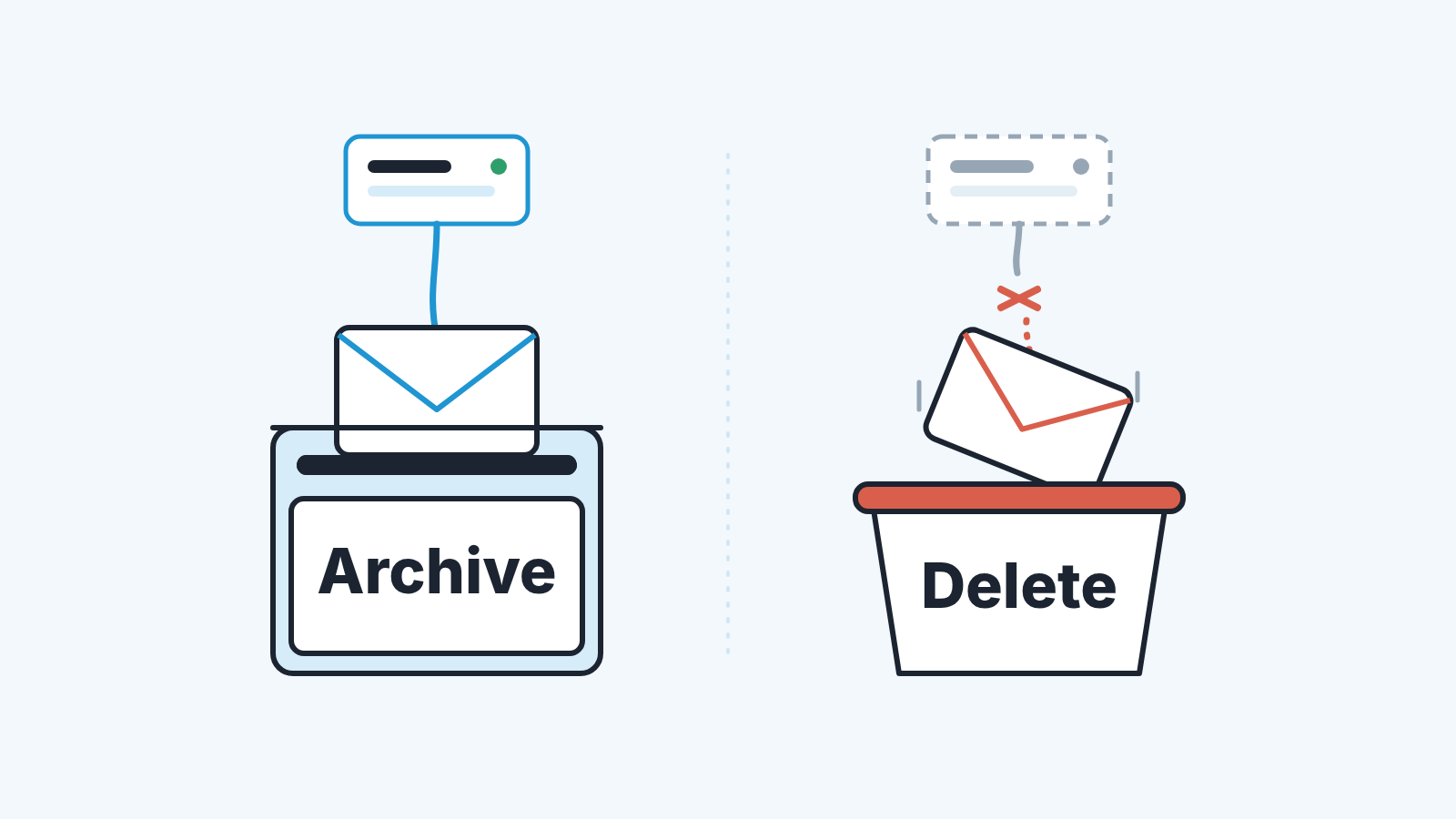
Archive an email in Gmail and Pipedrive archives it too; Pipedrive’s help article describes the Gmail sync as working “the other way around” as well. Either way, the archived email leaves the inbox but keeps its links to deals and contacts and still shows in their history (Pipedrive: archive and delete emails). Deleting is different in kind. A deleted email is removed from the Pipedrive account entirely, loses its links, drops out of every detail view and cannot be restored. So the question in the title has two answers: archive, and the deal keeps its history; delete, in your mail client or in Pipedrive, and that history is gone.
The help article explains the buttons. It does not tell a sales manager what an inbox clean-up does to a pipeline, or who should be allowed to press the second button. That is what this article is for.
Tidy inbox, untouched deal
A made-up scene, but one we have watched versions of.
On the last evening of the quarter, Inez Okafor, who sells onboarding packages to clinics, selects every Gmail thread older than two weeks and archives the lot. Among them is the proposal thread for a dental group still waiting on a revised quote.
Next morning her manager, Marcus Tell, opens that deal in Pipedrive for the quarter review. The thread is there in the history section, every message in place. Inez’s archive did reach Pipedrive, but archiving only moves an email from the inbox into the archived folder. The links to the deal and the contact stay.
Now change one detail: Inez deletes the same hundred emails instead. The dental group’s thread is gone from Pipedrive as well, and Marcus finds a thinner history with no way to tell what used to be there.
The scene is invented. The mechanism is not, and the second version is the one this article exists to prevent.
Archiving and deleting are not the only causes of a quiet deal; an email Smart Bcc could not link because the contact has a second open deal is another.
Archive and delete in Pipedrive are not neighbors: what each keeps
They look like a pair, since both clear an email out of the inbox. That is the whole problem. One is a filing action and the other is destruction, and the help article’s own comparison makes the gap plain (Pipedrive: archive and delete emails).
Archive moves the email out of the inbox into the archived folder, and that is all it moves. The email keeps its links to contacts, deals and other entities. It is still shown in detail views. It can be restored: open the archived folder, select the conversations, click Unarchive, and they return to the inbox.
Delete removes the email from Pipedrive entirely. The links to contacts and deals are dropped, the email no longer appears in any detail view, and there is no restore. The help article says it in one sentence: a deleted email is permanently removed from your Pipedrive account and can’t be recovered.
One thing this is not about: archiving deals and leads. That is a separate feature with its own trade-offs, covered in archiving old deals and leads in Pipedrive. Here “archive” means emails only.
So we never treat them as a pair. A rep can archive a thousand emails without telling anyone. A delete changes what the company knows about a deal, and it deserves a reason every time.
What the September change does for Gmail users, and who it does not cover
Pipedrive shipped two-way Gmail archiving in September 2026 (Pipedrive product updates). The help article puts it in one line: “Archiving or unarchiving emails in Gmail automatically archives or unarchives it in Pipedrive, and the other way around” (Pipedrive: archive and delete emails).
For a team on Gmail, the two inboxes now agree on what is filed, where before the the Pipedrive Sales Inbox could fill up with everything already dealt with in Gmail. Deal history is unaffected either way. Worth repeating to anyone who panics when a thread vanishes from their inbox: it moved, it did not leave.
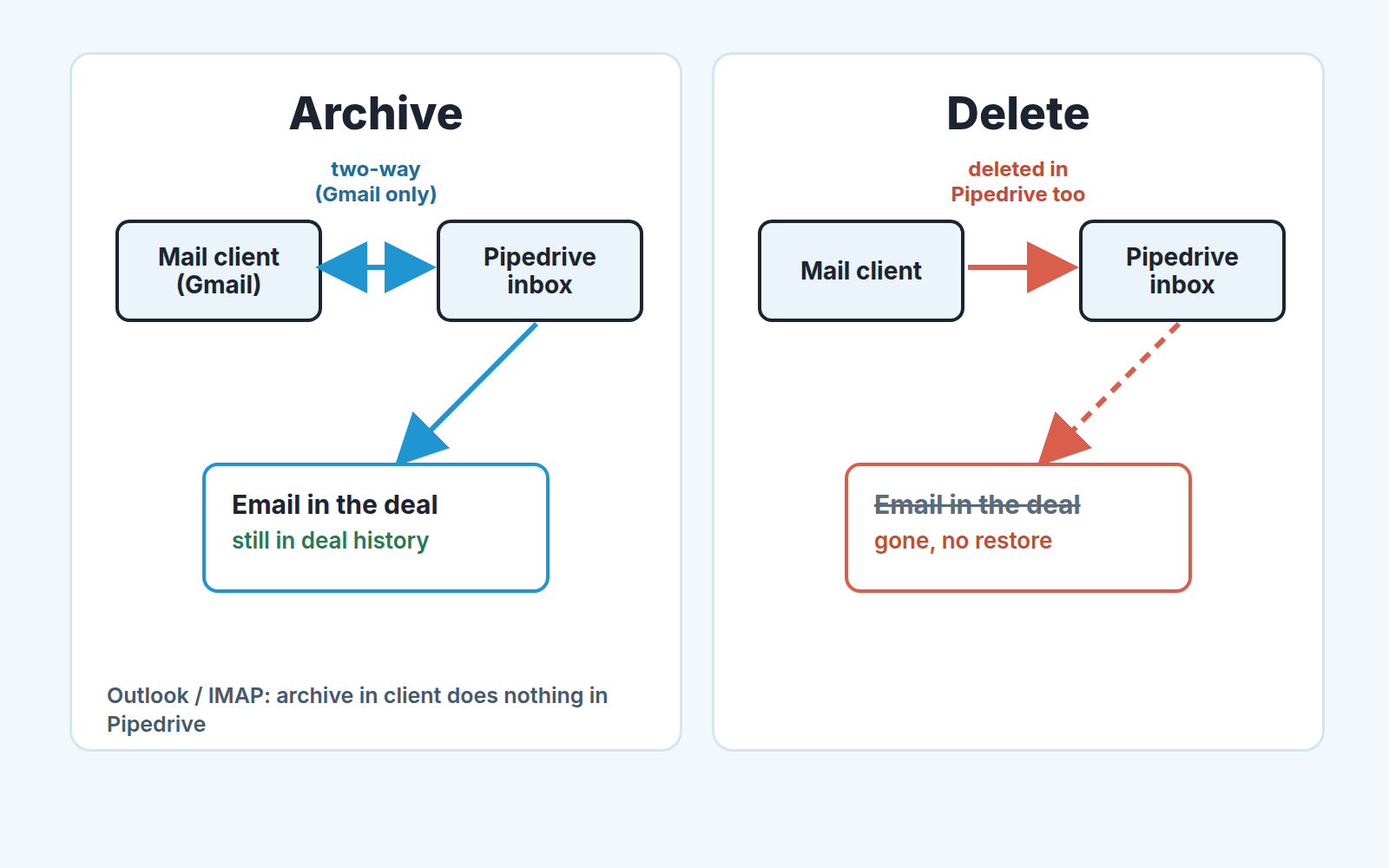
Who it does not cover matters just as much. In the help article’s words, “this two-way sync doesn’t apply to Outlook or other email clients connected through IMAP.” For those accounts, archiving in the mail client changes nothing in Pipedrive; the email stays in the Pipedrive inbox until someone archives it there. A mixed team, half on Google Workspace and half on Outlook, will see two behaviors from the same action, and the manager should know which reps are which before reading anything into a crowded or empty Sales Inbox.
Deletion has no such exception. The help article’s sync behavior table has a row for actions done in your email client. For Archive it says: “Has no effect in Pipedrive, except for Gmail-connected accounts.” For Delete it says: “Also deletes the email in Pipedrive.” No mail-client caveat on that second row. Filing syncs from the client only on Gmail; per the table, deletion syncs from any connected client.
The two checkboxes in Email sync settings
The direction from the mail client into Pipedrive is set by the sync itself. The direction from Pipedrive out to the mail client is yours to choose, and the help article describes it through two settings with long names: an archive in Pipedrive reaches your mail client only if the matching setting is on (Pipedrive: archive and delete emails).
- Open Personal preferences > Email sync > General Settings on a personal account, or Personal preferences > Email sync > Account on a team account.
- Find “Archive the message in my external email client when archiving it in Pipedrive”. With it on, an archive in Pipedrive also archives the email in your mail client.
- Find “Delete the message from my external email client when deleting it in Pipedrive”. With it on, a delete in Pipedrive moves the email to the trash folder in your mail client.
Both settings live under personal preferences, so each rep sets their own and a manager cannot see at a glance who has what. That earns a line in the team rule below.
We recommend the archive setting on for everyone who works out of Pipedrive’s Sales Inbox. It keeps the two inboxes honest, and since archiving never touches deal history their is no downside.
The delete setting is a judgment call, and we lean toward off. In the mail client a deleted email at least lands in the trash. The Pipedrive side of that delete is irreversible, and a rep who learned “delete just goes to trash” from Gmail will carry the habit into Pipedrive, where there is no trash. Leaving the box off does not make Pipedrive deletes safer. It removes the mental shortcut.
A delete can start in three places in Pipedrive: the Sales Inbox list view, where you select conversations and click the trash icon; the conversation view, with Delete in the top bar; and the detail view of a deal, lead, project, contact or organization, where the email’s dropdown in the history section offers “Delete this email” (Pipedrive: archive and delete emails). Managers meet the third one most, because it sits right in the deal they are reviewing. It’s also the one most likely to be pressed by someone cleaning up a card rather than a mailbox.
A team rule: archive freely, delete with a reason
Here is the rule we would put in a team’s working agreement, in words a manager can read out at the next team meeting.
- Archive is always allowed. Anyone can archive anything, in Gmail or in Pipedrive, at any volume, without asking. It does not change what the deal knows.
- Delete needs a reason, and the reason is written down. The accepted reasons are short: the email was linked to the wrong deal or contact and relinking is not possible, the email is someone else’s correspondence that landed in the sync by mistake, or it contains something that should not be in the CRM at all. “Cleaning up” is not a reason. Before deleting, the rep leaves a one-line note on the deal saying what was removed and why.
- Delete no faster than the review cadence. If the manager reviews deals weekly, a rep does not delete from an open deal between reviews, it waits for the review, where the manager sees it first. For closed deals the same applies for as long as the team keeps them readable.
- Everyone knows their own two checkboxes. The archive setting on, the delete setting as the team decided, and the manager asks about it once during onboarding rather than discovering it after a loss.
The second point carries the weight. A reason that has to be written down is a reason that gets checked, and we would bet most deletes would not survive being typed out.
The rule also covers managers. “Delete this email” sits right in the deal history, and tidying a card before a forecast call is tempting. Managers archive too. They do not delete from a rep’s deal without the rep in the room.
A disclosure, since this is where tooling comes into it: we build SalesBond, a sales management layer on top of the CRM a team already uses; we started with Pipedrive. Deal Health runs more than 20 rules against every deal and puts the ones that need attention in front of the manager, which helps here for a plain reason: a deal whose history got thinner will not announce itself. Check your CRM with SalesBond if you want that list built for you. The rule above is still the thing that stops the history from thinning in the first place.
When you can skip all this
If your team’s email is not synced with Pipedrive, none of this applies, and a rule for it would be a rule nobody can break. Email sync is available on Growth and higher plans (Pipedrive: archive and delete emails); a team that logs emails by hand has a thin deal history to begin with, which is a different problem.
If only some reps have sync on the rule is still worth having, but it is a rule for those reps. Be explicit about who is covered. The failure mode of a half-synced team is not deletion; it is a manager reading an empty history as a silent customer, and we have written separately about why a deal looks silent when the rep’s emails are Private. Settle the visibility rule before anyone writes a delete rule, because an email a manager cannot see and an email that was deleted look identical from the deal.
Shared mailbox or team alias? Read the team inbox article first. An email that never went out is a different gap again, covered in failed emails and the follow-up gaps they leave.
Everyone else, on Gmail with sync on across the team: let people archive as much as they like, treat delete as a decision with a name on it, and put the delete checkbox on the onboarding list next to the one about bulk edits. Clean the inbox on the last day of the quarter if you like. The deal will still be whole at the review.


