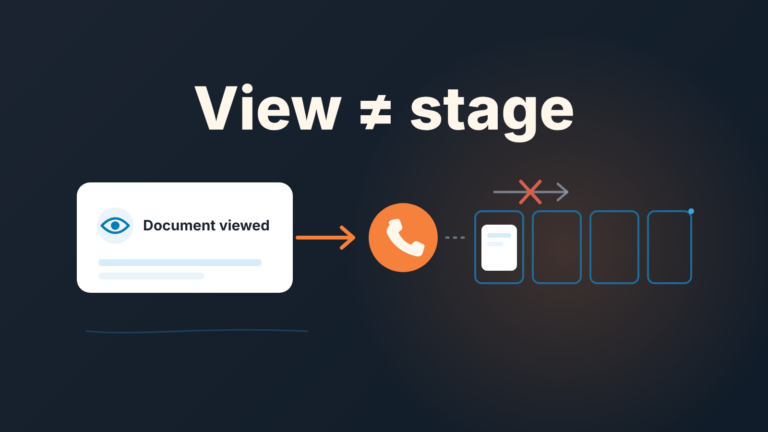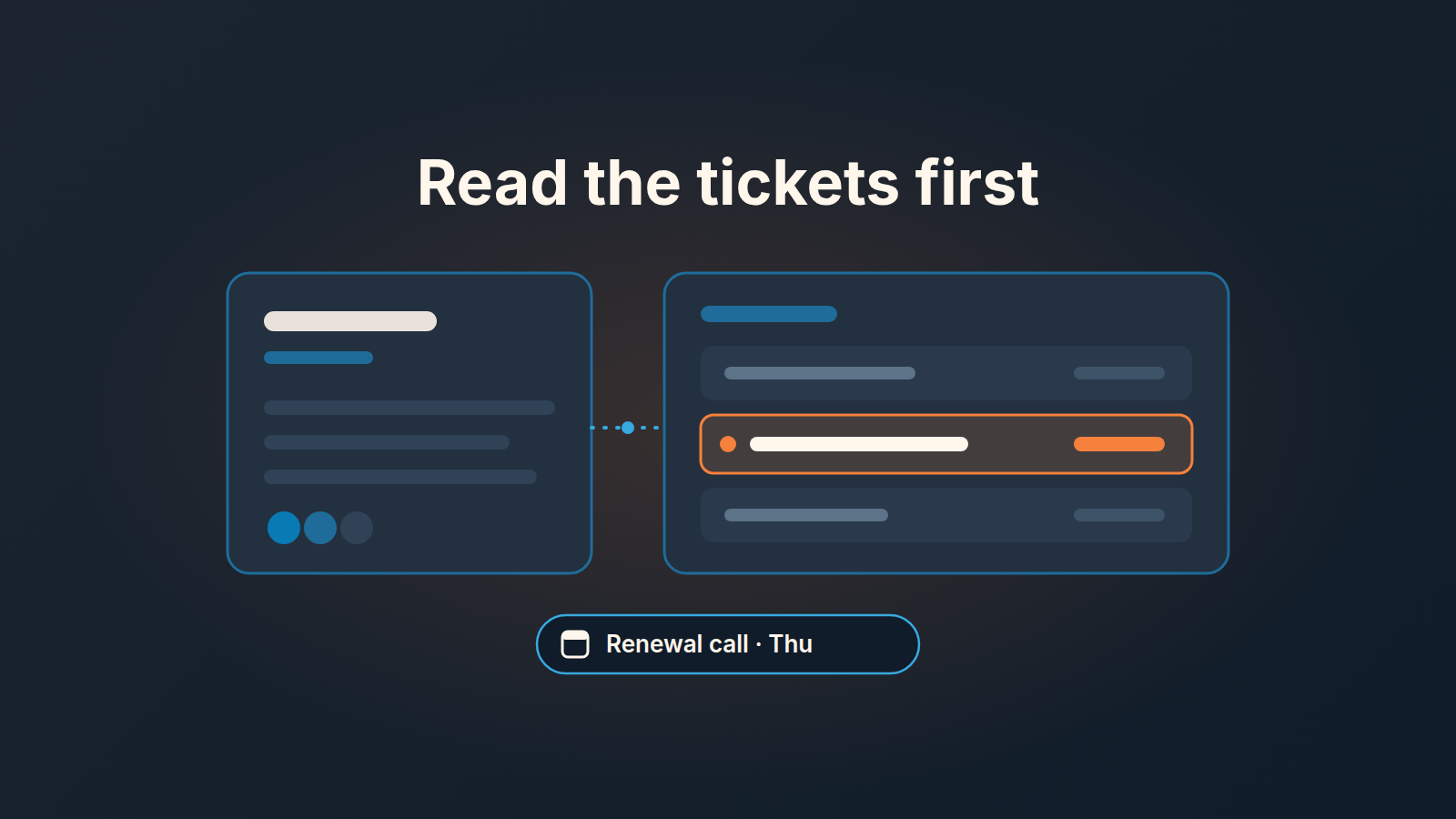
Before a renewal or upsell call, open the customer’s Zendesk panel on the Pipedrive deal, organization or contact and look for three things: tickets still open, the same problem raised more than once, and tickets from people who are not on the deal. That is what the Pipedrive Zendesk integration is for at renewal time. If a ticket you expect is missing, check whether the requester’s email matches a person in Pipedrive; if it does not, add that email to the person or create them. If the person exists but is not the deal’s contact, add them as a deal participant and their tickets link to the deal. The whole check takes about three minutes, and it is the difference between opening with “how has the year been” and opening with “I saw the export issue from last Tuesday is still open, let’s start there”.
The renewal call where the deal says nothing about three weeks of waiting
Here is the version of this story I have watched more than once. A rep books the renewal call six weeks out, as the process says. The deal looks clean: expected close date set, next activity scheduled, last note from the handoff. The rep opens with the roadmap. The customer lets them finish and then says that the only thing they care about is a ticket nobody has answered in three weeks.
The rep was not lazy. The information lived in a different system, and nothing in Pipedrive told them to go look. Support knew. Sales did not. The customer assumed they were one company.
When Zendesk is connected to Pipedrive, this gap closes, but only if someone reads what is there. The integration brings tickets into the CRM. It does not read them for you, and it does not write the opening line of the call. That part is still a person with three minutes and a habit.
Where the Zendesk integration shows tickets in Pipedrive
Setup is short: install the Zendesk app from the Pipedrive Marketplace and sign in with your Zendesk account. After that, tickets linked to a contact, an organization or a deal appear in a Zendesk panel on that record’s detail view, with ticket details such as subject, status, requester, priority and last update (Pipedrive: Zendesk integration FAQ).
The same help article settles how to read the panel. The sync is two-way and contextual, and it does not overwrite Zendesk data: Pipedrive gets visibility, Zendesk stays the place where tickets live. To edit an existing ticket, you follow the quick link to it in Zendesk. A rep with the right permissions in Zendesk can also create a new ticket straight from the deal, which is handy when the customer mentions a problem on the call and you want it in the support queue before you hang up. It works the other way too: in Zendesk, the sidebar shows the deals that match the requester’s email, so support can see that a renewal is coming.
Since the December 2025 update, the ticket conversation and its notes are readable inside Pipedrive, and you can add a note to the ticket from there (Pipedrive product updates). That is what makes the pre-call check realistic. You can read the thread and add a note without leaving Pipedrive, so finding out what “pending” actually means is one click down on the same record.
For a renewal I open the organization first, because the renewal is a company decision, and the deal second.
Three minutes before the call
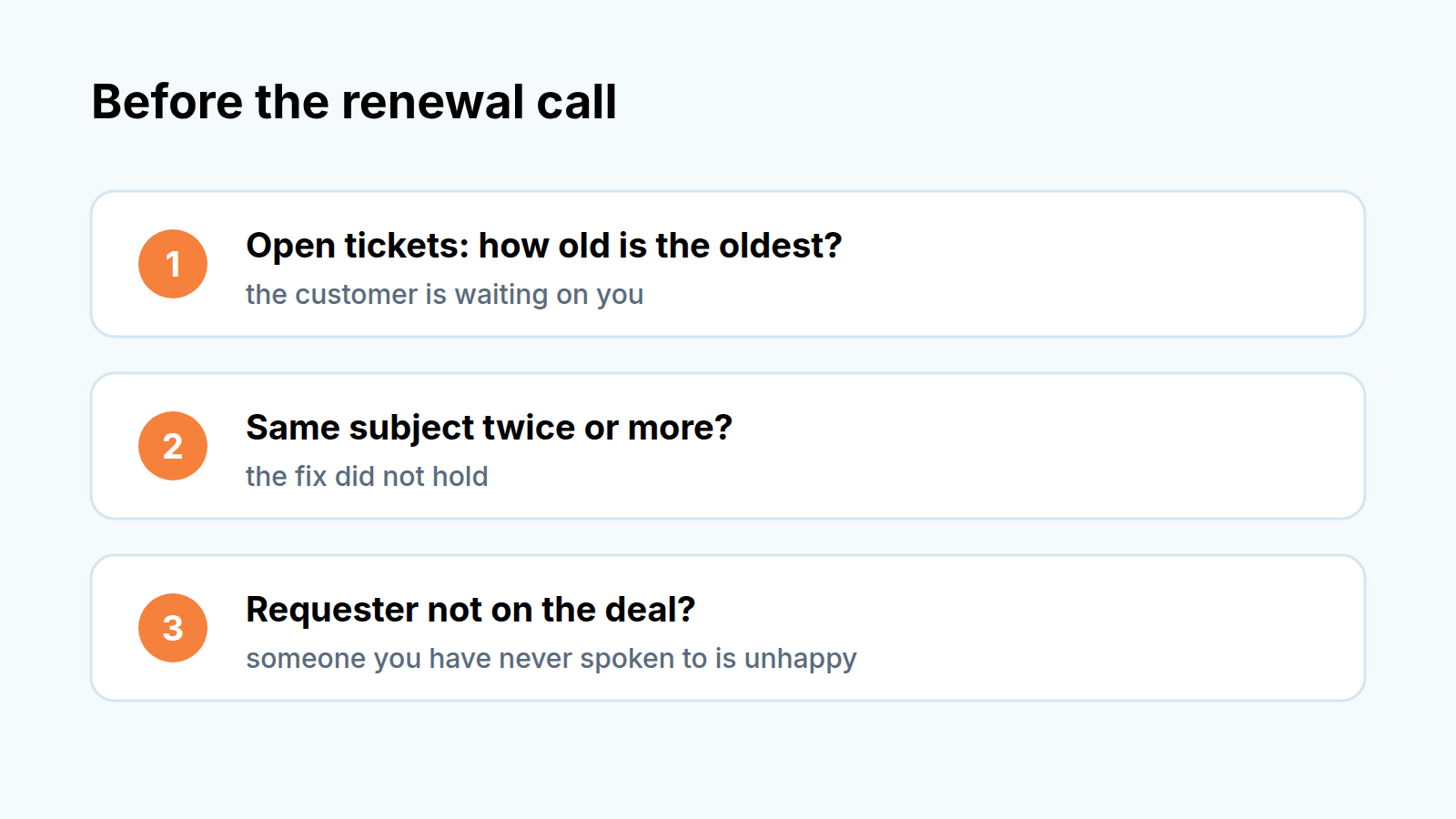
Don’t read every ticket. Answer three questions from the panel, in this order.
- Anything still open, and since when? Sort by status in your head: open and pending first. Then look at last update. A ticket opened yesterday is a conversation you can mention. A ticket last touched three weeks ago is the first thing the customer will raise, so you raise it first and you do it with the ticket number in hand. If the customer has just received a price increase notice, raise an old open ticket before you talk about the new price.
- The same subject twice or more. Scan the subjects for repeats: “invoice”, “export”, “login”, whatever the product’s sore spots are. A repeat means the fix did not hold or the workaround never became a fix. Closed status does not help you here; a problem closed three times is a problem the customer has learned to live with. That is the account most likely to go quiet at renewal without ever complaining to sales.
- A requester you do not know. Compare the requesters against the people on the deal. If the tickets come from someone who is not the contact and not a participant, you have an influencer you have never spoken to, and quite possibly the person who actually uses the product every day. Thier opinion will reach the decision-maker before your proposal does.
That’s it. Read the full thread only on the tickets these questions flagged.
One rule I hold to: an open ticket older than two weeks gets handled before the pitch starts. Ask support for an answer or an honest timeline, then open the call with that. A customer who hears “here is where that stands” in the first minute listens to the rest. A customer who has to bring it up themselves has already decided how the call goes.
When the panel is empty, the email probably does not match
An empty Zendesk panel on a customer you know has been writing to support? The first thing to check is whether the requester’s email matches a Pipedrive contact. The ticket is linked through that email, and without a match it stays in Zendesk and never reaches the panel (Pipedrive: Zendesk integration FAQ).
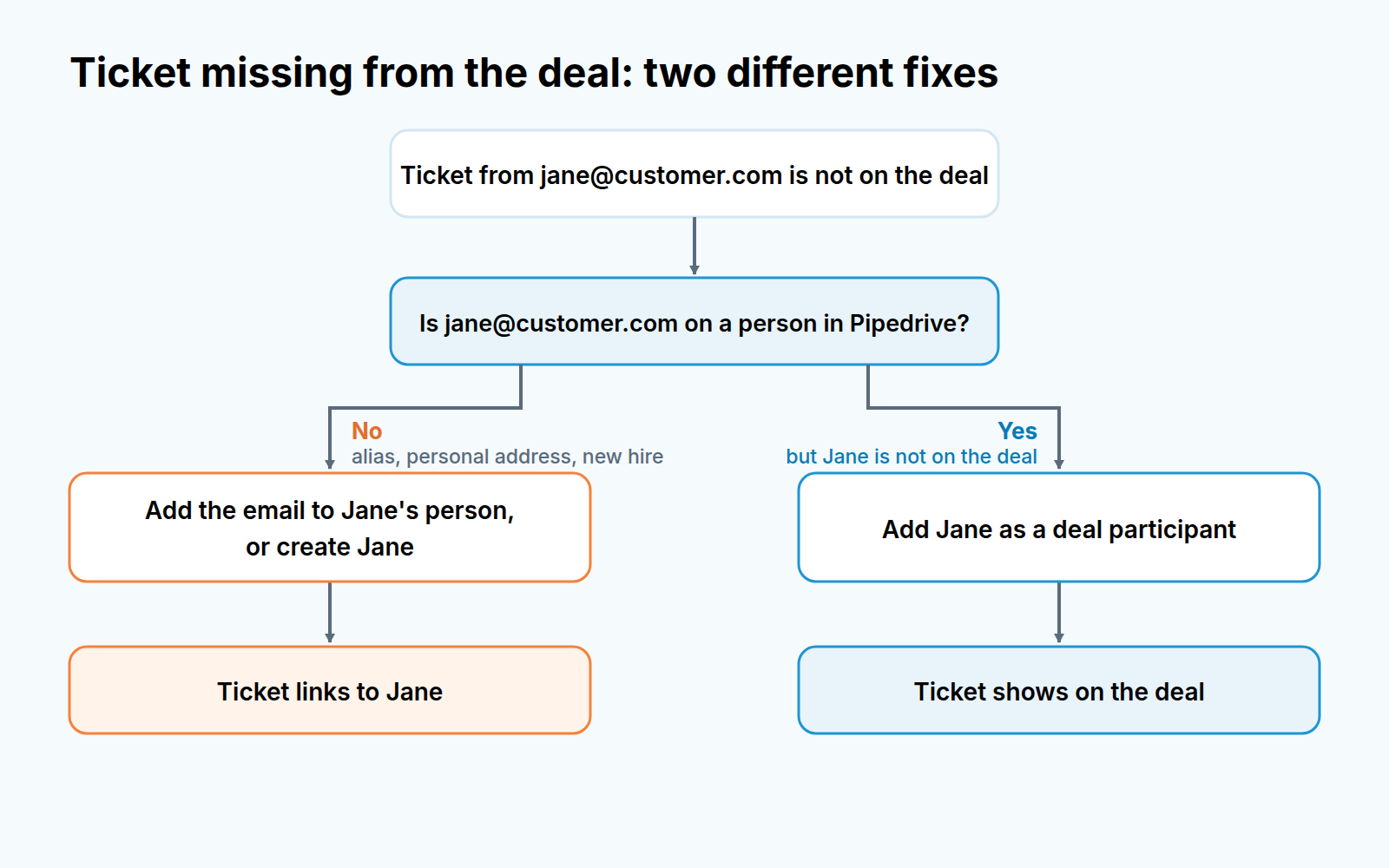
This happens in ordinary ways. Support gets written to from a shared alias like billing@ while the the CRM holds a named person. A new hire on the customer side starts filing tickets before anyone on your side has heard of them. Someone writes from a personal address at nine in the evening because the office laptop is locked.
Pipedrive’s help treats two cases separately, and they need different fixes. If no person in Pipedrive carries the requester’s email, add that address to the right person or create the person. If the person is there but is not the deal’s contact, add them as a participant on the deal, and their tickets link to it. The mechanics of adding and switching participants are in our guide to deal contacts and participants in Pipedrive, so I will not repeat them. Either way, the fix for a missing ticket is a CRM-side action, and it is the rep’s to take, not support’s.
So the habit is: when you learn that someone at the customer has been talking to support, make sure their email sits on a person in Pipedrive and that person is on the deal, the same day. It takes a minute, and the next pre-call check is complete without anyone going hunting in Zendesk.
What goes into the deal afterwards
Do not paste the ticket into the deal. The thread is already in Pipedrive via the panel; copying it into a note creates a second copy that goes stale the moment support replies.
What the deal needs is one note and one next step, written for the colleague who opens the deal next week and has thirty seconds. The note answers: what did the tickets tell me, and what did I decide to do about it. Something like:
Pre-call check 5 Oct: 2 open tickets (export failing since 14 Sep, ticket from M. Ortiz who is not on the deal). Asked support for a fix date before Thursday. Added Ortiz as participant. Opening the call with the export issue.
Four lines. The next step is the activity: a call with the support answer in hand, or a follow-up to the person you just added. A deal with a note like that is honest in the pipeline review, and the forecast conversation about it is short.
If the handoff from closed-won set the deal up well, this note is the natural continuation of that record; the closed-won handoff checklist for Pipedrive covers what should already be on the deal before the first renewal cycle starts. The pre-call note is the renewal-time addition to it.
Whose job the check is
The rep who owns the renewal does the check, nobody else. The person who will be on the call is the only one who can turn a ticket into an opening line.
In teams with a separate account manager and a closer the account manager checks and the closer gets the four-line note. In a team of three where everyone does everything, whoever booked the call checks. What does not work is “support will flag anything important”, because support’s definition of important is a severity level, and yours is whether the customer renews.
One escalation rule is worth writing down. If the three-minute check turns up an open ticket older than two weeks, or the same subject twice or more, the rep tells the manager before the call, not after. The manager decides whether to bring support onto the call, move the call, or go in with a concession ready. A rep should not be making that choice alone two minutes before dialling. Who owns the renewal itself, and how the handoffs between roles should work, is a separate question that our renewal process article deals with; this piece is only about the tickets.
What the tickets will not tell you
A ticket says that something broke and whether it was fixed. It does not say how the customer feels about it, and I would be careful with anyone who reads mood into ticket volume. A quiet panel can be a happy customer or one who has drifted away; the renewal process article covers how to tell in its section “Early signs a customer is drifting”.
Tickets also say nothing about budget, about whether the sponsor still works there, or about where this customer is in their own buying rhythm. A reorder customer can be late by a measure no support queue tracks. Which accounts have gone silent in the CRM is the subject of our piece on finding inactive customer accounts with a Pipedrive filter, and I will leave that there.
A disclosure, since this is where it fits: we build SalesBond, a sales management layer on top of the CRM a team already uses; we started with Pipedrive. Its Customer Health section works from exactly that buying cycle: the median interval between a customer’s purchases, and the time since the last one, which puts each customer at on track, overdue or leaving. No score, no rules to tune, and no reading of tickets. It tells you who is late. The tickets, read by a person for three minutes, tell you why they might be. You want both before the call, and only one of them can be automated. Check your CRM with SalesBond if the “who is late” list is the part you keep losing track of.
For the rest, keep the habit small enough to survive a busy week: organization panel, three questions, one note, one next step. If prepping the call itself is the bigger problem, the call prep routine for Pipedrive teams picks up where this check ends.